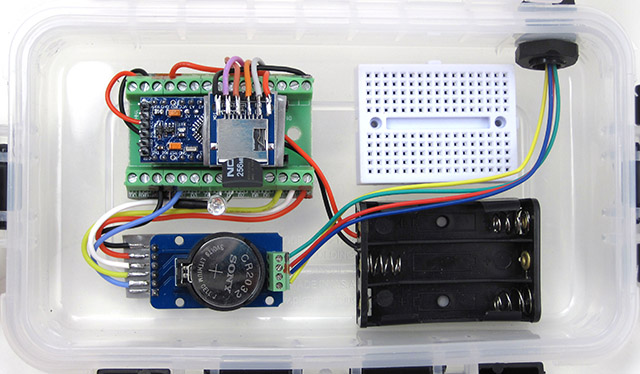
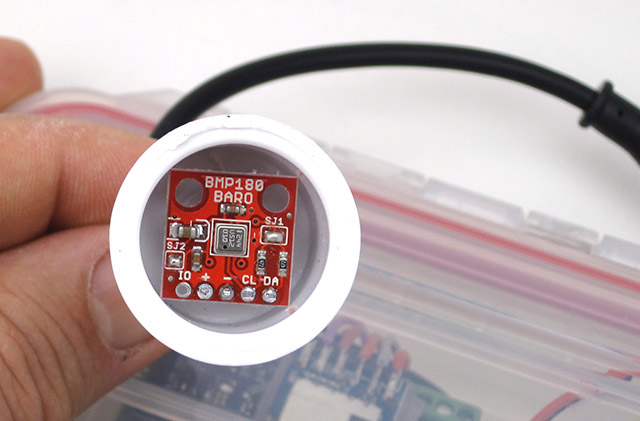
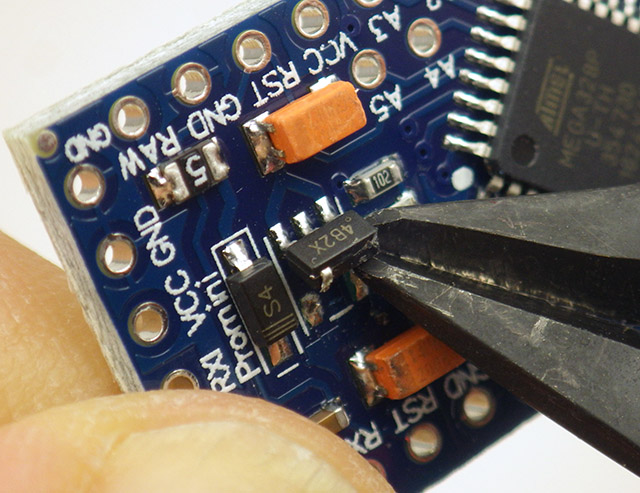
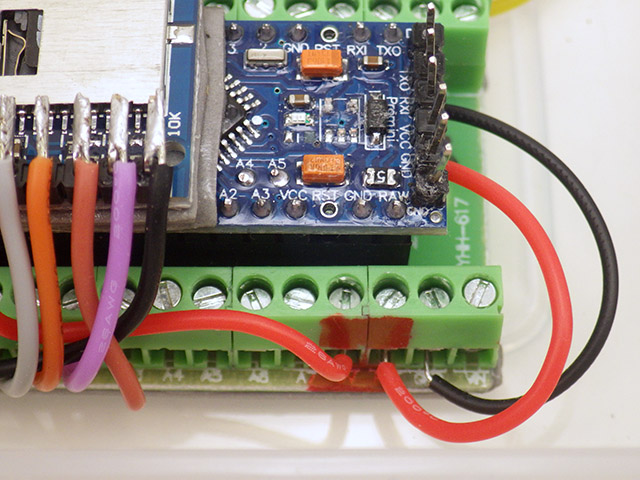
Category Archives: DIY Build a Pro Mini Logger

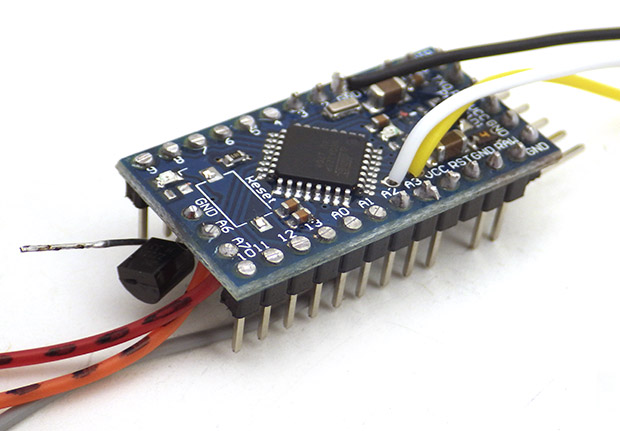
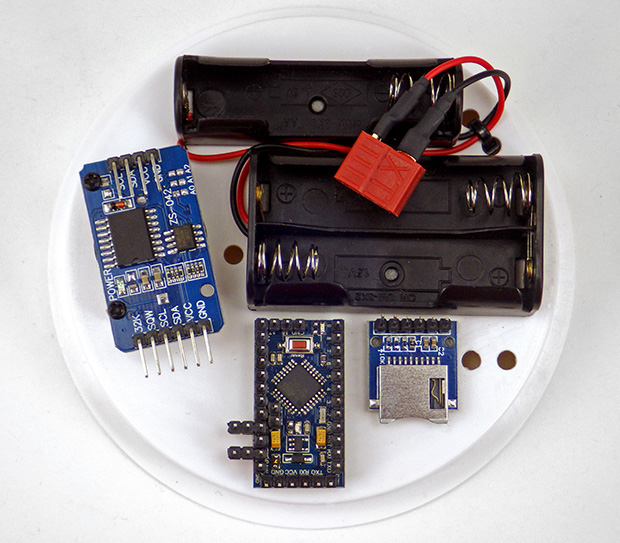
… from a few inexpensive components …

For an in-depth description of the Cave Pearl loggers and their performance
see: http://www.mdpi.com/1424-8220/18/2/530

Pro Mini Logger Project for the Classroom [ EDU Jan: 2019 ]

Note: An updated tutorial was released in 2020:  CLICK THIS LINK to view that version


“Instrumentation is a central facet of student, amateur and professional participation in science. STEM education, recruitment of scientists and experimental research are thus all hampered by lack of access to appropriate scientific hardware. Access restrictions occur because of: 1) lack of capital to purchase or maintain high-cost equipment, and/or 2) the nature of proprietary ‘black box’ instrumentation, which cannot be fully inspected, understood or customised…
…In addition to reducing opportunities for people to engage with science, this lack of access to appropriate hardware restricts scientist’s creativity in experimental designs.”

From: Journal of Open Hardware
Expanding Equitable Access to Experimental Research and STEM Education

by Supporting Open Source Hardware Development


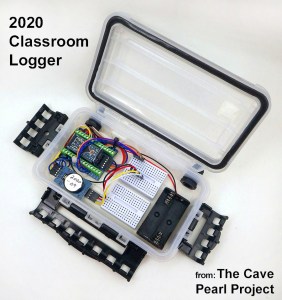
Last year’s intense deployment schedule focused on getting more sensors into the field, which left little time for development of new approaches to the logger itself.  Now that everything is settling into the school term routine, it’s time to update the “classroom edition” of the Cave Pearl Logger with feedback from three years in the trenches: 

The 2016 build achieved it’s goal reducing construction time, but it was low on important skills like soldering. Limited lab time meant that something had to give if we want students to “pay the iron price” for their data, so we’ve added a pre-made enclosure box. Though it’s not as robust as the PVC housings, it provides more room inside the housing. Past student projects have required things like 555’s, ADS1115 modules, display screens, etc. and the proto-board will make it easier to integrate those additional components.

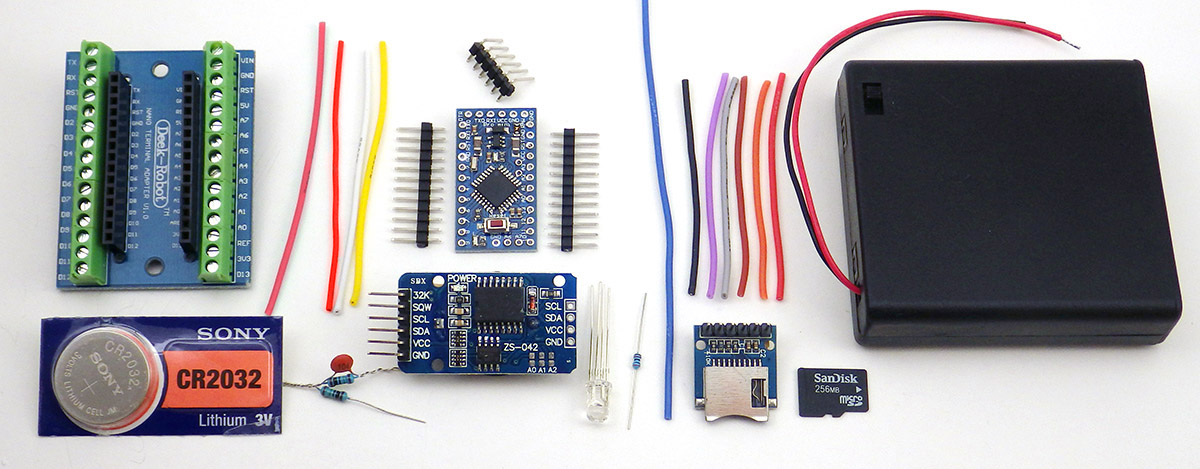
PARTS & MATERIALS

TransparentSinglePixl
Bill of Materials: $18.35
Plano 3440-10 Waterproof Stowaway Box
Usually cheaper at Amazon as “add-on” items.  $4.96 at Walmart and there are a selection of larger size boxes in the stowaway series. 6″ Husky storage bins are an alternative option.
$5.00
4Pin 24AWG IP65 Black Waterproof Cable Connector OD 4mm
Better quality version is available at Adafruit for $2.50 each, wBL-RED-Wht-Yel colors used here for the I2C bus.
$1.00
M12 IP68 Nylon Cable Gland
Adjustable for 3mm-6mm diameter. You need two for the build. Make sure they include O-rings.
$1.00
3/4″ Schedule 40 PVC Cap
Diameter will depend on the size of your sensor breakout board. Get ones with FLAT ends.
$1.00
White 170 Tie-Points Prototype Breadboard
Available in other colors.
$0.60
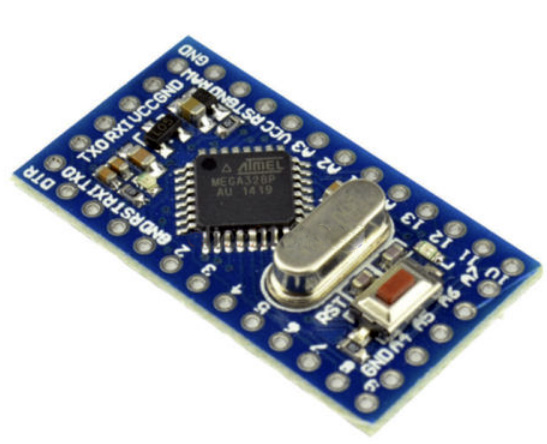
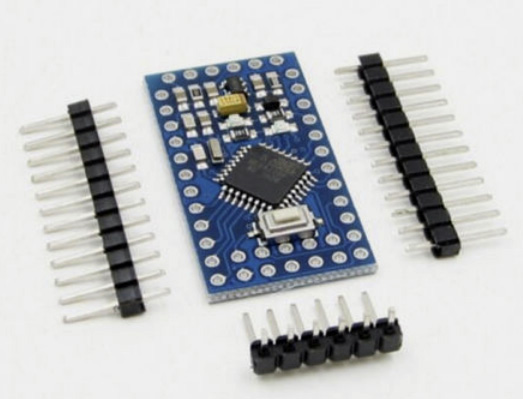
Pro Mini Style clone 3.3v 8mHz
Get the ones with A6 & A7 broken out at the back edge of the board.
$2.20
Nano V1.O Screw Terminal Expansion Board
Note: To save time, you can spend an extra $1 for pre-assembled boards by Deek Robot, Keyes, & Gravitech (CHECK: some of them have the GND terminals interconnected)  Have a few small flat head screw drivers handy.  
$1.05
DS3231 IIC RTC with 4K AT24C32 EEprom (zs-042)
Some ship with CR2032 batteries already installed.  These will pop if you don’t disable the charging circuit!  
$1.25
CR2032 lithium battery  $0.40
4 poles/4 Pin 2.54mm 0.1” PCB Universal Screw Terminal Block Connector
These things look “open” when they are “closed”, and you need a very small screw driver to open them.
$0.40
SPI Mini SD card Module for Arduino AVR
Buy the ones with four ‘separate’ pull-up resistors so that you can remove them.
$0.50
Sandisk or Nokia Micro SD card 256mb-512mb 
 Test used cards from eBay before putting them in service. Older Nokia cards have much lower write currents in the 50-75mA range. This is less than half the current you see on more common larger sized cards.
$2.00
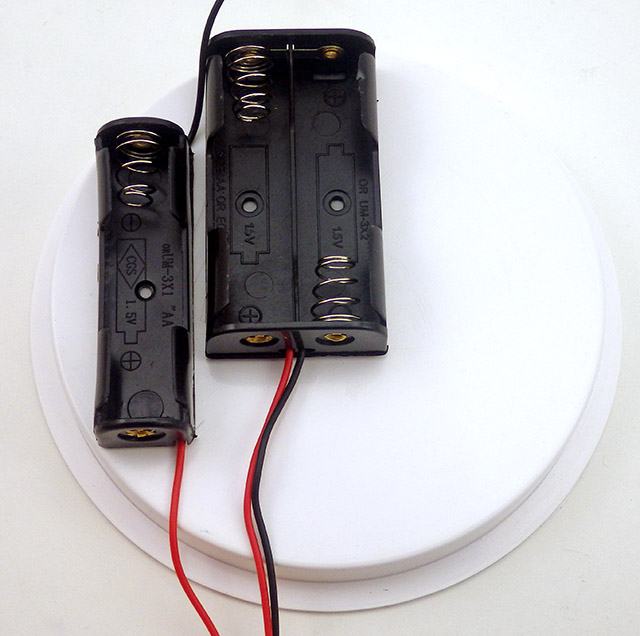
3×1.5V AAA Battery Batteries Holder w Wire Leads
The Pro Mini regulator will handle battery packs holding from 3 to 8 AA or AAA batteries. If you are using alkaline AAA batteries, changing this to a 4xAA battery holder doubles the run time.
$0.40
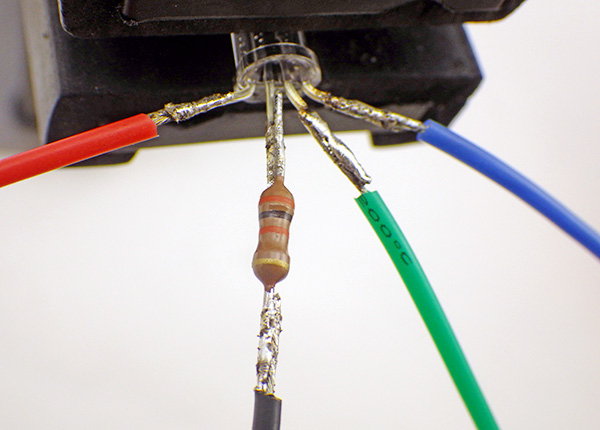
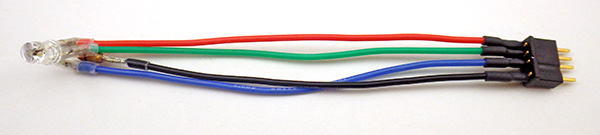
Common Cathode Bright RGB LED 5mm 
( & 4k7 limit resistor) 
$0.05
3M Dside Mounting Tape10MΩ resistors & 3MΩ resistors, 22awg silicone wireheader pins, etc… $0.50
Donation to Arduino.cc
If you don’t use a ‘real’ Pro Mini from Sparkfun to build your logger, you should at least consider sending a buck or two back to the mothership to keep the open source hardware movement going…so more cool stuff like this can happen!
$1.00
Comment:   You might need some extra parts to get started:                (not included in the total above)
2in1 862D+ Soldering Iron & Hot Air station Combination
a combination unit which you can sometimes find as low as $40 on eBay.
Or get the Yihua 936 iron alone for about $25.
$50.00
3.3V 5V FT232 Module
  ***Be sure to set the UART module jumpers to 3.3v before using it!*** and you will also need a USB 2.0 A Male to Mini B cable.
$2.75
Micro SD TF Flash Memory Card Reader
Get several, as these things get lost easily. My preferred at the moment is the SanDisk MobileMate SD+ SDDR-103 which can usually be found on the ‘bay for ~$5.
$1.00

Connection Diagram:

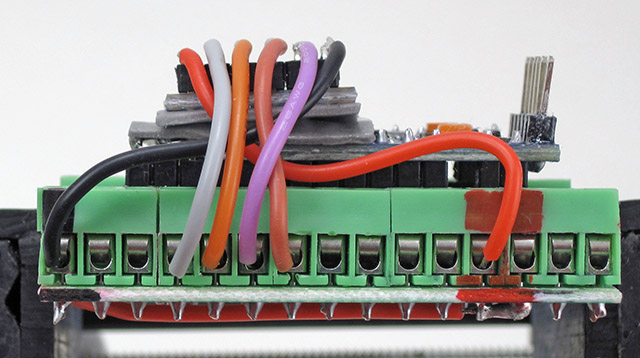
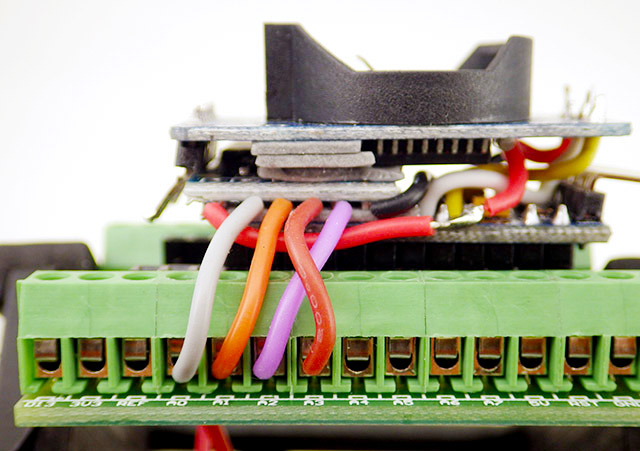
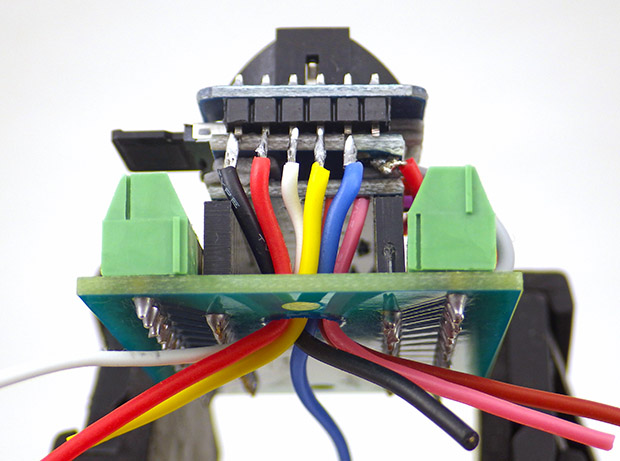
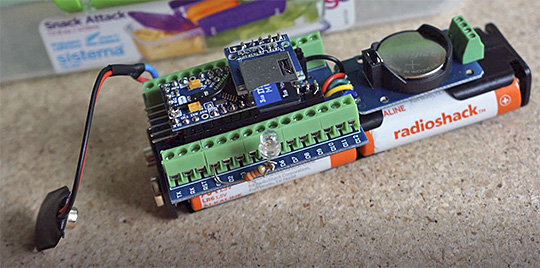
This logger uses the same three components described in the paper from 2018, but we now connect those core modules via a screw-terminal expansion shield, rather than soldering them directly to the pins:
 
COMPONENT PREPARATION

Watch through the videos as a complete set first so you know where you are going, and then use the images below the videos to remind you of the key steps while you do the assembly; It usually goes much faster working from a photo where you can see all the connections at once. The times listed are estimates for people with soldering experience. If you’ve never built a circuit before, then taking 3-4x that long is completely normal. Don’t worry about it – you will be surprised how much faster you get with a little practice!

Screw Terminal board:  (~40min)  or ( 5min with pre-assembled board)

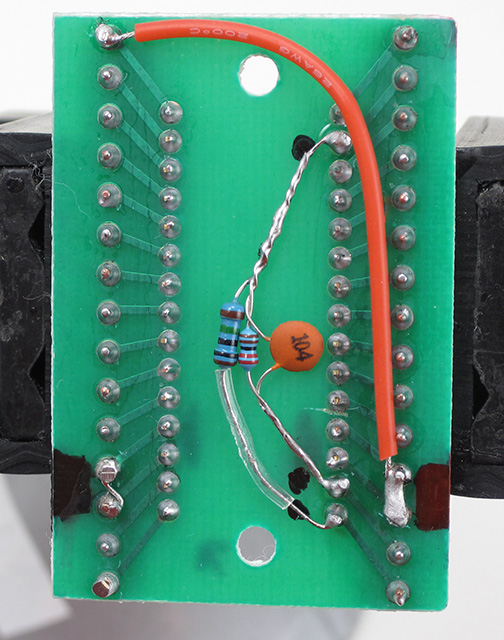
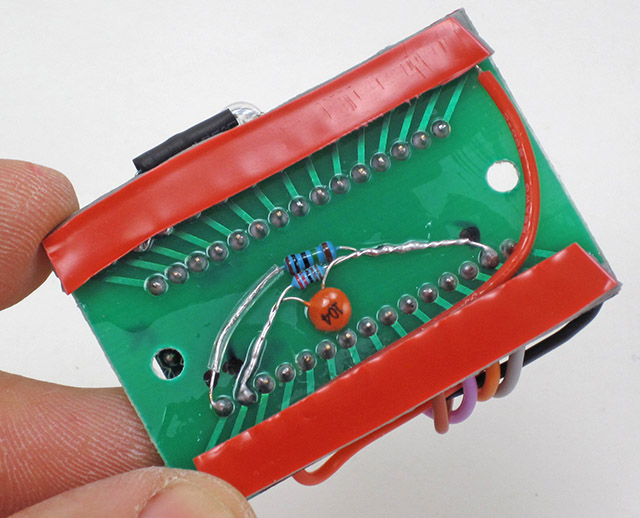
Don’t forget to measure the values of the resistors before soldering that voltage divider. You will need those values to calculate the battery voltage based on the ADC readings from pin A6.

These screw terminal boards are designed for an Arduino Nano, but if you orient the board to the Tx/Rx pins, the labels on digital side of the shield will be correctly aligned with the Pro Mini:
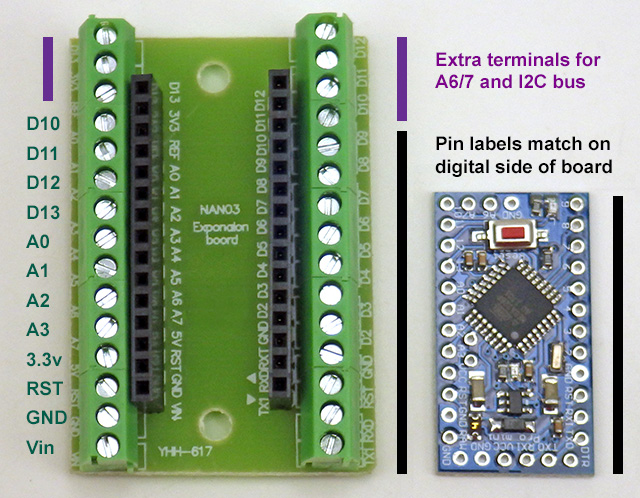
The most common beginner errors at this stage are crooked headers & not heating the pad/pins long enough for solder to flow properly.  This is often because students are trying to use an iron tip that has “gone dry” so the heat is not transferring properly to the pins. You must protect soldering iron tips with fresh solder every time you put it in the stand to prevent oxidation. Tip Tinner can sometimes restore those burnt tips.   {Click images for larger versions}

Common soldering errors – which are easily fixed by re-heating with more solder & flux.

Divider runs between GND & RAW Vin, with output to A6 pin.

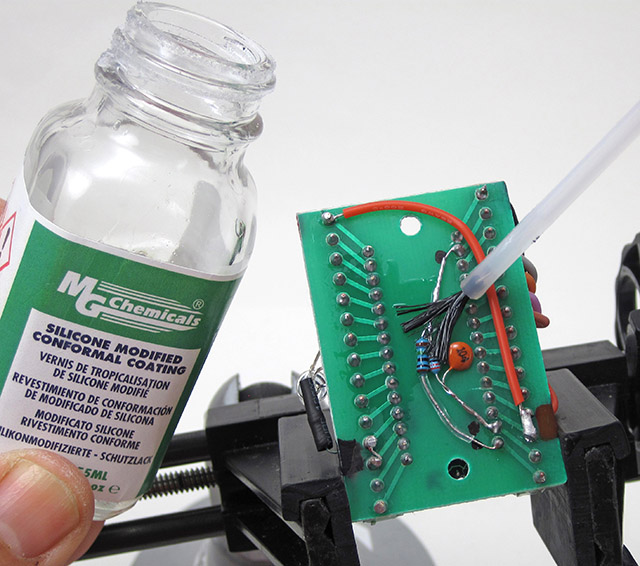
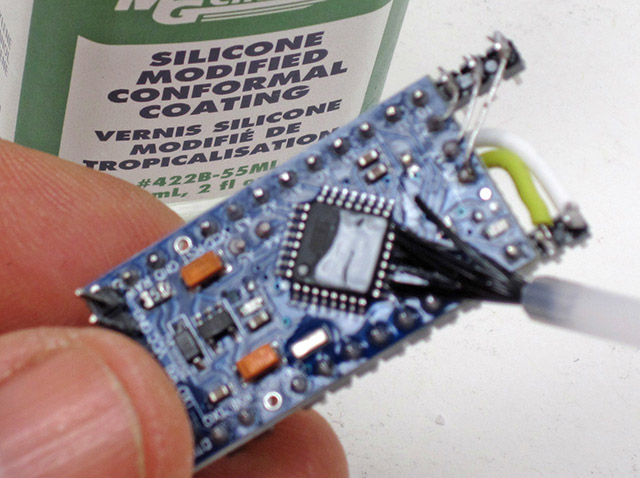
Always apply conformal coating in a well ventilated space, such as a fume hood.

It is better to err on the side of using a little too much heat, because partial connections to the screw terminals will cause you no end of debugging grief later: Cold solder joins can “sort of” work “sometimes”, but cause mysterious voltage drops over those points because they can act like randomly variable resistors in your circuit.  Note: This voltage divider uses meg-Ω size resistors and takes >1 second to charge the capacitor when the unit is first powered on – so you can’t take the first battery reading until that much time has passed.

The Pro Mini Board:   (~40 min)

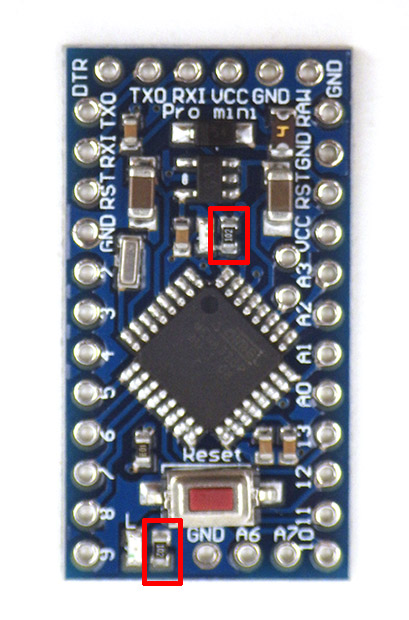
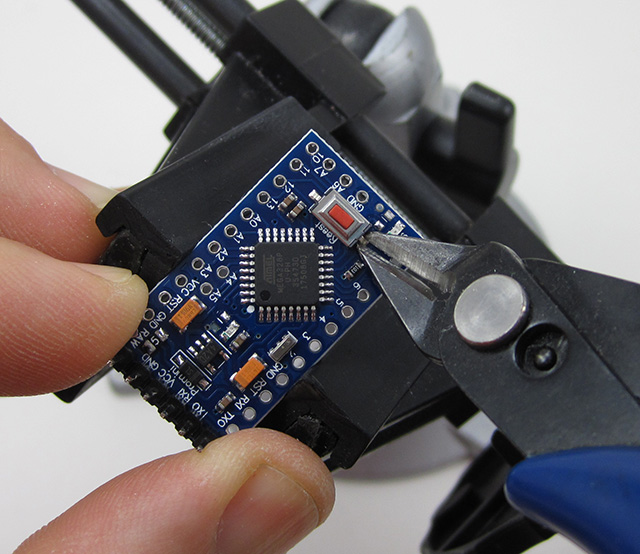
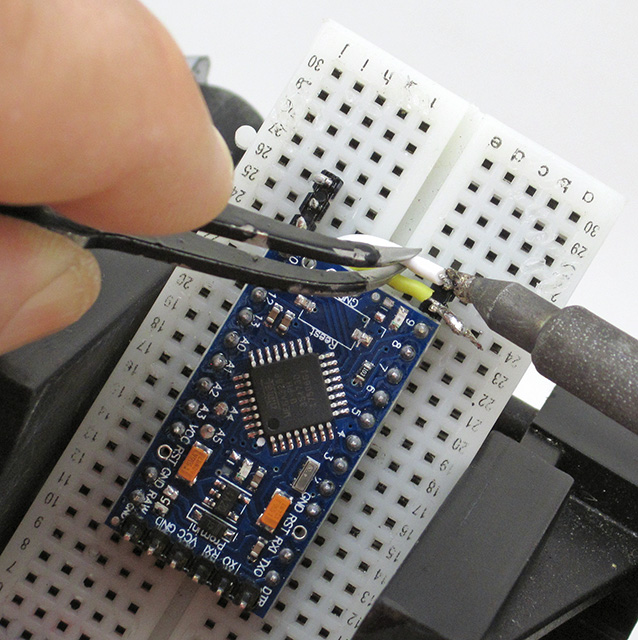
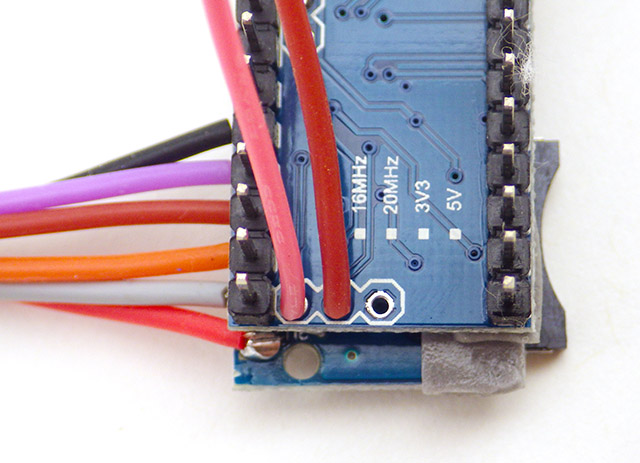
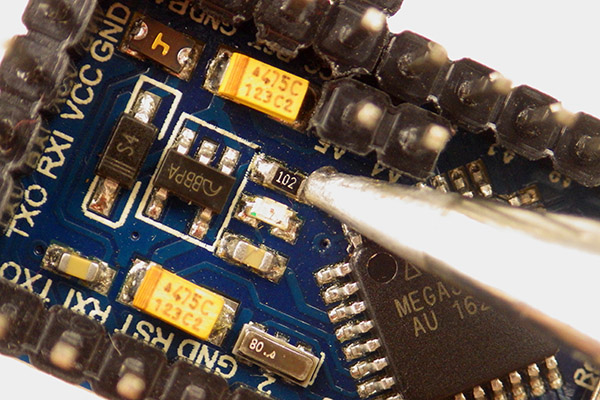
~5-10% of the cheap Pro Mini clones from eBay are flaky, and it is quite annoying to discover one of those that after you have assembled a logger. So test your board with the blink sketch before you remove pin13 LED resistor.  These limit resistors move around from one manufacturer to the next, so you might have to go hunting for them on your particular board.  You also need to remove the RESET switch from the board, or that button will be compressed when you put the SD card adapter in place:
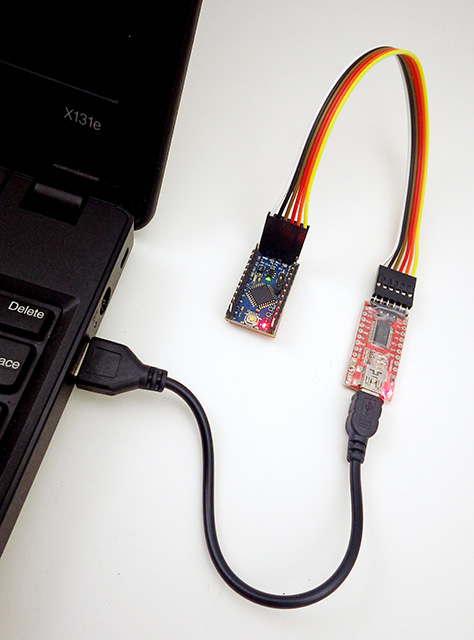
Test w blink sketch!

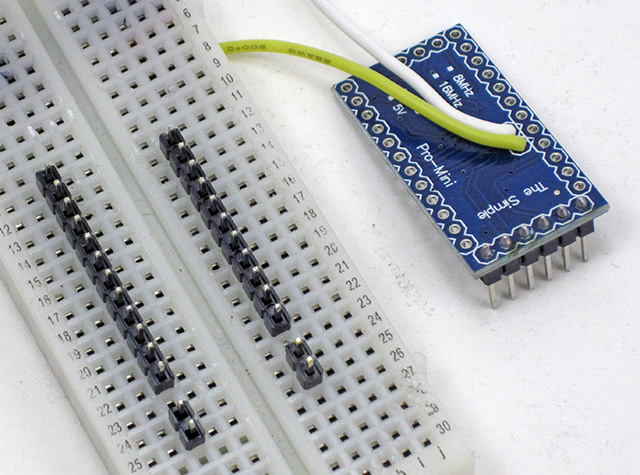
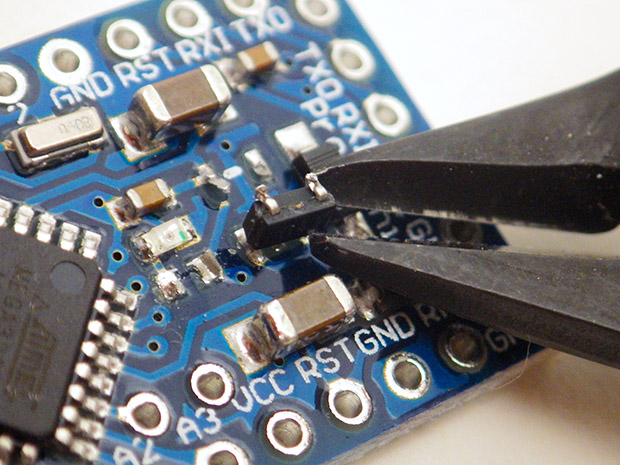
You can skip the reset pins at this stage, or you can pull those pins out of the plastic rails later with pliers, or simply cut them off.

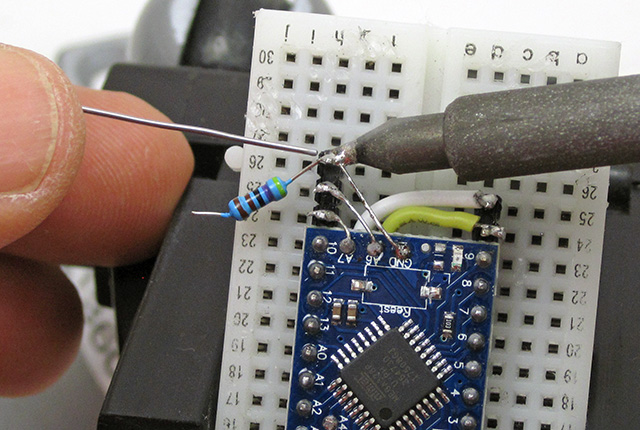
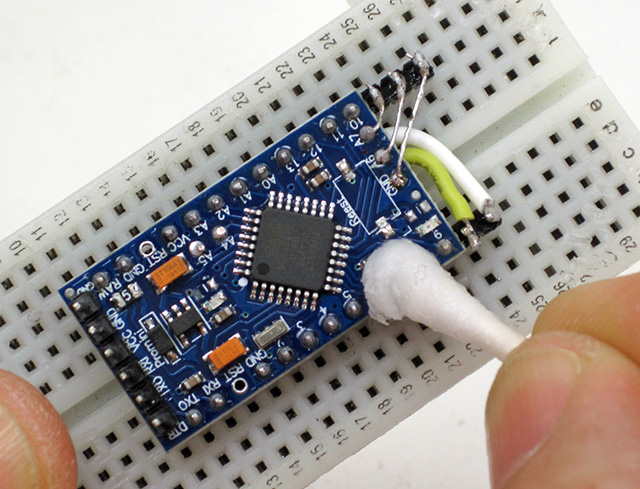
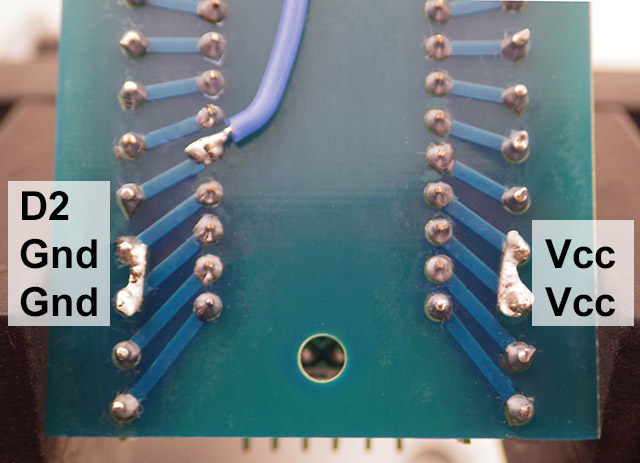
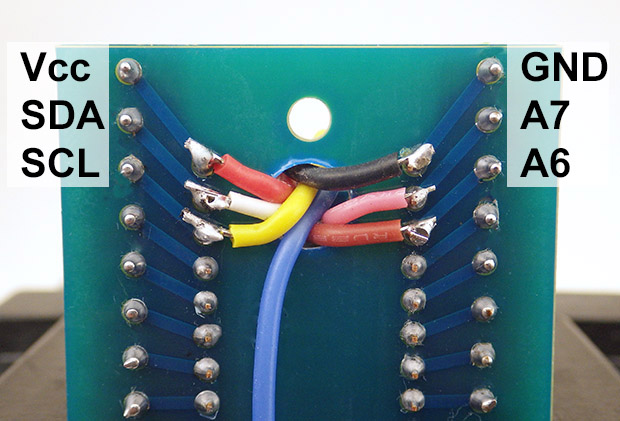
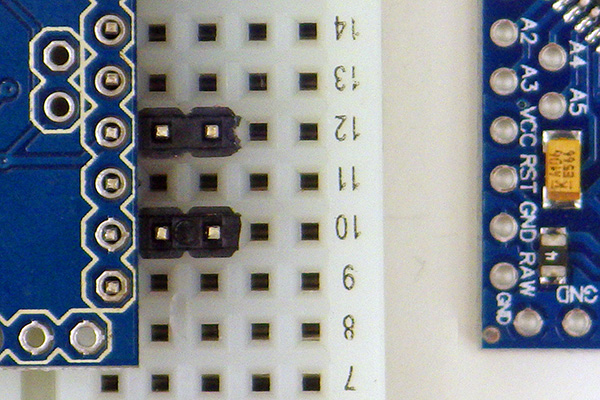
SCL & SDA jumpers to the 2 extra pins on the digital side.

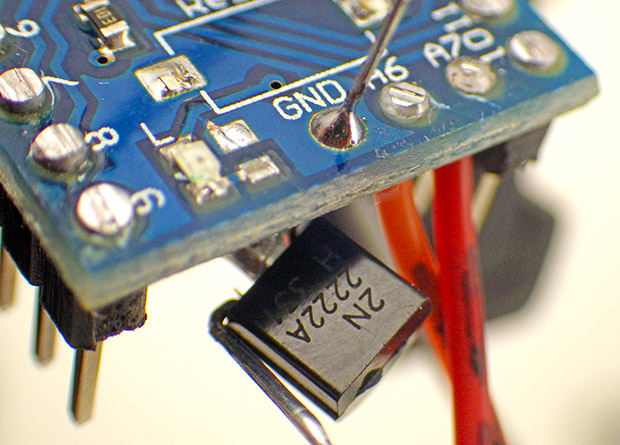
Connect A6-7 & GND to analog side pins with the leg of a scrap resistor.

(Note: Credit goes to Brian Davis for the idea of using “extra header pins” when patching to the unused to screw terminals.)    

The SD Card Adapter:   (~15 min)

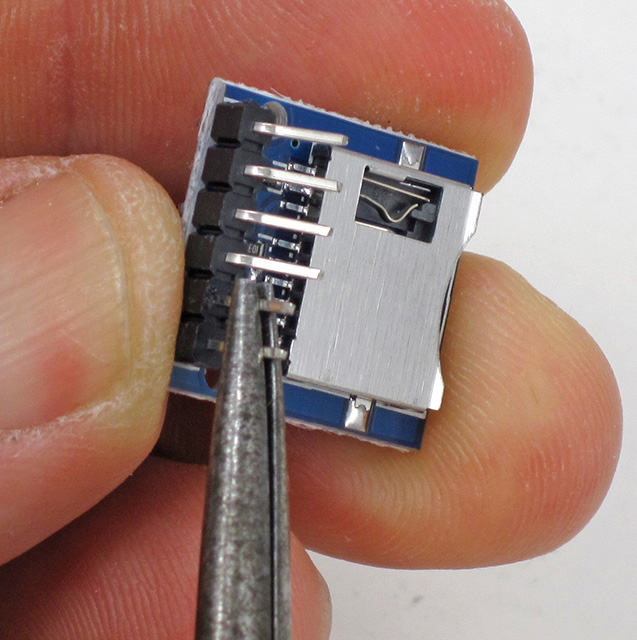
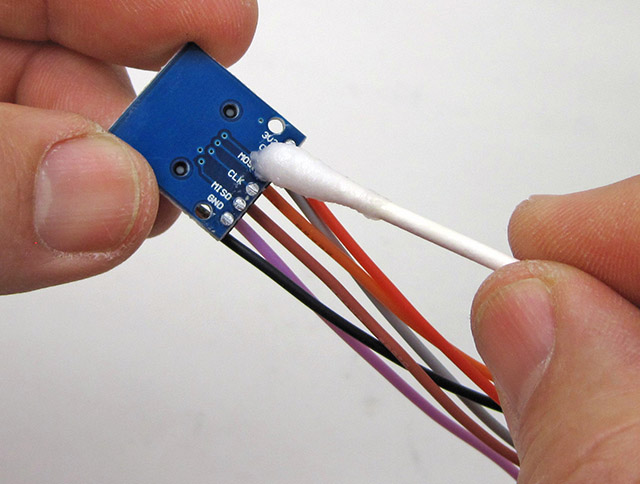
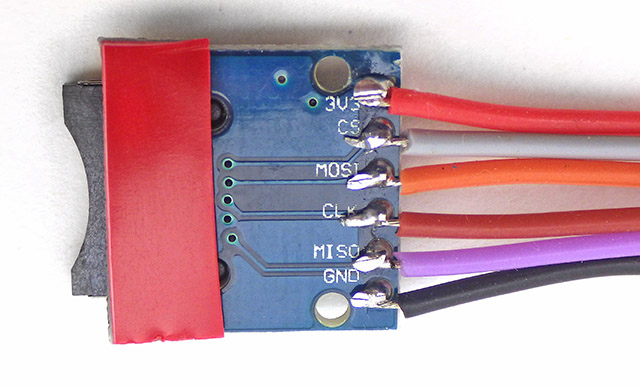
This SD card adapter comes with small surface mount pull-up resistors on the MOSI, MISO & SCK (clock) lines (removed from the dashed red line area photo 2 below).  The Arduino SDfat library uses SPI mode 0 communication, which sets the SCK line low when the logger is sleeping. This would cause a constant drain (~0.33mA) through the 10k SCK pullup on the module if we did not remove it.  I prefer to pull MOSI & MISO high using the internal pull-ups on the Atmel328P processor, so those physical resistors on the breakout board can also be removed. Leave the top-most resistor of the four in place to pull up the unused DAT1 & DAT2 lines.  This keeps those unused pins on the SD card from floating, which can draw excess current.
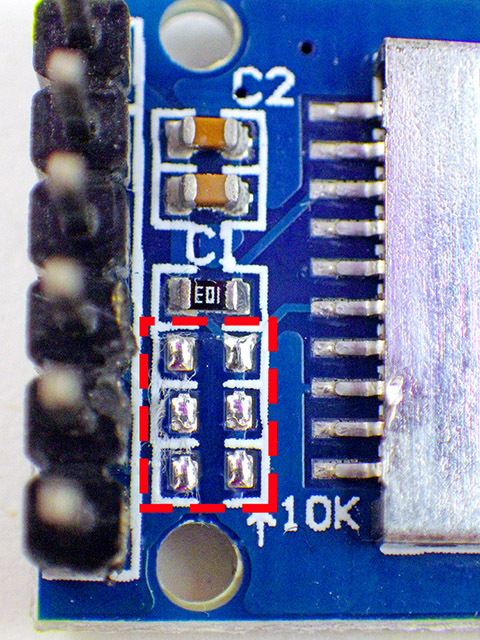
Only remove the bottom three pullup resistors. keep the top one
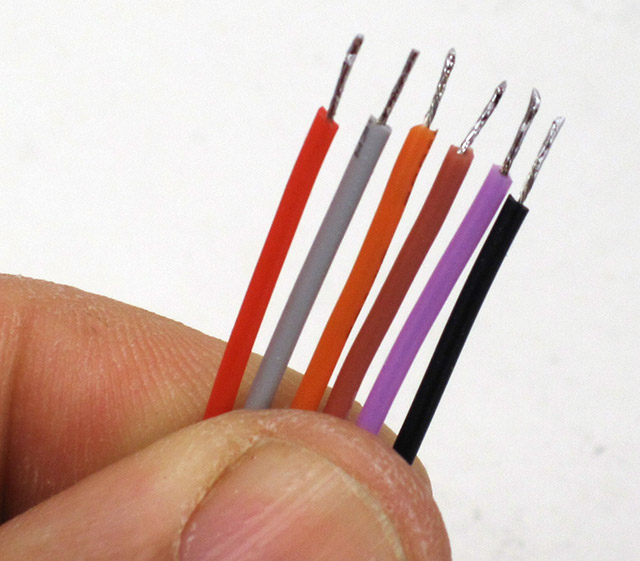
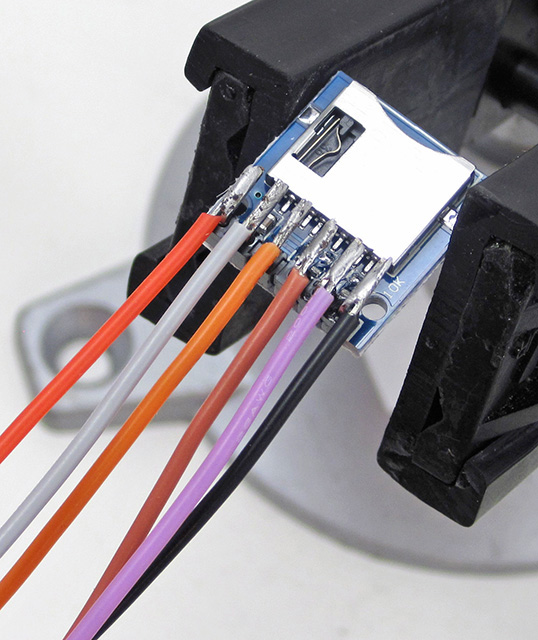
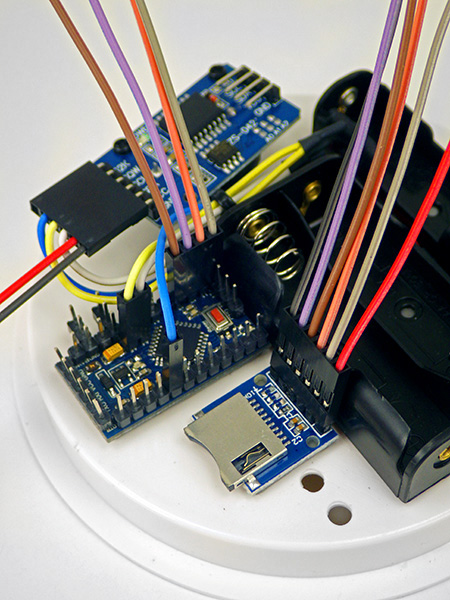
The SPI connections:
RED:           3.3v regulated
Grey:          Cable select (to D10)
Orange:     MOSI   (to D11)
Brown:      SClocK (to D13)
Purple:      MISO   (to D12)
BLACK:     Ground

Attach SD adapter & Pro mini to the Screw Terminal Board:  (~20 min)

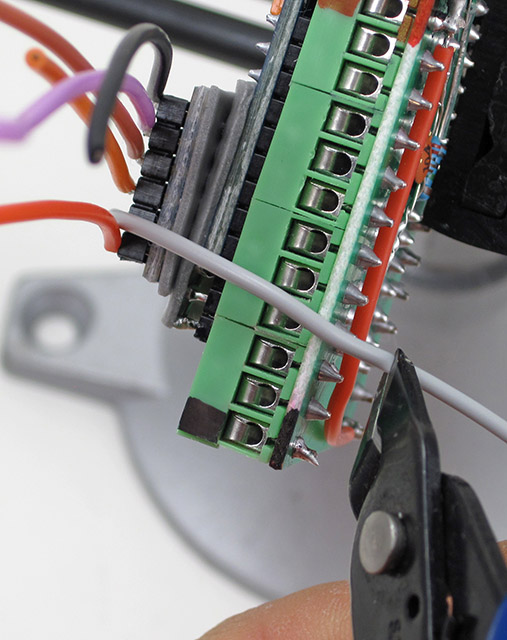
Label the Vcc & GND connections with a colored marker, then insert the Pro Mini into the headers on the screw-terminal shield. Be careful not to bend the pins – especially the “extension” pins at the back of the board. It’s easy to connect the board in the wrong orientation at this step. The voltage divider on the bottom of the screw terminal shield aligns with the ANALOG side of the Promini board. 
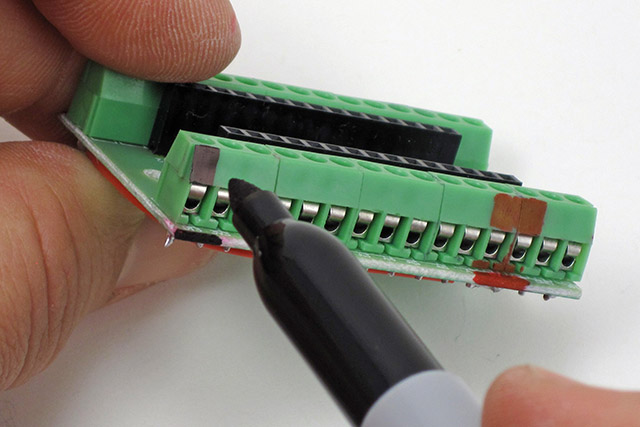
Label the Vcc & GND connections.

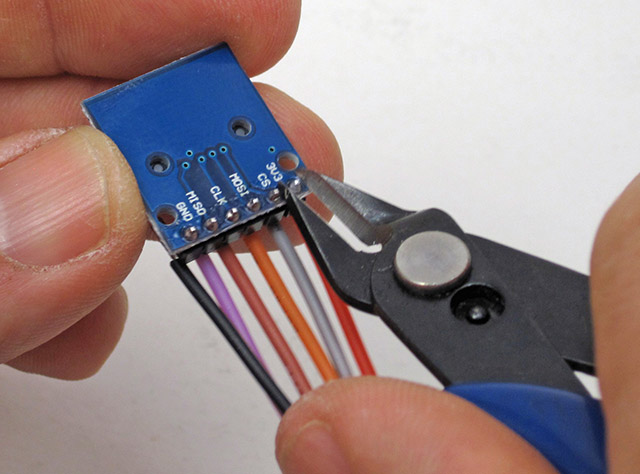
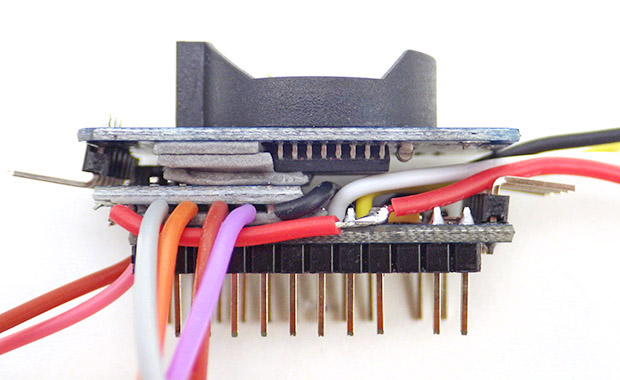
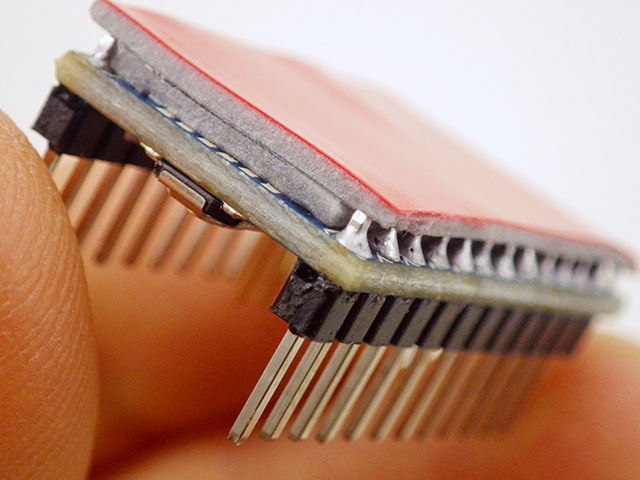
Then affix the SD adapter board to the top of the Pro Mini with a slight overhang, so that the jumper wires align with the screw terminals below. Trim the wires about 1cm past the edge of the board to provide enough stripped wire for the terminal connection.
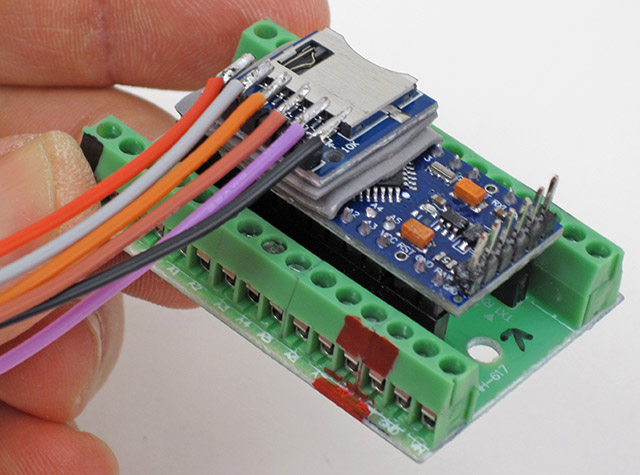
The limit resistor for the common cathode RGB can range from 4k7 to > 30kΩ

LED on pins D4-D6, & GND. NOTE: Grounding the LED through D3 lets you use the LED as a sensor and support for this is included in the base code.  Also see: multiplexing wD9 GND

Add layers until the tape extends beyond the pins. This might require 3 layers of tape.

The RTC Module:  (~15min)

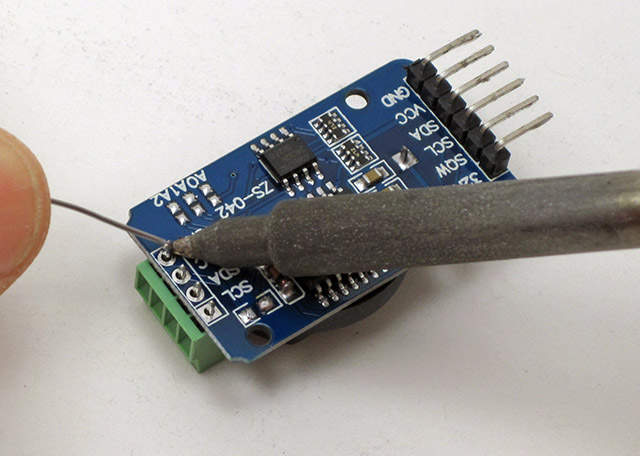
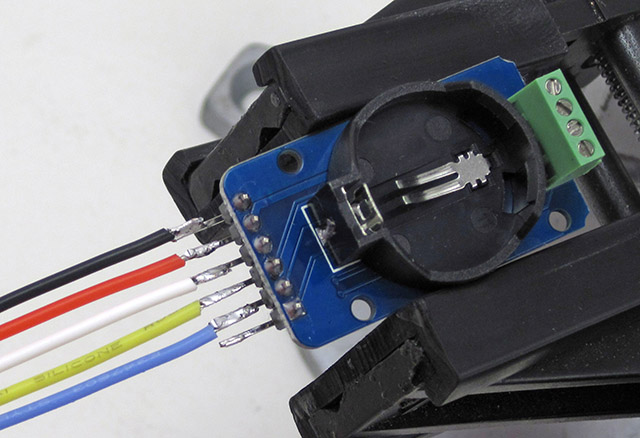
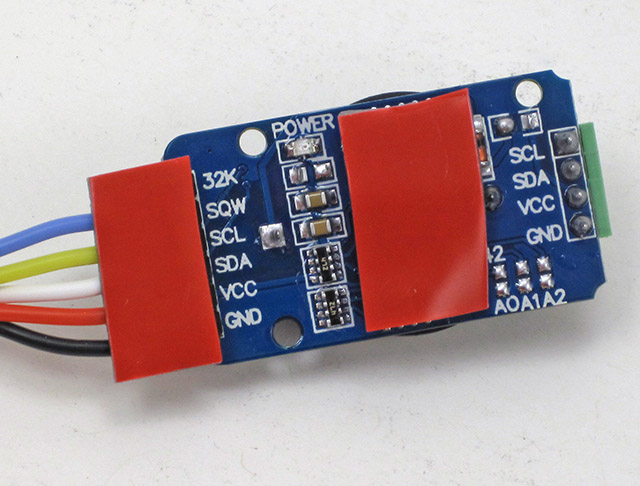
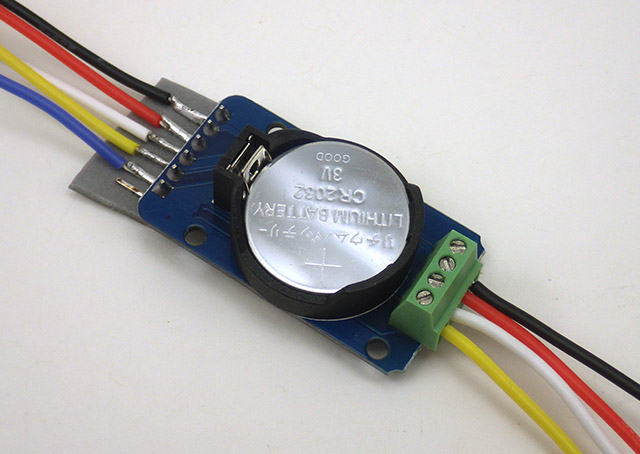
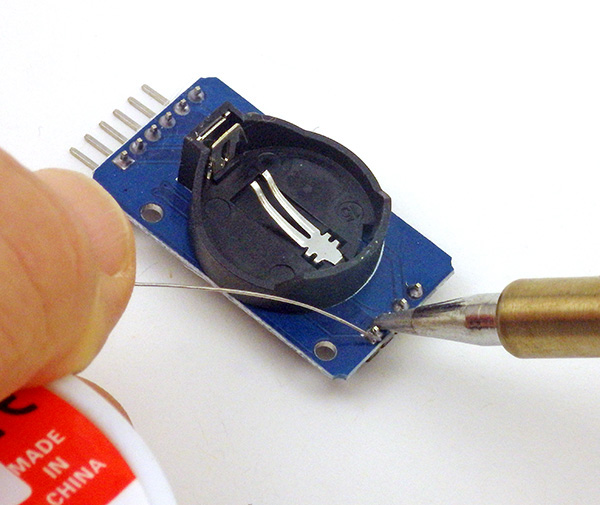
The simplest modification to these DS3231 RTC boards is to remove the charging circuit resistor and power LED limit resistor from the circuit board (the red squares in the first picture).  A non-rechargeable CR2032 coin cell battery will supply the RTC with power for many years of operation.  Note: The 32K pin is not connected, and does not get a jumper wire. The four screw terminals go on the same side as the battery holder.
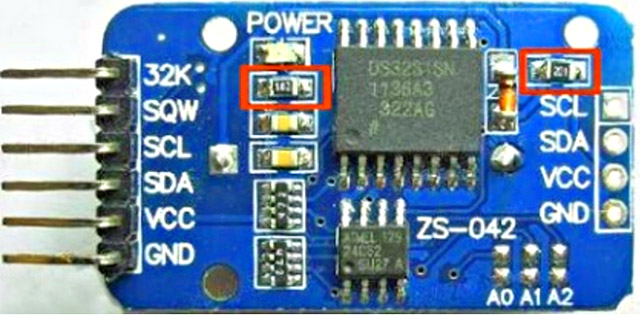
rtc1

An alternative to the 4-pin 0.1” screw-terminal block is to solder the I2C pass-through wires directly to the module.

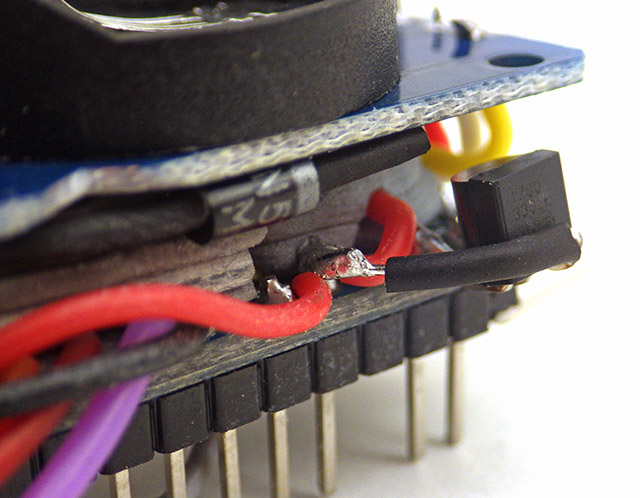
Cutting the RTCs Vcc pin reduces sleep current by ~40% – this step is completely OPTIONAL!

Add an extra layer of foam tape over the smaller 4K eeprom chip, so that the thickness matches the top surface of the DS3231 chip.  The RTC board already has 4.7kΩ pull-ups on the SDA (data) and SCL (clock) lines so you will not need to add them to the bus.  This module also has a 4.7k pull-up on the SQW alarm line. Adding the screw terminals to the small cascade port on the RTC module is another creative idea from Brian D, but you could just add straight pin headers: If you don’t want to make your own crimp ends,  4-pin JST XH series connectors have a pitch of 2.5 mm which is effectively identical to the 0.1″ pitch of those Dupont pins. 

The Plano Stowaway housing: (~10 min)

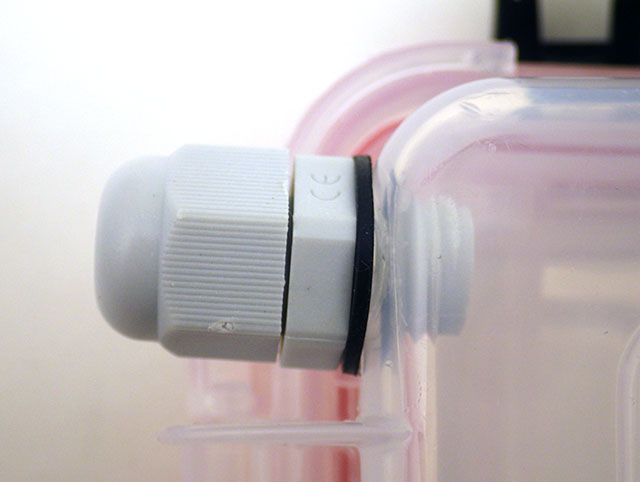
In these photos, I’ve melted threads into the housing for a pass-through with a cable gland, but that is entirely optional. This trick works with many different housing materials, but it takes a bit of practice to figure out what the right temperature is for any given one. The plastic in the plano boxes melts quite easily, so be gentle with the heat gun. Glands much larger than PG7 (12mm) will not fit in the available space in that corner.
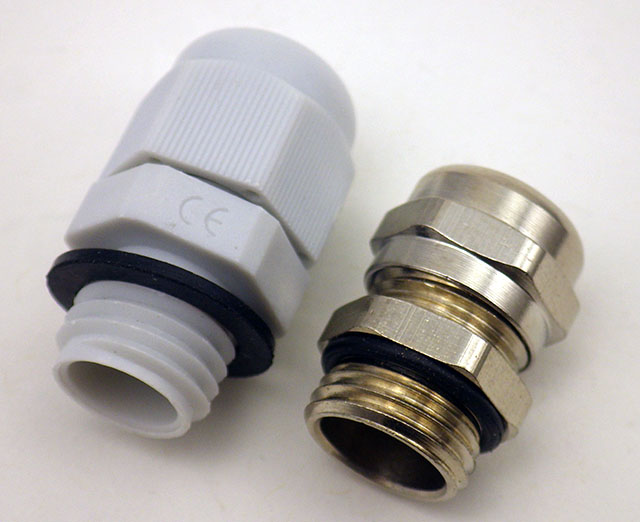
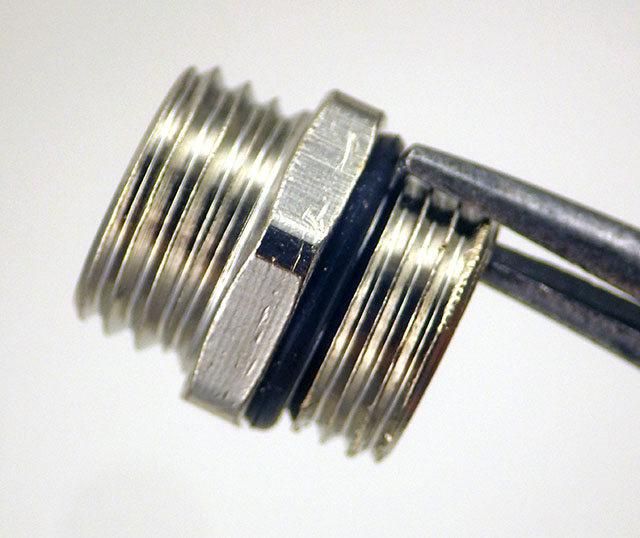
These two cable glands have matching thread specifications

Heat only the threads from the metal cable gland with your heat-shrink gun & a pair of pliers

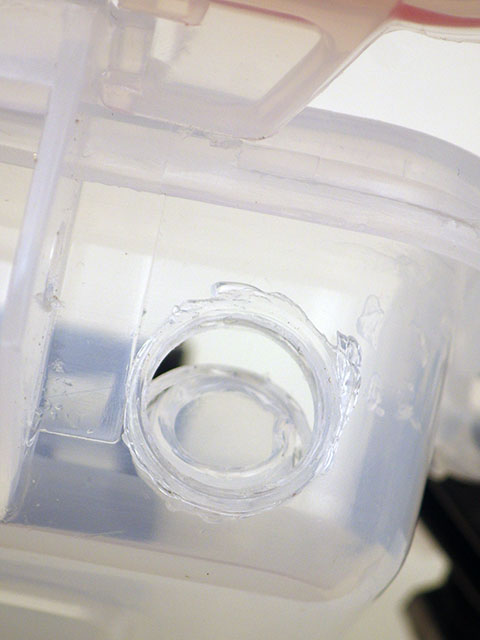
Gently twist the threads into the plastic of the Plano-box & as soon as it’s through blow on the metal until it completely cools

After cooling,  unscrew the metal threads

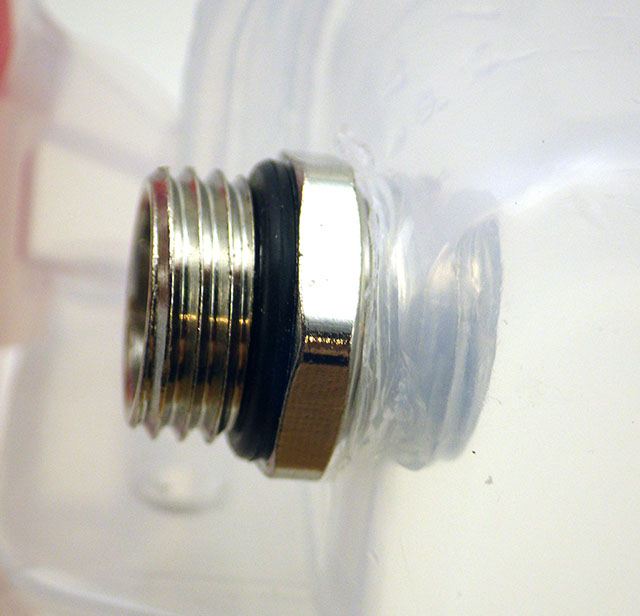
Cut away excess plastic burs with a sharp knife and thread the plastic cable gland into place.

You may need two washers due to the curvature of the box. The cable gland shown above is an M12 x 1.5 IP68 for 3-6mm dia. cables (also desc. as PG7 12mm)

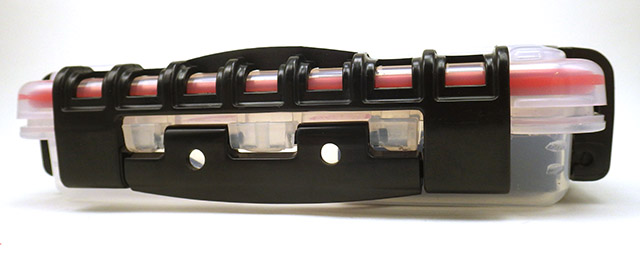
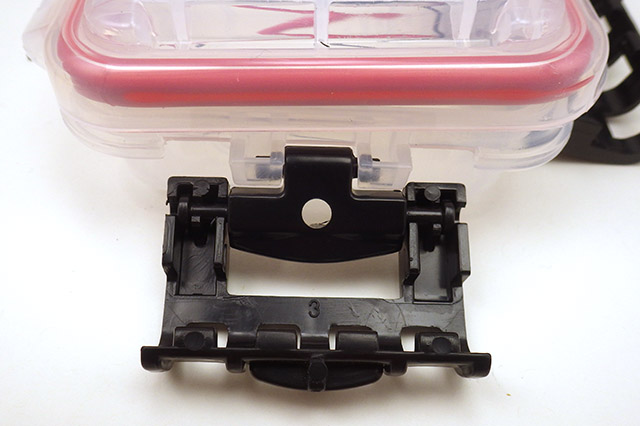
Strategically placed holes in the clips provide zip-tie locations to secure your logger.
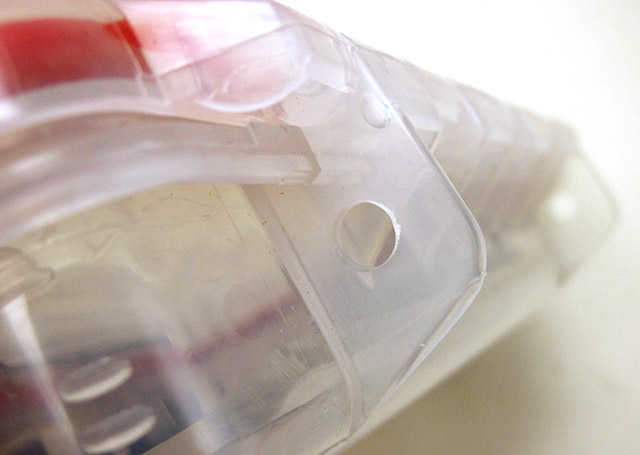
Holes for Zip-tie securing

ASSEMBLING THE LOGGER PLATFORM:  (~30 min)

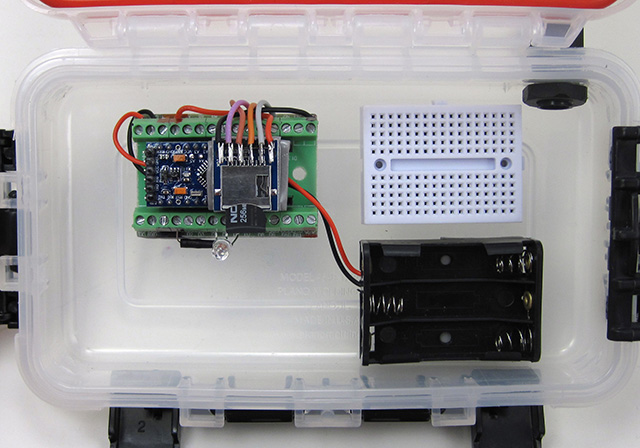
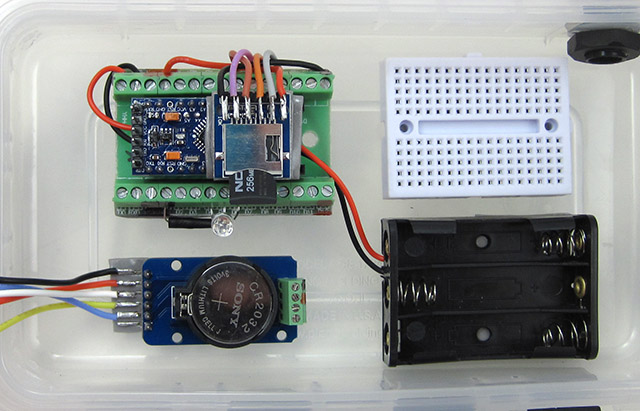
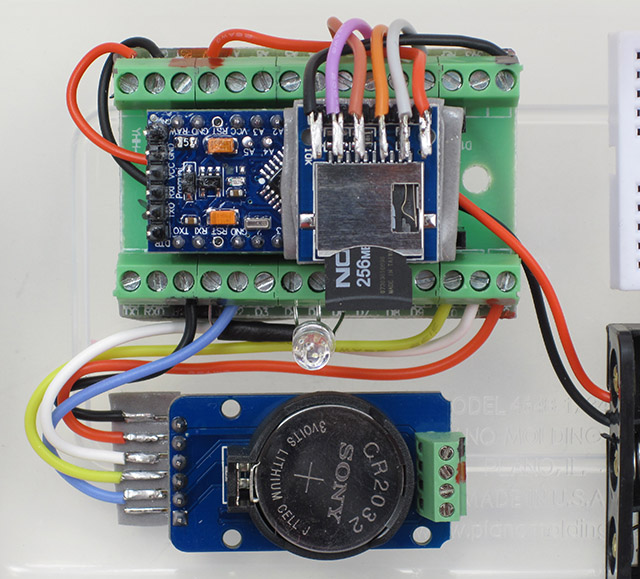
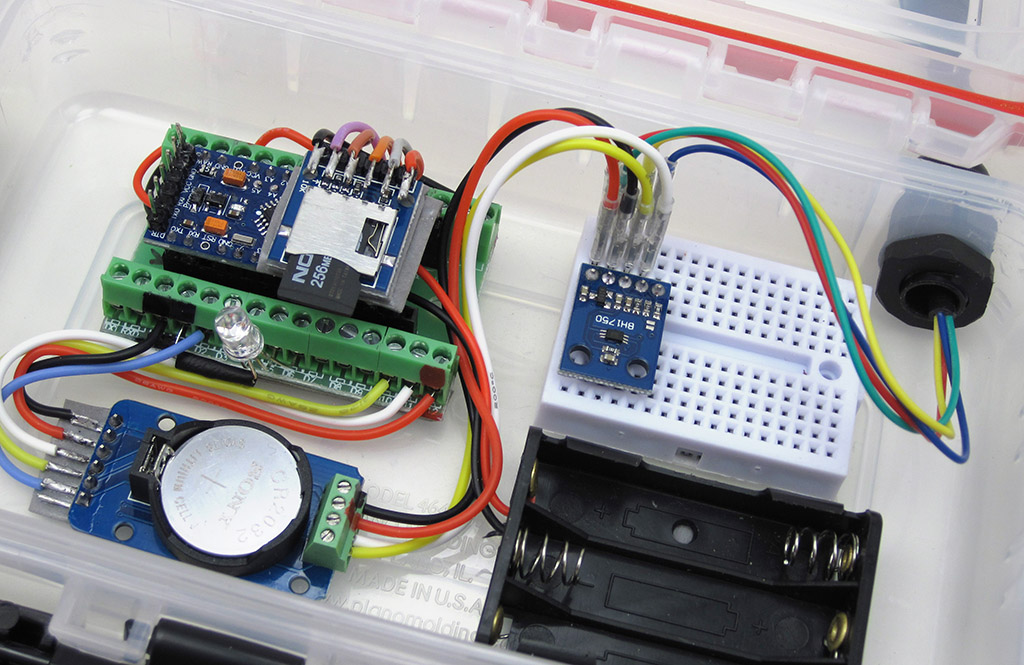
Using double sided tape to hold the parts inside the housing (rather than traditional stand-offs) makes this stage of the build remarkably quick.  Adding male Dupont pins allows you to join internal and external wires via the breadboard.  Be sure to use wires that are long enough to reach the mini breadboard. 
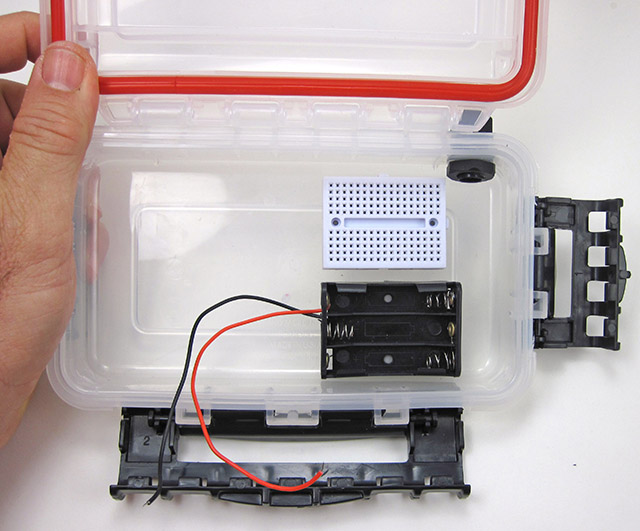
Bowing on some boxes can reduce the contact patch on the battery holder, if so try adding another layer of  tape, or upgrade to 30LB.

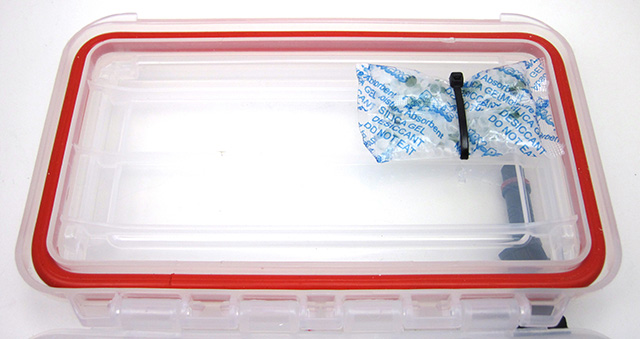
You can “reactivate” spent desiccant packs with a few zaps in the microwave – if they have indicator beads.

Connecting external sensors to the housing:

It’s worth mentioning the breadboard contacts are notoriously sensitive to vibration, etc. Once your testing stage is complete, and your prototype is working as it should, bring those  sensor wires directly over to the screw terminal connections for a more secure connection.  Also remember to put protective tape over any sensor ports that need to remain open before potting those sensor boards in epoxy. Otherwise you might clog the sensor by accidentally letting a drop fall into it.
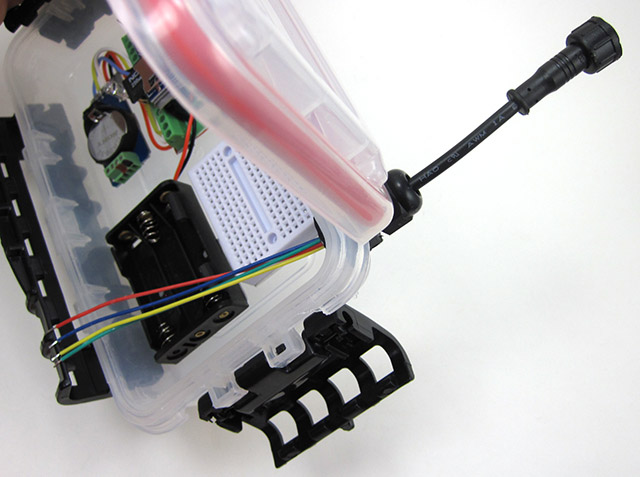
Your Logger is ready!    (~2 to 2.5 hours)
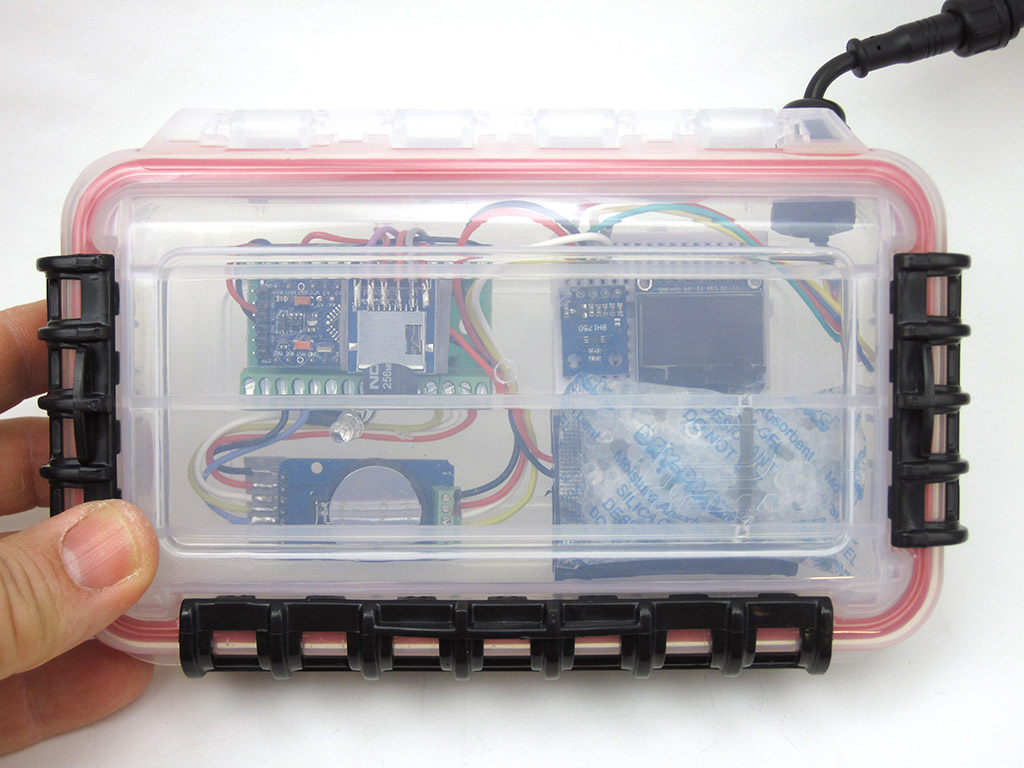
Now you can test your new logger to confirm all the connections are working:

1. Test the LED – Edit & upload the default blink sketch, changing the pin numbers each time to match your RGB LED connections.

2. Scan the I2C bus – with the scanner from the Arduino playgound. The eeprom on the RTC module is at address 0x56 or 57 and the DS3231 should show up at address 0x68. If you don’t see those two devices when you run the scan, there is something wrong with your RTC or the way it’s connected.

3. Test the EEprom on the RTC module – We’ve updated BroHogan’s original code from the playground to this tester script. You may have to change the I2C address at the start of the code based on the numbers shown during your I2C bus scan. The AT24C32 will store 4Kbytes, and has a 32-byte Page Write mode which accommodates the maximum of 30 bytes you can transport the wire libraries I2C coms buffer.  Make sure you don’t do eeprom page-writes that pass over the physical page boundaries set by that eeproms 32 byte block size. If you are ready for the added code complexity, buffering data to the eeprom can dramatically cut down on the number of SD card saves, however the eeprom communications are so slow that sometimes it ends up using the same amount of power as simply writing your data directly to the SD card directly.
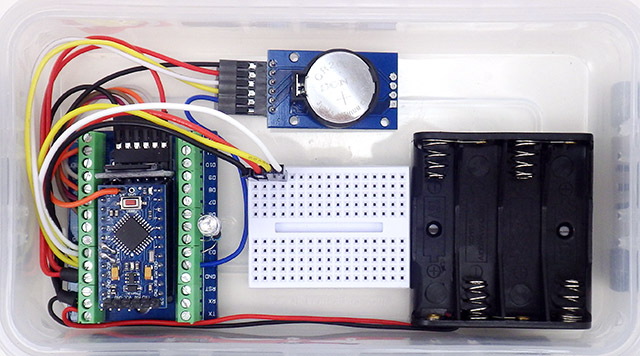
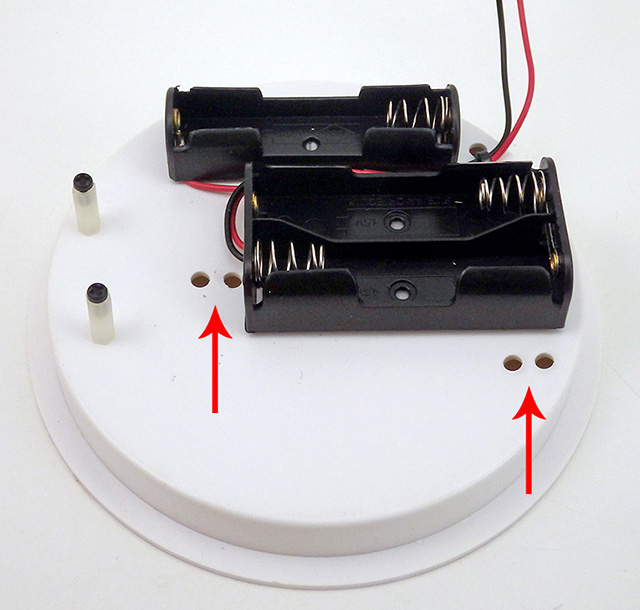
An alternative parts arrangement for the classroom logger that makes room for a larger 4xAAA battery holder and DUPONT style connectors. It’s easy to move things around to suit your own projects, and rotating the breadboard gives you room for larger battery holders & longer operating times. Note: For most 1.5V alkaline batteries, (voltage-1)*200 will give you the approximate percentage of total capacity remaining.

4. Set the RTC time, and check that the time was set – There are dozens of good Arduino libraries you could use to control the DS3231, and there is a script over at TronixLabs.com that lets you set the clock without a library. The trick with Tronix’s “manual” method is to change the parameters in setDS3231time(second, minute, hour, dayOfWeek, dayOfMonth, month, year);  to about 1-2 minutes before the actual time, and then wait to upload that code till about 10-15 seconds before your computers clock reaches that time (to compensate for the compiler delay). Open the serial window immediately after the upload finishes, and when you see the time being displayed, upload the examples>blink sketch to remove the clock setting program from memory – otherwise it will keep resetting the RTC every time the Arduino re-starts.  [ Note: hour  in 24-hour time, & year with two digits eg: setDS3231time(30,42,21,4,26,11,14);  ]

5. Check the SD card is working with Cardinfo – Changing chipSelect = 4; to chipSelect = 10;
Note that this logger requires the SD card to be formatted as fat16, so most 4GB or larger High Density cards will not work. Most loggers only generate 5 Kb of data per year anyway.
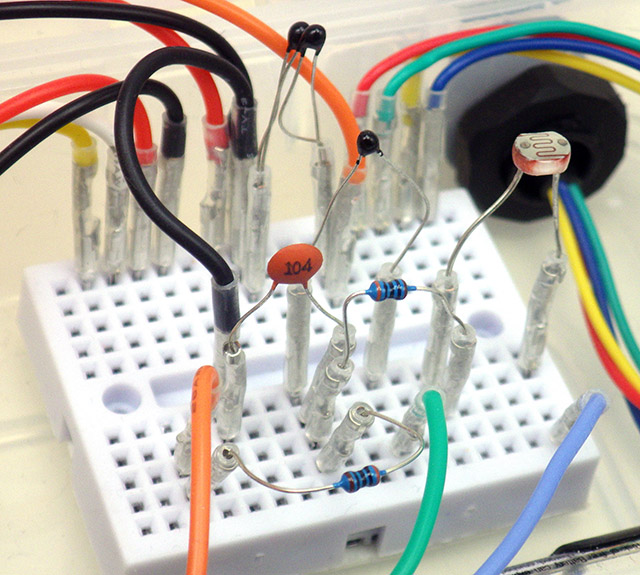
These breadboard connections are really vulnerable to vibration, so for quick back-yard tests of a rough prototype I sometimes add a tiny spot of hot-melt glue to stabilize the components. Breadboards add about 2-4pF of capacitance for side by side rows so the rule of thumb is you shouldn’t run protoboard circuits much faster than 1 MHz.

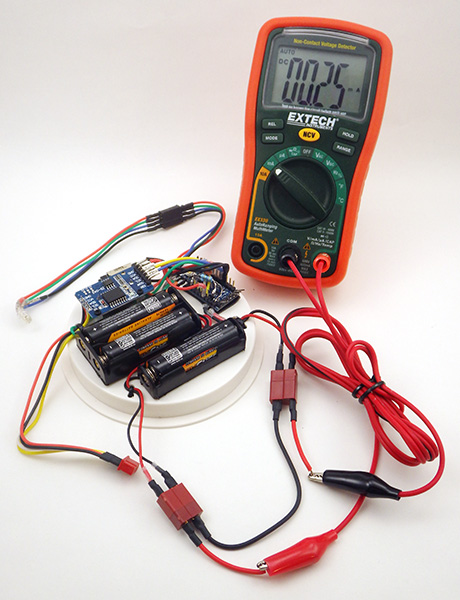
6. Check the sleep current – With an SD card inserted in the logger, upload this Pro Mini datalogger starter script with no changes (note: that code requires you to install three libraries as well). Then connect an ammeter between the positive battery connection and the Vin screw terminal (you will need an extra wire to do this) and run the logger from the AAA or AA battery pack.  After the initialization sequence has finished, the reading on the screen (in milliamps) is your loggers sleep current.

AAA cells usually provide about 1000 milliamp-hours of power to their rated 0.8v, but we are only using half of that from alkaline batteries with a regulator input cutoff up at 3.6v.  So dividing 500 by your loggers sleep current gives you a rough estimate of your loggers operating life (in hours).  For a more accurate estimate, you can use one of the Battery Life Calculators on the web with 250ms @5mA for your sample time.  Changing the power supply to 4xAAA cells lets you bring alkalines down to 0.9v/cell, extracting almost the entire 1000 mAh. Lithium AAAs deliver almost their entire capacity above 1.2v/cell so 3xAAA lithiums yield almost 1000 mAh capacity even with the 3.6v input cut-off.
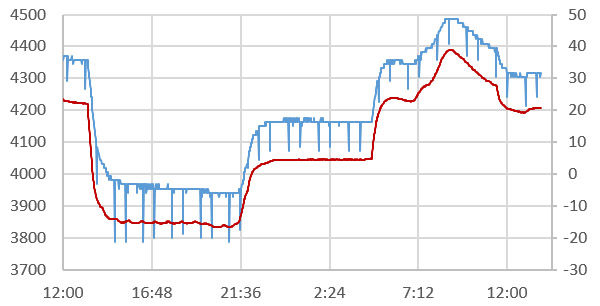
Thermal response of 3x AAA’s (mV left axis) vs Temp (°C right axis) in the standard voltage-regulated classroom build running the starter code from GithubThe 90mv drops caused by SD card “controller housekeeping events” at 20°C  increase to ~220mV as temps near -15°C. These periodic high drain (100-200mA) events would likely trigger the low-voltage shutdown before anything else in the loggers normal duty cycle. (Note: Battery readings taken AFTER SD save, Sample interval: 1 min, sleep current for this test unit: 0.22mA )

Its worth noting that the starter program we’ve provided captures an ambient temperature record from the RTC in 0.25°C increments (example right).  New sensor readings can be added to the log file by inserting:
file.print(YourSensorVariableName);
followed by a separator file.print(“,”);
in the main loop before you close the datafile on the SD card. Then change the text in the dataCollumnLabels[] declaration to add headers to match your new data. This starter script automatically generates required data files on the SD card at startup, and tracks the rail voltage for those adventurous enough to run without a regulator. SD memory is electrically more complex than the Pro Mini processor, with some using a 32 bit arm core.

Once you have your logger running, you might want to review our tutorial on adding sensors to your data logger. And after that you’ll find a few more advanced I2C sensor guides on this site as well (…and the list is constantly growing) We’ve also developed methods to add 5110 LCD & OLED screens to the Cave Pearl Loggers using the fewest system resources. These screens are easily accommodated on the proto-board in this build.

For people wanting to take their skills farther, you can explore the gritty details of how we optimize these loggers for multi-year deployments in the 2018 Sensors article (free to download). The research loggers are a more challenging build, that fits inside an underwater housing made from PVC pipe

Addendum: Power Management (Optional)

On the standard build described above, the Pro-Mini’s MIC5205 power regulator should deliver  sleep currents below 0.25 mA (Pro Mini ~0.05 mA + sleeping SDcard ~0.05-0.09 mA + RTC ~0.09 mA). That should reach several months operation on 3 AAA cells before the batteries reach the regulators 3.4v input cut-off.  I usually have regulated loggers go into shutdown mode at ~3.6v to reduce the chance of leaks, because alkaline batteries often spill their guts when they reach 1v/cell.

There are a couple of relatively simple modifications to the basic logger that more than double the operational time – but they both come with important implications you should understand fully before adding them to your project. The RTC mod is relatively safe, but running a datalogger from a raw battery supply is not for the faint of heart. 
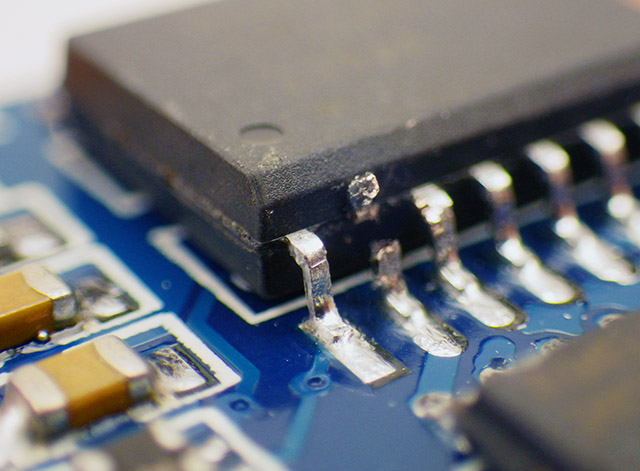
1) Cutting the VCC leg on the DS3231 chip forces the RTC to run from the coin-cell. >Set Bit 6 of CONTROL_REG 0x0E to enable wake alarms from the backup battery!

2) Remove the regulator: few LDO’s have reverse current protection & most regs leach 30-90 uA if the voltage on output line is  higher than on their input

2) Then connect the positive wire from a 2X LITHIUM AA battery pack directly to the Vcc rail on the Pro Mini

The DS3231 RTC was designed to handle power supply failures by switching over to the backup coin-cell battery, and it enters a special 3uA “timekeeping mode” to use less power in that situation. However the chip is still fully capable of generating alarms (provided you set the Battery-Backed Square-Wave Enable bit of CONTROL_REG 0x0E to 1) , and of responding to the I2C bus at 400 mHz. So if you cut the main power leg on the RTC you reduce the loggers sleep current by almost 0.1mA (~40%). The trade-off is that your loggers operation is now entirely dependent on the 200mAh CR2032 coincell to keep the clock delivering wake-up alarms when you are also asking it to deal with pulsed loads in the 80 uA range every time you communicate over the I2C bus. The RTC also can not generate temp-corrected frequency outputs on the 32kHz pin when operating from the coin cell.

Here drops of hot glue secure the RTC coin cell battery against accidental resets. It’s worth noting that even with this precaution, we still see 1-2 units out of 10 loose their time when they have to be transported in airline luggage.

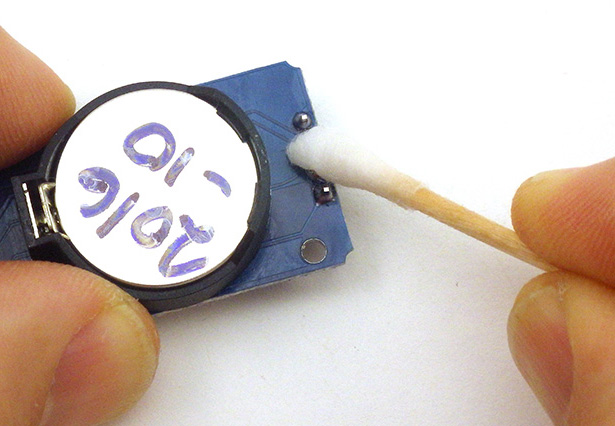
Another quid pro quo here is that coin-cell holders occasionally lose contact very briefly under vibration, so if you cut the Vcc input leg – add  a  0.1 μF capacitor (ceramic 104) across the coin-cell holder pins. That will give you about 80 ms coverage, which should be longer than the holder will lose contact. Otherwise a hard bump can reset the RTC back to its Jan 01 2000 default.  The wake-up alarms usually continue after that kind of reset, however fixing an entire years worth of time series data based on your field notes is a pain in the backside.  Real world installations often involve this kind of rough handling, so I prefer a more advanced RTC modification that keeps two power lines feeding the RTC.  But for more “gentle” deployments, simply cutting the chip’s vcc leg & adding a couple of drops of hot glue OK. Write the installation date on the coin cell with a black marker. I do this to all of my batteries now…
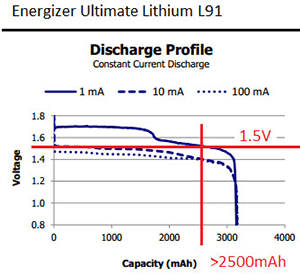
For loads in the 0.1mA range, the MIC5205 is less than 60% efficient. So the other modification is to remove the voltage regulator and run the entire system from 2x LITHIUM AA batteries.  Lithium batteries (like the Energizer L91) have two characteristics that make them well suited to this approach: 1) they have an extremely flat discharge curve, yielding >75% of their power before the voltage falls below 1.5v/cell on the lower plateau and 2) a pair of brand new lithium cells gives a combined voltage right at 3.6 volts. If you look at any of the SD card manufacturers’ specifications, they all specify a voltage range of 2.7v to 3.6v.  At 8 MHz the ATmega328P processor on the ProMini supports voltage levels between 2.7 V and 5.5 V. Both of these ranges overlap beautifully with the lithium cell’s discharge curve. If you are using ratio-metric analog circuits then the voltage fluctuation over time will not affect your readings, but if you need absolute measurements then use the internal voltage reference as Aref.  Digital sensor levels are based on a percentage of Vcc, so they are relatively insensitive to voltage variations.

Here I’ve done both modifications to the basic build, and brought the sleep current (with no sensors) from an unmodified starting point of 228μA, down to 80μA. Most of that remaining power is due to the sleeping SD card, since the Pro Mini only draws about 5μA in deep sleep mode. Using only 1/2 of the 3000 mAh capacity of a typical AA Lithium pack would keep a logger that sleeps at 0.1mA alive for more than a year, and my rough estimate is that the RTC mod will get you at least twice that much time from a new Cr2032 cell – with a typical 5-15 minute sampling interval.      [NOTE: I’m using an EEVblog uCurrent here to display the μA sleep current on a DVM as milivolts. It’s an exceedingly useful tool that lets you read sleep currents into the nano-amp range without adding the burden voltage you’d see from putting your meter directly into the circuit ]

Even with one less cell powering the system, getting rid of the MIC5205 yields a 25-30% reduction in sleep current for a typical build. While this is very close to the reduction you get from changing to a more efficient regulator like the MCP1702, the other cool thing about this mod is that the processor on the Pro Mini can take a reading of it’s rail voltage by comparing it to the 1.1v internal band-gap reference. So all you need is a little bit of code, and you can keep track of your rail=battery level without a voltage divider, although for accuracy you should take a reading of the actual band-gap voltage using a utility like the CalVref sketch from openenergymonitor.

(NOTE: that Atmel provides no specs on the long term stability of the bandgap ref. and even OpenEnergy no longer uses the internal 1.1vref because v.regulators offer more long-term stability.  ALSO NOTE that genuine Sparkfun ProMini’s have an SJ1 jumper that lets you disconnect the reg simply by de-soldering a pad on top of the board , but clones rarely have that feature.) 

Unlike alkaline batteries, lithium cells have very little voltage droop with brief loads below 100mA, but it’s still a good idea to protect your SD card from potentially data corrupting brief low voltage spikes with a capacitor.  The formula for figuring out how much the voltage across a capacitor will drop is  ΔV = current(A)*time(sec)/C(farads) – but you need to decide how much your supply can drop to know how big to make the capacitor.

Adding a 47uF (or larger) on the microSD rails should keep the shortest transients under control, and once the system reg. has been removed running a jumper between Vcc & Raw recruits the orphan (10uF tantalum) capacitor from the input side of the (now removed) regulator.  Always check the supply voltage before the data saving begins and perform a low voltage shutdown when the lithium pack reaches 2875mv. (ie: at least 150mv above the SD’s 2.7v safe writing minimum). Generate a new data file every couple of weeks so only the last one is vulnerable during the write process. 
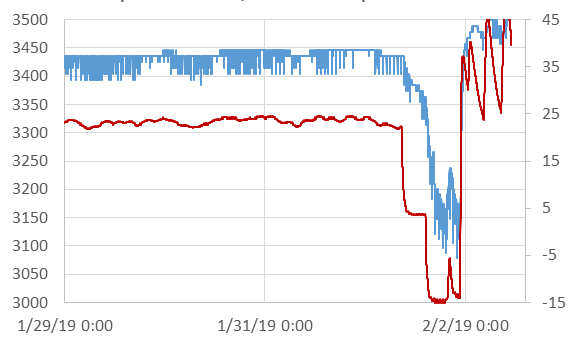
2x LITHIUM AA’s (mV left axis) vs Temp (°C right axis) supplying power to an unregulated build running the same code from GithubThe key observation is that the initial 50mv supply voltage variation recorded at 22°C increases  ~100mV at temps near -15°C. For Lithium chemistry batteries with flat discharge curves, the voltage-drop under load is often a better indicator of the remaining battery capacity than the cell voltage. (Readings taken AFTER SD CARD SAVE, Sampling every 1 min, overall sleep current 0.17mA   Note: the 200mv baseline drop on the cells is slightly exaggerated here because low temps increase the bandgap slightly) 

Of course everything has a price, and removing the regulator means you’ve not only lost your reverse voltage protection – you also need to think about how all the components in your system will respond to a decreasing supply voltage over time. Ratiometric analog circuits using the rail as Aref handle this well, but even if you want to use the 1.1v bandgap ref – you already know what the rail voltage is, so you can easily throw a compensation factor into the calculation.  The real problem is that when 2.7 – 3.6v is listed on the spec sheet for a digital sensor – that’s no guarantee the readings will be consistent when the supply voltage changes.  You could have very different error percentages at the high & low end and ambient temperature fluctuations could push your batteries through significant voltage changes every single day (lithium cells are more resistant to this than alkaline).  According to Murata the 8Mhz system clock will remain stable: “Unlike RC or LC circuits, ceramic resonators use mechanical resonance. This means it is not basically affected by external circuits or by the fluctuation of the supply voltage.” 

Testing is the only way to find out if your sensors can handle the variation, and if you don’t have time for that it might be worth keeping that voltage regulator on board despite the reduced lifespan. For field units, I usually replace the MIC5205 with a more efficient MCP1700 regulator because I want all the data consistency I can get.  Another thing to keep in mind when you are hoping for a really low-power build is leakage currents through leftover flux – it’s always worth the time to get your parts squeaky-clean during construction.

Addendum 2019-02-21:

A teacher friend asked us for a version that was less dependent on soldering because they didn’t have the budget for a classroom set of soldering stations. So we’ve worked out a 1 hour “simplified build” of this logger that uses crimped Dupont jumpers to reduce assembly time:

We’ve also added support to the starter code for using the indicator LED as a light sensor, but this requires that you ground the indicator LED’s common cathode through a digital pin (usually D3) , rather than directly to GND as shown in the tutorial above. Also note that the technique relies on the very tiny internal capacitance inside the LED (typically 10 to 15 pF) so you need to connect the LED  right to the screw terminals (ie not the breadboard).  Then you can gather three-channel light level data like this:
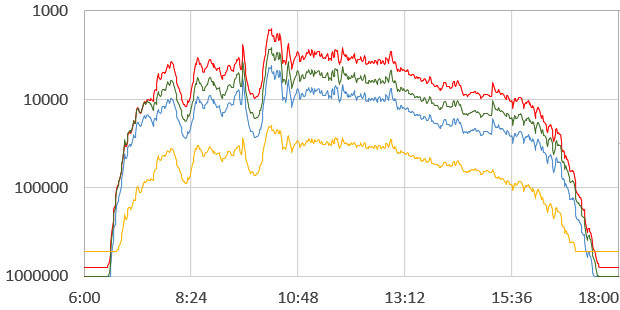
Readings from an RGB LED deployed outside in our back yard on an overcast day with two light snow fall events. The yellow line is from an LDR sensor in the same logger that was over-sampled to 16-bit. In this case the clouds & snow acted as a near perfect light diffuser, but in normal weather I’d have placed a thin white teflon sheet over the LED sensor to smooth out the readings. Adding an IR led to the logger lets you create a transmission-based NDVI variant that discriminates the amount of chlorophyll in plant leaves.

These readings are arbitrary time-based units that are completely dependent on your particular hardware combination and system voltage. If you go down the DIY sensor rabbit-hole, you might want to calibrate against the NOAA observations for your area, which includes hourly data for thousands of stations. The data includes temperature, dew point (from which you can compute relative humidity), wind speed & direction, and you can calculate solar position.

Addendum 2020-08-18:
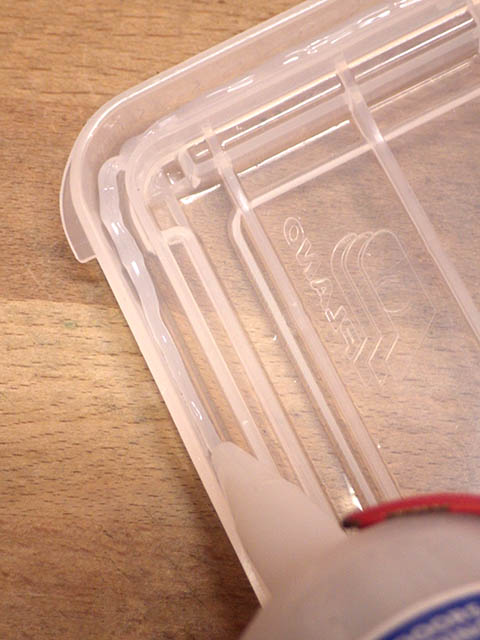
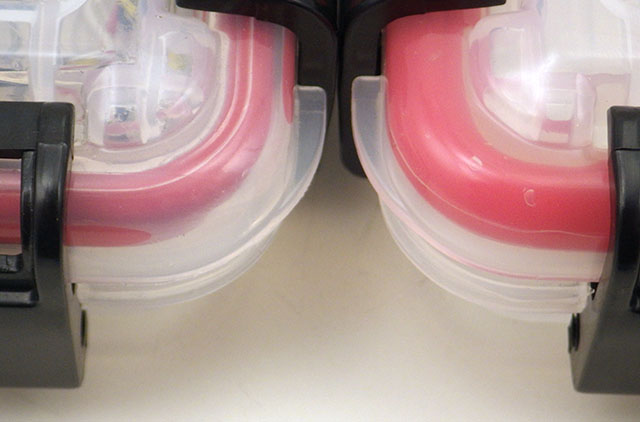
We’ve found that the seal on some of the Plano boxes needs a little help, or current leakage via surface moisture shorts out the LED light sensor readings. In the worst cases leakage lets in enough water vapour to chew through your desiccant pack in less than a week. A little bead of silicone under the o-ring corrects that problem:

Gently pry the O-ring loose so we can add some sealant.

Bead only needs to be 3-4mm in diameter.

Close the housing & let the sealant set for a few days. The improved seal is especially visible at the corners

If you already have your logger assembled, try to find a better quality silicone sealant that does not off-gas acetic acid (smells like vinegar) which could harm the circuits. If you are preparing empty boxes before the logger assembly, then any regular bathroom sealant will do provided you give it about a week to finish curing. I usually choose silicone rated for outdoor applications as they have better resistance to breakdown from UV exposure.
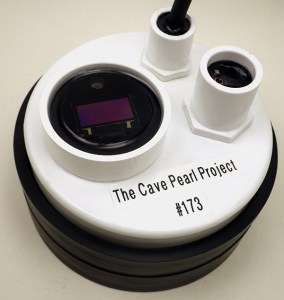
Tutorial: Adding an SPI SSD1306 OLED to an Arduino Logger (without a library)

An SSD1306 OLED screen mounted on a climate station build.

This is the third installment in a series on adding output screens to Cave Pearl Data loggers. It builds on the Nokia 5110 LCD tutorial and the post describing how I store fonts in the Arduino’s internal EEprom to save program memory – so you might want to have a look at those two posts before diving in here.

While the Nokia 5110’s are a cheap, low-power option with great visibility in full sun, they reacted badly to pressure directly on the LCD surface.  Since this project deploys loggers in an underwater environment I went looking for something more robust and the SSD1306 OLED’s caught my attention. (@ ~$3.50 on eBay) These little screens are showing up in hacked toyscompasses, GPSanalog meters, ECG’s, and theres even a tiny oscilloscope project at Hackaday. But those applications typically use the u8g2 library which is fantastic for graphic output, but also quite memory intensive; what I need is a bare bones solution that uses the fewest system resources on a unit that’s already near memory limits. Though these 0.96 inch displays are quite small, 128×64 pixels lets you render several lines of readable text.

While the I2C variants of this screen are easy to use, the SPI version lets me re-purpose unused analog lines to drive this display without interfering with the sensor or SD card bus because it can be driven via shift-out on any pins that are available. Powering the screen from A0 brings the screen down to zero current while the logger is sleeping, and also lets me get rid of the Reset & Cable Select lines. The only thing to watch out for is that you bring all the control lines low when you cut power so that reverse bias doesn’t end up “back powering” the screen controller.

Connecting the OLED:                                {Click any image to see larger versions.}

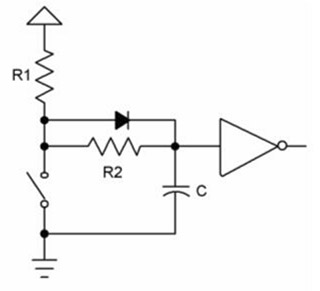
The data sheet for the SSD1306 controller specifies that the reset input needs to be LOW, during initialization, after which the pin should be HIGH for normal operation. To achieve this low -> high  transition, I tie the Reset line to the middle of an RC bridge made from a 104 (0.1uF) capacitor and a 10k resistor. When you add the 25k inside the 328p used to pull A0 high, you get a 63.2% time constant of about 3.5ms.

Begin by tinning the pins, and bending them 90 degrees for alignment with the RC bridge which also connects to the CS pin.  Once that delayed rise circuit is soldered in place, also jumper the incoming GND line over to Cable Select. You would not do this if the display was on the normal hardware SPI bus, because it would exclude other devices on the SPI bus. But since we are using a separate set of wires for the display we can get away with this trick.

The connections for the SSD1306 OLED display are the same as the ones for the Nokia 5110: (D0=clock, DC=command, D1=data in)  Note that I’m not using the 3.3v rail from the pro-mini,  and YOU MUST BE USING A 3.3V ARDUINO FOR THIS WIRING TO WORK UNLESS YOUR OLED BOARD IS 5V TOLLERANT.  Some of the breakouts  from eBay are OK at 5v, and some are not – check THIS before you buy if you are using a 5V Arduino.  (Note that  most breakouts sold by Adafruit include regs & level shifters to handle both voltages.)

When all the incoming lines have been added to the board, thread them through the housing and verify that the screen is still working. The analog A0-A5 lines on an Arduino can be re-purposed as digital I/O so I usually break them out with a 6-pin Deans Micro Plug (incl. GND & Vcc)  In this case the screens Vcc line is being re-routed to pin-powering from A0 so the pro-mini’s rail voltage is not used.  Cut away or heat-shrink over the unused Vcc pass-through on the screen side of the connector (which is still visible & exposed in the photo on the right) as you don’t want it accidentally contacting something later on inside the housing.

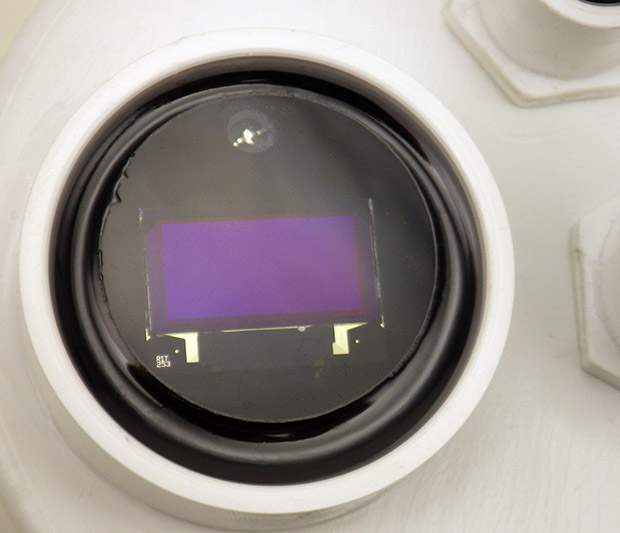
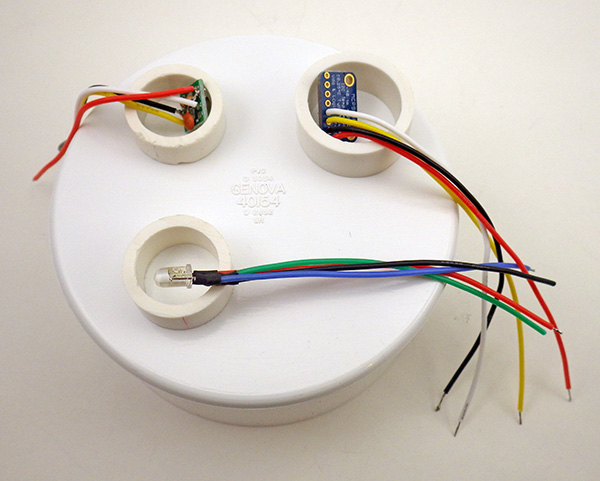
After the operation test, cork the pass-through hole with a bead of plumbers epoxy putty  about the size of your fingertip. Wrap that putty so that it is on both sides of the wires before smoothing it down on the housing.  (The sensor cap shown below has four housing penetrations sealed by this method)  On the top of the sensor cap, wrap a grape-sized lump of well worked putty around the wires on the back of the screen. Then carefully press the screen down into the PVC well so that the putty compresses into a support pillar that holds the screen as near level as possible. The putty hardens in about 10 minutes and then you can pour the first layer of potting epoxy. Here I’ve used Loctite HYSOL E-60NC, with a 50ml applicator & MA6.3-21s mixing nozzles. The air space for the reflective back light forced me to use clear epoxy with the 5110 LCD screens, but since these OLED’s emit their own light, you can bring that black epoxy right to the edge of the display – covering the board & any ugly soldering… 🙂  Check the epoxy over the next couple of hours and pop any bubbles that rise to the surface with a pin. (unless you have a vacuum chamber)

Always TEST before potting!

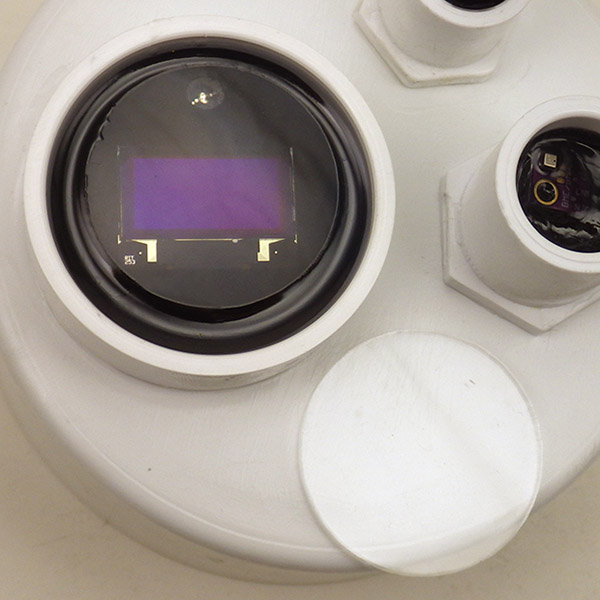
Let that initial layer of epoxy cure for 24 hours, then drill a 7/32″ hole at a safe distance away from the screens edge. Mount an RGB indicator led inside the housing and seal it in place with plumbers putty. At this point you can simply add a second layer of clear epoxy to protect the screen, but in our experiments with the Nokia LCDs, seawater caused a serious fogging problem.  So I recommend a top surface of more chemically resistant material for that kind of application. Here I’ve used a 1/4″ thick plexiglass disk (~$0.35 each on eBay)
First apply a thin layer of clear epoxy over the screens surface so that it self-levels to thickness of about 1-2mm. Then hold the edge of the acrylic disk and carefully tilt it over the epoxy film with an even contact edge that moves across the disk slowly enough to let the air escape.  Don’t make that first layer of clear epoxy too thick or it will over-top the edge when the plexi settles into place and this will form blobs on the surface. Once the acrylic is in place, you can slowly add drops of epoxy on the side to bring the level up to match the edge.  Give the clear epoxy another 24 hours to cure.

The display draws more current as you increase the number of pixels turned on.  As a point of reference: the screen output shown above (generated from the code on Github ) draws 3.4 mA.  And I haven’t seen any nasty current surges that might exceed the pin limit when the display is first powered up.

The shore hardness of the plexiglass is not much higher than cured epoxy, but the optical clarity is considerably better. The photos in this post don’t capture it well, but this mounting method really shows off the razor-sharp output you get from an OLED, and it’s readable from just about any angle.  For surface loggers a 1/8″ disk should provide sufficient protection, but for the underwater units I will use 1/4″ thickness to resist the compression at depth. I won’t be able to test those underwater versions in the real world for a few months, but if the acrylic fails I will change to  a stiffer glass overlay.

A few might wonder why I added an indicator LED when the logger now has full display capability. There are plenty of situations where brief LED pips communicate the progression of duty cycle events that are too fast and too numerous for screen output. I also use the LED as a noise generator when I want to squeeze higher resolution from the ADC through oversampling.  These days I add an NTC thermistor to every build to capture ambient temperature.

The Code Example on Github uses a cascading method to break text strings up for single character rendering with : oledWriteString–>oledWriteCharacter–>oledWriteData  and I’ve co-opted that with a new split-character method to print larger numbers to the screen in a two-pass method.  The shift-out code for those functions is basically the same as that used for the Nokia 5110. I went over all that in some detail in the earlier posts so I wont re-fry those beans here. The key thing to keep in mind is that this new screen driving script uses EEPROM.read which assumes you’ve already loaded the font definition(s) into your Arduinos internal eeprom with this helper utility.  That utility loads a ‘reduced’ font set to leave 500 bytes of space for file header data in the EEprom as well. (so the 5×7 font is caps only, and large characters are #’s only).  If you don’t need that level of memory optimization in your build, you can switch back to simply storing the screen fonts in program memory;  just transfer the PROGMEM based string->character->data functions (and the font arrays) over from in the NOKIA 5110 code example.

The housekeeping functions that take care of  initializing the screen, clearing the memory, and setting the XY position are more complex for the OLED than those for the PCD8544 Nokia because the SSD1306 controller has more operating parameters.  But the overall approach transferred easily between the two controllers and I suspect this method could be re-used with most of the larger SPI OLED screens on the market (like the SH1106) provided they stay below the pin current limit on A0.

Time to go shopping!  🙂

Addendum 2018-10-19:

A helpful commenter has informed me that it’s possible to try a similar approach with I2C screens because you can bit-bang I2C devices over any two spare wires.  Now that we’ve pulled off this isolation trick with SPI, I’ll look into bang’n as a way to shut down high current I2C sensors when they are not in use.  I’d want those off the regular I2C bus because it necessarily has a few “always on” devices that might not respond well to a lump of dead wood hanging off the same wires.

Addendum 2019-04-23:

A year long experiment in OLED burn-in. Significant dimming of the most used pixels after 4 weeks, but the screens were still operational after one year.

Addendum 2020-11-15:

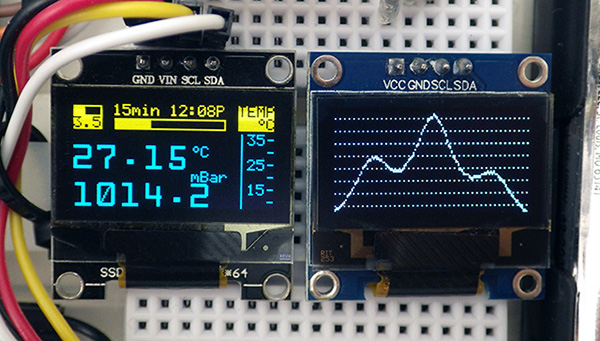
Two I2C 0.96″ OLED displays make a highly useful addition to the basic three module logger

I finally got around to updating this eeprom/fonts method for use with I2C screens

https://thecavepearlproject.org/2020/11/15/adding-two-oled-displays-to-your-arduino-logger-with-no-library/


Addendum 2021-03-01:

Setting a 15-cent T233 capacitive touch switch jumpers for Momentary LOW, and removing the indicator LED for low power operation.

The one drawback of adding a OLED screens to a logger is that they use a lot of power compared to the other parts of your logger. A capacitive touch switch can be completely encased in epoxy and still function – giving you a way to trigger the display only when someone is around to see it:

https://thecavepearlproject.org/2021/03/01/enhance-your-logger-with-an-oled-t233-capacitive-touch-switch/

Using Arduino’s Internal EEprom to Store Data & Screen Fonts

This tutorial is the second in a series on adding displays to expand the capability of the Arduino data loggers described in our SENSORS paper earlier this year. As more of those DIY units go into the field, it’s become important that serial #s & calibration constants are embedded inside the files produced by each logger.  One can always hard-code that information, but with multiple sensors and screens for live output, space is getting tight:

This prompted me to look at the ATmega328p’s internal EEprom as a potential solution. The EEprom can only store one byte per location, so saving numbers larger than 255 requires you to slice them up and store them in consecutive memory locations. That takes two locations for a the “high byte” and a “low byte” of an int, and four memory locations for longs & floats. That’s a little clunky but it mirrors the way you read & write high-bit registers on I2C sensors, so there are lots of code examples out there to follow.  Piece by piece approaches also require memory pointers for retrieval and re-assembly of your variables.

A more elegant method is to roll them into a single ‘struct’  and store that with a generic function, but even with read_block & write_block I’d still be tweaking the code for each logger, since they often have dramatically different sensor combinations.  I wanted a more generic “cut & paste” method that would handle file headers and variable boiler plate info ( contact emails, etc.  ) without me having to update a bunch of pointers.  The real clincher was realizing that the equation constants generated by my thermistor calibration procedure had too many significant figures to store in an Arduino float variable anyway.

A char array provided the simplest way to achieve the flexibility I was after, and I wrapped that up into a little “EEprom loader” utility:             (Note: Github link at the end of this post)

#include <EEPROM.h>
#define PADLENGTH 1024
char eepromString [PADLENGTH+1];    //+1 to leave room for null terminator

void setup(){
strcpy(eepromString," ");
strcat(eepromString, "\r\n");      // a carriage return in Excel
strcat(eepromString,"#198, The Cave Pearl Project");
strcat(eepromString, "\r\n");
strcat(eepromString,"Etime=(raw*iSec)/(86400)+\"1/1/1970\"");
// NOTE: \ is an escape which lets you put "special" characters into the string 
strcat(eepromString, "\r\n");
strcat(eepromString,"Tres=(SeriesOhms)/((((65536*3)-1)/Raw16bitRead)-1)");
strcat(eepromString, "\r\n");
strcat(eepromString,"1M/100k@A7(16bitP32@1.1v),A=,-0.0003613129530,B=,0.0003479768279,C =,-0.0000001938681482");
strcat(eepromString, "\r\n");                 
// following this pattern, simply add more lines as needed (up to max 1024 characters)

// This fills the remaining unused portion of eepromString with blank spaces:
int len = strlen(eepromString);  // strlen does not count the null terminator
memset(&eepromString[len],' ',PADLENGTH-len);

// Now write the entire array into the EEprom, one byte at a time:
for (int i = 0; i < 1024; i++){ 
EEPROM.update(i, eepromString[i]); 
}
}

void loop() {
// nuthin here...
}
 

This is just a bare-bones example I whipped up, and it’s worth noting that strcat will overflow if you try to add more characters than eepromString can hold.  You can check your count at sites like lettercount.com  or try using snprintf() as an alternative without that problem. Since this is a ‘run-once’ utility, I haven’t bothered to optimize it further.  Bracketing calibration numbers with a comma on each side makes them directly usable when the CSV data file is loaded into Excel later because they end up inside their own cell.  It’s a good idea not to avoid putting EEPROM.write codes inside the main loop, or could accidentally burn through the limited write cycles of your internal EEprom. EEPROM.update is the safer than EEPROM.write, because it first checks the content of each memory location, and only updates it if the new information to be stored is different.

With the data stored in the EEprom, it only takes a few lines to transfer that information to the SD card when a new file gets created:

char charbuffer[0]=" ";  //a one character buffer
file.open(FileName, O_WRITE | O_APPEND);
for (int j = 0; j < 1024; j++) {
 charbuffer[0] = EEPROM.read(j);
 file.write(charbuffer[0]);
 }
file.close(); 

The spaces used to pad out the array so that it fills all 1024 bytes of the EEprom do create an extra blank line in the file, but that’s a pretty harmless trade-off for this level of code simplicity.

What else can we store in the EEprom?

In the post covering how to drive a Nokia5110 LCD using shiftout, I went into some detail on the way the fonts for that screen were created and displayed. Three simple cascading functions (originally from Julian Ilett) let you send any string of ASCII characters to the screen.

void LcdWriteString(char *characters)
{
while(*characters) LcdWriteCharacter(*characters++);
} 
void LcdWriteCharacter(char character)
{
for(int i=0; i<5; i++){
LcdWriteData(pgm_read_byte(&ASCII[character - 0x20][i])); 
}
LcdWriteData(0x00);            //one row of spacer pixels between characters
} 
void LcdWriteData(byte dat)
{
digitalWrite(DCmodeSelect, HIGH);    // High for data 
digitalWrite(ChipEnable, LOW);  
shiftOut(DataIN, SerialCLK, MSBFIRST, dat);  // transmit serial data 
digitalWrite(ChipEnable, HIGH);
} 

I modified that code that slightly with reduced font-set arrays stored in PROGMEM and introduced a method for displaying larger numbers on screen by printing the upper and lower parts of each number in two separate passes.  PROGMEM requires pgm_read_byte to get the data out of the 2-D arrays for printing.

Now, with a little bit of juggling, a “loader” script can store that font data in the 328P’s internal EEprom by converting the two dimensional font array into a linear series of memory locations:

const byte ASCII[][5] PROGMEM =  
{
{0x00, 0x00, 0x00, 0x00, 0x00} // 20 
,{0x00, 0x00, 0x5f, 0x00, 0x00} // 21 !
,{0x00, 0x07, 0x00, 0x07, 0x00} // 22 "
,{0x14, 0x7f, 0x14, 0x7f, 0x14} // 23 #
,{0x24, 0x2a, 0x7f, 0x2a, 0x12} // 24 $
,{0x23, 0x13, 0x08, 0x64, 0x62} // 25 %
,{0x36, 0x49, 0x55, 0x22, 0x50} // 26 &
,{0x00, 0x05, 0x03, 0x00, 0x00} // 27 '
,{0x00, 0x1c, 0x22, 0x41, 0x00} // 28 (
,{0x00, 0x41, 0x22, 0x1c, 0x00} // 29 )
,{0x14, 0x08, 0x3e, 0x08, 0x14} // 2a *
,{0x08, 0x08, 0x3e, 0x08, 0x08} // 2b +
,{0x00, 0x50, 0x30, 0x00, 0x00} // 2c ,
,{0x08, 0x08, 0x08, 0x08, 0x08} // 0x2d (dec 45) (-) in row 13 of source array
,{0x00, 0x60, 0x60, 0x00, 0x00} // 2e .
//...etc, a complete font is in the array, but I only store a 46 character "caps only"
// subset in the eeprom ranging from (-) at array row 13 to capital (Z) =array row 59
// this takes 235 bytes of EEprom memory storage (addresses 0-234)
} 

// move that sub-set of the font (13 to 59) from PROGMEM into the 328's internal EEprom
currentIntEEpromAddress=0;   // each letter is constructed from 5 byte-collumns of data
for(int i=13; i<59; i++){    // so each i value forces a 5-byte jump in EEprom address
for(int j=0; j<5; j++){      // while j value counts through each individual column
charbuffer=pgm_read_byte(&ASCII[i][j]);  // i&j used separately in the array
currentIntEEpromAddress=(((i-13)*5)+j);  // i&j combined for the EEprom address
EEPROM.update(currentIntEEpromAddress,charbuffer); //update to save unnecessary writes
}

Once the font has been transferred into the internal EEprom by the loader program, I only need to make two small changes to the original display functions so they pull that font from the EEprom. Note the calculation trick (character-0x2d) which uses the ASCII code for each character to calculate where the first of the five bytes is located for that character:

void LcdWriteCharacter(char character)
{
for(int j=0; j<5; j++){
LcdWriteData(EEPROM.read(((character -0x2d)*5)+j)); 
//we subtract 0x2d because the zeroth position in EE memory is (-) = ASCII(0x2d)
}
LcdWriteData(0x00);            
} 
// (character - 0x2d)*5 jumps 5 bytes at a time through the EEprom address space
// Add a fixed offset for other fonts stored at higher locations in the memory: 
// eg: LcdWriteData(EEPROM.read(235+((character -0x2d)*5)+j)); 
// the big#fonts are 11 byte-columns wide, so calc = (Offset+((character -0x2d)*11)+j)

This adds some delay, but because the Nokia 5110 is already dead-dog slow it’s not even noticeable.  A similar mod gets applied to the split print functions for the big number font, and moving both to the EEprom still leaves a very serviceable 500 characters for file header info.  The trick to stacking different kinds of information in the EEprom is figuring out what the resulting address offsets are so each reading function starts at the correct memory address. You skip over the memory locations holding the font data when transferring that file header text.

With fonts stored in EEprom, the remaining Nokia 5110 functions compile to just a little over 400 bytes of program storage and 10 bytes of dynamic (excluding EEPROM.h, which gets called by some of my other libraries even if the screen is not present)  That’s with three duplicate copies of each LCD function because I’ve used a set for the standard size font, and two more for printing the large numbers in upper & lower rows.  With a bit more optimization I could get that down to about 200 bytes, which I suspect is probably the smallest memory footprint achievable for adding live data output to my loggers.

I’ve posted a ‘EEprom loader utility’ which demonstrates the dual Font/Text approach at our Project’s GitHub repository  so people can modify it to suit their own projects. On loggers with a number of DS18b20 sensors, I’ll use a similar approach to store the sensor bus addresses, which I usually store in two dimensional arrays very similar to those shown here for screen fonts.

Using the Nokia 5110 LCD with an Arduino Data Logger

Here I’ve added a the 5110 LCD to a logger recording data from a BME280 & Tipping Bucket Rain gauge. If the BME  survives in our field environment, this will become a standard configuration for our climate stations. I’m not holding my breath though, as we’ve tested half a dozen RH sensors so far and none of them have gone the distance in high humidity environments that occasionally go condensing.

This year I want to tackle some projects that need live data out, so I’ve been sifting through the many display options available for Arduino. Unlike flashier projects, my goal was to find one that I could add to existing logger builds without sacrificing too much of the multi-year lifespan I had worked so hard to achieve. The low power winner by a fair margin was the Nokia 5110 Liquid-crystal Display  which you can pick up for around $2 from the usual sources. With the back-light off these displays pull between 100-400 μA, depending on the number of pixels turned on.

This screen uses a PCD8544 controller and the SPI protocol.  It will tolerate 5V, but it works best at 3.3V, which is perfect when you are driving it from an 8mhz ProMini. Each pixel on the display is represented by a single bit in the PCD8544’s RAM. Each byte in RAM correlates to a vertical column of 8 pixels. The X coordinate works on a per-pixel basis, and accepts values between 0 and 83. The Y coordinate accepts values of 0 – 5 which on this 48 pixel high screen, corresponds to 6 “rows of bytes” in the controller’s RAM. So bitmaps can only be displayed on a per row (& column) basis. The display is quite sluggish compared to competitors like the 0.96 I2C monochrome OLED and you have to handle any processing overhead on the Arduino.

Most hookup guides assume that you can spare six control lines to run the display, which is not the case when your logger already has three indicator LEDs, I2c devices, one wire sensors and a couple of voltage dividers on the go.  However if you are willing to add a few resistors and occasionally toggle the power, you can bring that down to three wires and a power pin.

So many libraries, so little optimization…

This screen’s been around for a very long time, so there’s are a huge number of easy to use, highly functional libraries for Arduino. But they tend to focus on things like speed or endless font options which are not important for most data logging applications. And these libs assume your project can afford to lose up to ⅓ of the available program & variable memory just driving the display. Most also require the hardware SPI lines, but our project needs those for SD cards, which are finicky enough without some pokey LCD gumming up the works: the 5110 maxes out at 4mbps, and this slows the bus significantly .

Those fat libs were non-starters for our project, and I had almost given up on this display when I found Ilett’s Ardutorial offering a bare-bones method more suitable for our resource limited data loggers. If you haven’t discovered Julians YouTube channel yet then you are in for a treat because if Andreas Spiess is the maker worlds answer to Werner Herzog, then Julian is surely their equivalent to Bob Ross.  I don’t know if he’s growing “Happy little trees” with his DIY hydroponics, but I can say that the gentle timbre of his “Gooood morning all” reduces stress faster than a warm cup of Tea.  And his “Arduino sandwiches” are brilliant examples of minimalist build technique.

Driving the Nokia 5110 with shiftout

Everything I’m presenting here builds on his tutorials, so grab a mug and give ’em a watch:

Tutorial #1 – Connecting and Initial Programming
Tutorial #2 – Getting Text on the Display
Tutorial #3 – Live Numerical Data

This software SPI method (originally from arduino.cc?) requires no library at all, and shiftout commands work with any combination of digital pins; saving those hardware SPI lines for more important jobs.

Initial setup is explained in video #1 using two functions

void LcdInit(void)
{
digitalWrite(RST, LOW);            // not needed with pin powering!
digitalWrite(RST, HIGH);           // see below for details
LcdWriteCmd(0x21);                 // extended commands 
LcdWriteCmd(0xB8);                 // set Vop(contrast) // you may need to tweak
LcdWriteCmd(0x04);                 // set temp coefficient 
LcdWriteCmd(0x14);                 // bias mode 1:40 // you may need to tweak this
LcdWriteCmd(0x20);                 // basic commands 
LcdWriteCmd(0x0C);                 // normal video
for(int i=0; i<504; i++) LcdWriteData(0x00);  // clear the sceen
} 
void LcdWriteCmd(byte cmd)
{
digitalWrite(DCmodeSelect, LOW);    // low for commands, high for data 
digitalWrite(ChipEnable, LOW);      // not need with pin-power
shiftOut(DataIN, SerialCLK, MSBFIRST, cmd);  // transmit serial data 
digitalWrite(ChipEnable, HIGH);     // not need with pin-power
} 

After that you need is a function to position the cursor and a font stored in a byte array (in this example called ASCII[][5])

void LcdXY(int x, int y)
{
LcdWriteCmd(0x80 | x);              // Column
LcdWriteCmd(0x40 | y);              // Row  
} 

Then three short cascading functions let you send a string of ascii characters to the display:

void LcdWriteString(char *characters)
{
while(*characters) LcdWriteCharacter(*characters++);
} 
void LcdWriteCharacter(char character)
{
for(int i=0; i<5; i++){
LcdWriteData(pgm_read_byte(&ASCII[character - 0x20][i])); 
}
LcdWriteData(0x00);            //one row of spacer pixels between characters
} 
void LcdWriteData(byte dat)
{
digitalWrite(DCmodeSelect, HIGH);    // High for data 
digitalWrite(ChipEnable, LOW);  
shiftOut(DataIN, SerialCLK, MSBFIRST, dat);  // transmit serial data 
digitalWrite(ChipEnable, HIGH);
} 

Julians original implementation included a 500 byte 5×7 font.h file (which you can find at several locations) and  I’ve rolled that font array into some code based on his work and posted it to the Cave Pearl Project’s repo .  You will find lots of other examples based on the shiftout method on Github, but for some reason many people insist in retooling that tiny bit of code into, you guessed it, even more libraries

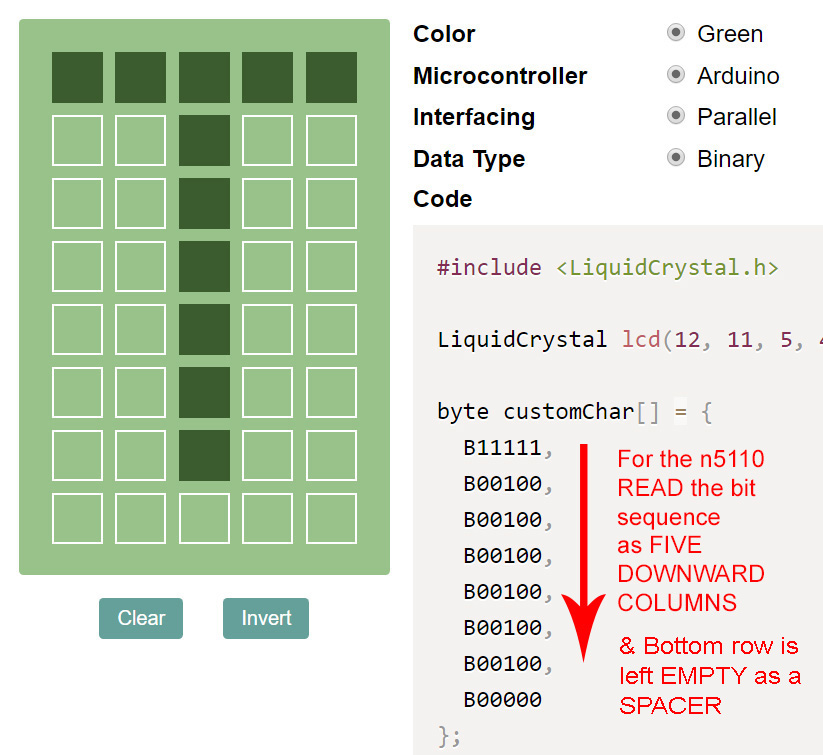
You’ll also find plenty of other drop-in font definitions with Google, but for small 5×7’s, it doesn’t take that long to roll your own by clicking the boxes in an online font creator. and then copying the byte pattern into a bin-hex converter. This also gives you the option of creating custom icons by using a non-standard bitmap for some of the less frequently used ascii characters. Keep in mind that you don’t need to store the entire alphabet if you are only sending a few letters to the screen (like ‘T+P’ or ‘RH%’, etc …) extracting only the letters you need to a reduced font array could save a lot of memory.

So your reduced font array could look something like this:

const byte ASCII[][5] =
{
{0x7f, 0x09, 0x19, 0x29, 0x46}  // 52 R
,{0x7f, 0x08, 0x08, 0x08, 0x7f} // 48 H
,{0x23, 0x13, 0x08, 0x64, 0x62} // 25 %
,{0x01, 0x01, 0x7f, 0x01, 0x01} // 54 T
,{0x08, 0x08, 0x3e, 0x08, 0x08} // 2b +
,{0x7f, 0x09, 0x09, 0x09, 0x06} // 50 P 
};  

If you do that you’ll need to send text to the screen character-by-character because the ASCII based [character – 0x20] calculation won’t work any more.

I tweaked Julians code in a couple of important ways. First, I added PROGMEM to move the font(s) into the program memory space. Second, I added a method to print large numbers to the screen by repeating the same WriteString->WriteCharacter->WriteData pattern two times: once for the “upper half” of the numbers, and then again for the “lower half” of the numbers after re-positioning the cursor to the next line.

To make this limited large-number font I first composed a black & white bitmap for each number with a graphic editor, and then loaded that .bmp file into the LCD assistant program as described in this instructables tutorial.  I started with a bitmap that was 11 pixels wide, by 16 pixels high (though you can use any arbitrary size you want – just remember to leave the blank spacer row at the bottom) and for this two-pass ‘sliced-letters’ method I set vertical & little endian encoding in LCD assistant. I then put the top 11 bytes in the Big11x16numberTops[] array & the lower 11 bytes for each number in the Big11x16numberBottoms[] array.

It takes two passes to print each large number to the screen:

LcdXY (0,2);              //top half of the double-size numbers
LcdWriteBigStringTops(dtostrf(voltage,5,2,string));  
LcdXY (0,3);              //bottom half of the numbers 
LcdWriteBigStringBottoms(dtostrf(voltage,5,2,string));

And some slightly modified functions that refer to the corresponding number-font array:

void LcdWriteBigStringTops(char *characters)
{
while(*characters) LcdWriteBigCharacterTops(*characters++); 
} 
void LcdLcdWriteBigCharacterTops(char character)
{
for(int i=0; i<11; i++){
if((character - 0x2d)>=0){
LcdWriteData(pgm_read_byte(&Big11x16numberTops[character - 0x2d][i]));
}
}
LcdWriteData(0x00);  //one row of spacer pixels inserted between characters  
} 

Those number printing functions could be eliminated with better use of pointers, but I liked having the readability afforded by a few extra lines of code.

Reducing the number of control lines

The stuff I posted on Github assumes you are using a standard 6-pin arrangement shown in most Nokia 5110 hookup guides you will find on the web. But once I had that wrangled, I realized that it would be possible to reduce the number pins needed to drive the display.  You will have to tweak that default example by commenting out the RS & CS commands if you implement the pin-power changes I’m suggesting here… 

I use Deans micro-plugs  for multi-wire applications like this. The unused pin here is the normal Vcc, with the A0 pin-power supply indicated with a dash on the red line.

The shiftout method can be used with any pins you want, and most of my builds have A0-A3 available. With those dedicated wires the PCD8544’s chip select (CS) line can be connected to GND telling the screen that it’s always the selected device. This would be bad if it was connected to the hardware SPI lines shared with the SD card, but since we are using re-purposed anlaog lines, there is no conflict. One minor drawback is that since we are now using all the analog lines (I use A6 & A7 too) we can’t read a floating pin for RandomSeed().

Getting rid of the RESET line is a little trickier. The data sheet says that the RS line must be low while power stabilizes and should then be pulled high within 100ms of power on. Several people create an auto-reset situation by connecting the screens reset to the Arduino’s reset line. Others make the low-high transition with an RC network across the supply for a delayed rising signal. This can even be driven by the DC line (which is low in command mode and high in data mode) 

But I had something else in mind, since I wanted to power the entire display from a digital pin because the power draw with the display off is still about 70uA. This accumulates into a significant amount of wasted power over a multi-year deployment.

Reducing Back-light Current

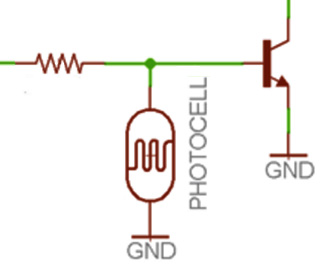
OR … a photocell divider embedded in that clear epoxy would let you enable the backlight dynamically – with the appropriate mosfet for the connection type.

If you use the back-light in the default configuration, the screen can potentially draw up to 80mA (4 white LEDs at 20mA each). The back-light pin is usually connected to a transistor, so you can PWM all 4 LEDs at once for variable lighting control, but the peak currents are still too high for direct pin-powering unless you add some kind of series resistor.  A 10k pot gives you a simpler method to adjust the screen brightness, but I found that a 3k3 series resistor brought the total display current down to ~1mA with decent readability ( & blue LEDs are brighter than white).  Adding an in-line slide switch provides a way to completely disable the back-light for long deployments.  With the entire display safely below Arduino’s pin-current limit, you can then power it by writing a driver pin high or low in output mode.

#define n5110PowerPin  A0          // power the 5110 screen from pin A0 (RED)
#define n5110modeSelect A1         // 6.1.9 D/C: mode select (BLUE)
#define n5110SData A2              // 6.1.7 SDIN: serial data line (WHITE) 
#define n5110SCLK A3 ;             // 6.1.8 SCLK: serial clock line (YELLOW)
// lines not needed any more: 
// #define n5110RST  Now -> 4.7k to power A0
// #define n5110ChipEnable  Now -> GND

This gives you a way to perform a hard reset any time you want provided you tie the screens RS line to that switched power with a 4k7 pullup resistor, and re-run the initialization sequence after restoring power.

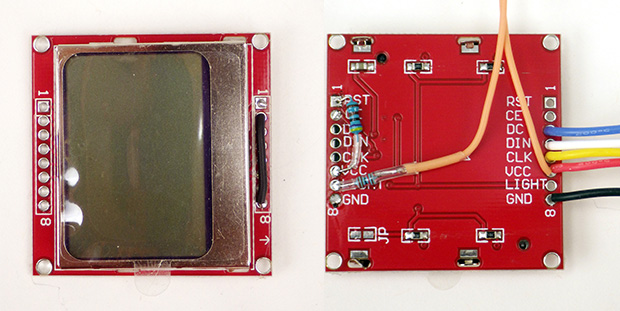
Boards with pin vias on both sides make it easier to add the RST & CE connections. The orange wires shown here thread through the housing to a slide switch which disables the backlight connection for surface deployments. This example connects power to the backlight, but with other screens you might have to connect BACKLIGHT to GND.

Enabling the screen now looks like this in setup:

pinMode(n5110PowerPin, OUTPUT);
digitalWrite(n5110PowerPin, HIGH);
pinMode(n5110modeSelect, OUTPUT);
pinMode(n5110SData, OUTPUT);
pinMode(n5110SCLK, OUTPUT); 
LcdInit(); // shiftout takes control of Mode, Data & SCLK lines at this point

To turn off the screen you pull all the control lines low:

digitalWrite(n5110PowerPin, LOW);        
digitalWrite(n5110modeSelect, LOW);                
digitalWrite(n5110SData, LOW);                
digitalWrite(n5110SCLK, LOW);                         

All four control lines must be brought low when you de-power the display or you will get a 13mA leak current through the controller after vcc goes low. Only the power pin needs to be driven high to start the screen later in the main loop, but don’t forget to run the init each time you power up.

My tests so far have shown reliable operation of pin-powered 5110’s through more than 8000 ‘long-sleep’ power cycles. In applications where I want to display data on the screen on for long periods of time,  I still depower the screen during the new sensor readings. This lets me know when the logger is capturing data and forces a periodic re-synch with the bus. I don’t know how long these displays would run continuously without that step, but I’m sure the coms would eventually go AWOL without some kind of regular reset.

Potting the Nokia 5110 display

Contraction of the epoxy created pressure burns on the LCD when I did a single large pour to pot the screen.

No screen is much use on our project unless it can withstand some bumping around in the real world, and ideally we want one that is dive-able. For several years my go-to solution has been to pot surface mounted LED’s and sensors in Loctite E30CL. I like this epoxy because the slow cure usually sets clear because bubbles have time to rise to the surface without a vacuum treatment. My first attempts looked great the night of the pour, but I got a nasty surprise the following morning. You see I usually mount sensors in small ½-1 inch wells, but the 5110 required a ring more than 2” in diameter. The contraction of the epoxy in this 10mm deep well caused pressure marks on the edges of the screen, and a significant brown spot in the center of the display where the text became inverted.

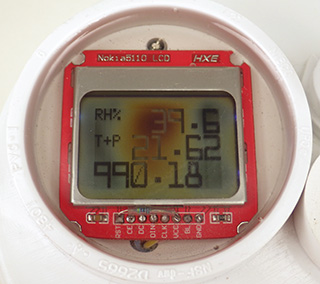
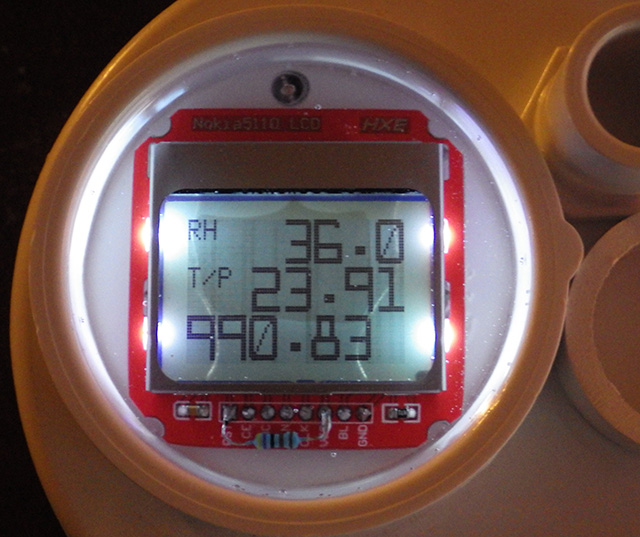
Successive small pours worked better. Here the back-light reflects off of the edges of the epoxy that seeped under the screen before it finished setting. The display in this photo has a 3k3 series resistor in the backlight circuit.

The next attempt was much more successful, as I built up the epoxy a few mm at a time like the layers of an onion. As each layer hardened, it protected the screen from the contraction of the subsequent layers above.  The trick was to bring the first pour to the base of the pcb, and the second pour to “just barely” cover the surface of the screen. The epoxy penetrates about 1/3 of the way into the display housing but this does not interfere with readability as those edges are invisible under natural lighting conditions. That epoxy is actually under the LCD, in the air gap between the transparent glass LCD sandwich and the white reflector plastic which holds the thin LCD in place between the metal rim and the PCB.  I’ll try future pours at different angles to see if that lets the space under the LCD fill completely. Looking at the epoxy penetration, it’s clear that the black edges in pour #1 were places where the LCD was compressed on both sides, and the brown discoloration was from pressure on top with no support below. 

Seawater caused severe fogging of the potting epoxy after only three days in service. Originally a concession to my aging eyes, the large fonts really saved our bacon when this reaction occurred.

The results for the second batch looked good and the screens worked beautifully with full marine submersion for about two days. Then some kind of chemical reaction with the sea-water started fogging the epoxy, and by day three I was glad I’d created the large number fonts because the 5×7’s were completely unreadable.   Once we were back home, a bit of elbow grease & 800 grit removed the foggy surface rind, and a layer of conformal coating restored clarity. I think my next builds will add the coating to the epoxy surface at the start.

I also noted some screen discoloration from pressure at about 3m depth, indicating that even a thick layer of epoxy bows too much for a deeper deployment. I’ve ordered some 1/4“ plexiglass disks to provide a surface with a bit more chemical resistance, and will post an update on how that works after the next fieldwork trip. I’m hoping that provides a bit more pressure protection too, but the shore hardness of the epoxy is 85, and PMMA (plexiglass) is only a few steps above that at 90. I might try polycarbonate as well.

Other Fun stuff:

There is so much more to explore with this screen, including live graphing libraries, and display controls so I expect it will keep me amused for a while since I can add it to any of the current logger builds. Several are out in the wild now for long term tests, and I’m currently working on a script to move those fonts (and a few other things) into the 328p’s internal eeprom. If all goes well I’ll release that ultra low memory footprint version of the code shortly. 

Cheers for now.

Addendum 2018-08-24

After several builds using the this LCD screen I finally got around to storing those font arrays in the Arduino’s internal EEprom. Works a treat, and frees a good chunk of PROGMEM space with very little change to the core functions. With fonts in EEprom, the remaining Nokia 5110 functions compile to a little over 400 bytes of program storage and 10 bytes of dynamic. (not counting EEprom.h) And that’s with three copies of the output functions because of the simple 2-pass method I’m using to display the large numbers.  A small price to pay for live data output on our loggers!

Addendum 2018-10-17

Because of that pressure problem with the 5110 I decided to try out the 0.96″ OLED screens which sell for about $3 on eBay.  When the first batch arrived I was pleasantly surprised by how well they stood up to pressure on their surface. Then I found the SPI version of the SSD1306 OLED can be driven by essentially the same code as the PCD8544 (with the exception of the init & XY functions which are specific to each controller).

Adding the SSD1306 OLED Screen to an Arduino Logger (without a library)

I’m connecting the OLED with the same analog line connections used for the Nokia, but I’ve added a delayed-high RC bridge because the OLED is pickier about the reset input than the Nokias. In hindsight a similar method is probably a good idea for the Nokia screens as well, though you might need to experiment a bit with the resistor/cap values to get the timing right.

Addendum 2020-11-15:

Two I2C 0.96″ OLED displays make a highly useful addition to the basic three module logger

I finally got around to adapting this  eeprom/fonts method for use with I2C displays:

Adding two OLED displays to your Arduino logger

Tutorial: Adding Sensors ( & Modules ) to Your Arduino Data Logger

This in-cave micro-climate recorder had pressure & temperature sensors mounted in little wells of Loctite E30-CL epoxy. This sensor potting method is described in our OLDER build tutorials.  Weather sensing stations are the most popular type of Arduino-based Sensor project on the instructables.com website.

This post isn’t another How-To tutorial for a specific sensor because the Arduino community has already produced a considerable number of resources like that You’d be hard pressed to find any sensor in the DIY market that doesn’t give you a dozen cookbook recipes to follow after a simple Google search. In fact, you get so many results from “How to use SensorX with Arduino” that beginners are overwhelmed because few of those tutorials help people decide which type of sensor suits their skill level. This post attempts to put the range of different options you can use with a Pro Mini based data logger into a conceptual framework, with links to examples that illustrate the ideas in text.

One thing to note before you start is that many modern sensors will only accept 3.3v inputs, so UNO based projects need to check if the sensor they want to use is 5v tolerant. Most sensors from vendors like Adafruit put regulators on their breakout boards to handle this 3.3v-5v translation, but you may have to place level shifters between some of the more advanced digital sensors and an UNO based logger. Occasionally you run into the opposite situation where the sensor requires 5v (or more) forcing Pro Mini based systems to do the same thing.

Also note: Videos from Tom Igo & Jeff Feddersen’s  sensor series ( Survey1&2, Datasheets & Interfacing ) make an excellent accompaniment to the material presented here.


Analog Sensors:

Some substances react to energy input by changing their physical or electrical properties. Arduinos can only read voltages, so to record these changes in the physical world some kind of circuit is needed to convert those properties into a voltage. Sensors that output continuously varying voltages in response to natural phenomenon are called analog sensors. Arduino pins A0 to A7 are analog input pins, and the ADC inside the microprocessor converts those voltages into a numerical value between 0 and 1023. It’s worth keeping in mind that those numbers are somewhat arbitrary depending on the reference voltage, and the behavior of your sensing circuit – so it’s up to you to figure out how to convert the raw ADC readings back into understandable units of the phenomenon you were trying to measure (like degrees Celsius for temperature, or m/second of wind speed, etc.)

A typical photoresistor divider from Sparkfun’s Voltage Divider Tutorial It’s worth noting that many LDRs go from 100 Ohm to over 1 MOhm. For a specific range of conditions, a common rule of thumb is: R-fixed = square root of (R-sensor min × R-sensor max)

The most common analog sensors are those that change their resistance in response to temperature (thermistors), light (photo resistors) or pressure (& it’s force / stretch / bend variants)  If a sensor varies in resistance, you can turn that into a voltage by adding a series resistor to create a voltage divider circuit.  The fixed resistor in the divider is usually chosen with a value near the midpoint of the sensing devices range.  For example, a photoresistor might vary between 1kΩ in the light and about 10kΩ in the dark, so a suitable resistor to pair it with would be ~5kΩ.  For analog sensors that change by small amounts, more sensitive Wheatstone bridge arrangements combine 2 or 4 sensors in the same circuit to expand the delta, but it’s the same basic idea: you are converting a change in resistance into a change in voltage.  If your resistive sensor varies over a wide range, another common technique to increase sensitivity is to use a series string of resistors, and taking each junction to ground to  change the ratio of the voltage divider dynamically.

Divider methods are referred to as ratiometric because the output voltage from the circuit is some fraction of the supply voltage determined by the resistances of the components. If the input voltage is doubled, the output voltage is doubled, so these circuits work fine on 5v UNO and on a 3.3v Pro Mini. By default the Arduino ADC takes a reading by comparing it to the same rail voltage supplying the resistive divider, and sensor nerds like me get all excited about this because it means that variation in your power supply will have little effect on the readings. You can squeeze more sensitivity per bit out of the Arduino’s humble 10-bit ADC by changing to a lower internal reference voltage. However once the Aref is different from your supply voltage, rail noise shows up on the divider output unless you squelch it out with a smoothing capacitor. (related method:  Capacitance Meter

Most analog sensors are simple devices, but there are more complicated versions providing modified analog output, where some extra circuitry has been added to convert the highly non-linear response you get from typical resistance based sensors into the kind of straight y=m(x) relationship you get from a TMP36. This greatly simplifies the math required to convert your analog voltage readings into the real-world property you were actually trying to measure. Some analog sensors (like thermocouples) generate tiny voltages, but those signals may be so small that they need to be amplified before the Arduinos ADC can read them, so these analog sensors may also be sold with supporting electronic boards to boost the output.
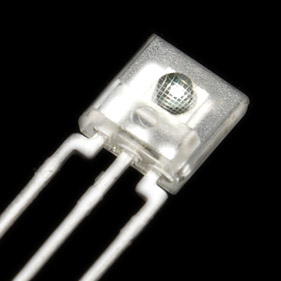
Sensors can be mounted  inside a housing with a couple of layers of double sided foam mounting tape. Sensors mounted this way have stayed in place for many years of deployment. The adhesive will sag somewhat under gravity if you expose your loggers to temps >55C.

At the top of the analog sensor food chain, there are complex Micro Electro Mechanical (MEMS) devices like accelerometers. In these sensors, silicon has been machined into very tiny physical devices made from springs, coils and flat sheets. These micro-cantilevers form capacitors that react to movement by changing a voltage and they are usually arranged in sets of three on x,y,&z axes. This means you need to read three separate input pins to capture a complete reading from the device. Since the Cave Pearl data loggers use pins A4 & A5 for communications with the RTC module, and A0 to track the main battery voltage, a complex analog sensor like the ADXL335 can use up all of the remaining analog inputs on the logger unless you build it with an Arduino that makes inputs A6 & A7 available. (the Pro Mini does, the UNO does not)  The limited number of analog input pins can motivate people to switch over to digital-bus sensors, though multiplexers provide another possible solution to the problem.

Using LED’s as light sensors:  Some light sensors get used in conjunction with a emitter for reflectance and ranging applications. You can create a reasonably good color sensor by combining an RGB LED emitter with a simple photoresistor. And many red, yellow and green LEDs have a little known property: with reverse bias, they behave like a photo diode where the reverse current is proportional to the external light falling on them. So they can also be used to sense light because from a physics point of view, a rectifier diode, a light emitting diode and a photo-diode are basically the same device. While LEDs don’t produce the same signal strength as photodiodes designed for the job, they can be an inexpensive way to build spectrally selective detectors.  LEDs detect a much narrower band of light than they emit, having a peak sensitivity at a wavelength about 50nm shorter than their peak output wavelength.  Forrest Mims built some cool filterless photometers with LED sensors long before the mainstream media started waxing philosophical about ‘citizen science’.  (Also see: jpiat’s Li-Fi )

If you start with the project’s basic UNO logger script , adding a new analog sensor requires only three lines of code. Add

int AnalogSensorReading = analogRead(A0);  
// change A0 to match the input pin you connect the divider to

at the top of the main loop. Then add that new sensor data to the concatenated dataString which is saved to the SD card at the end of the main loop:

dataString += ", "; //comma separates new data from that already in the string
dataString = dataString + String(AnalogSensorReading);

That’s it. This simplicity is why analog sensors are usually the first ones people encounter when they are learning the ropes. Of course there are some advanced tricks  you can play to supercharge Arduino’s humble 10-bit ADC, and you’ll find more useful tips over at Nick Gammon’s ADC tutorial.

Digital Sensors:

A bullet-proof de-bouncer from www.ganssle.com.    Compare this to the 5-key de-bouncing circuit from the IBM 705

Unlike analog sensors, digital sensors only output two voltages: High & Low. Usually the high voltage is the same as your power rail, and the low voltage is your system ground. In some ways that makes digital sensors easier to use, but there are some devils hiding in the details, and digital sensors cover the entire range from crude noob-level devices to Gordian knots with more computational horsepower than the Arduino itself. Even the most complicated digital sensor usually has an analog sensor hiding somewhere at its core.

I group digital sensors into three conceptual categories:

Switchers,   Thumpers,  &   Thinkers

This is based on what kind of output they produce, rather than the complexity of their electronic circuits. And it’s not unusual for more advanced IC-based digital sensors to be as easy to use as the flippers & thumpers, because some kind soul has released a library that takes care of the gnarly low-level details.

1) Switchers

The humble push-button can be thought of as a crude pressure sensor with only two states: open or closed. Add a couple of passives for debouncing, and reed switches become the digital sensor of choice for event counting applications like the tipping-bucket rain gauges you find in weather stations.  IR break-beam switches are another common implementation with on/off output.

When you first look into digital sensors there seems to be a bewildering array of different ‘breakout boards’ and ‘sensor modules’ for the Arduino. These are often sold in bundles of twenty, thirty or even sixty different pieces. Once you get a closer look at them, you notice that many these cheap sensor modules look similar to each other:

That’s because most of those boards are simply a voltage divider connected to one leg of a five cent comparator circuit, with a trimming potentiometer setting the reference voltage on the comparators other input:

These boards switch their high/low output when the sensor circuit voltage crosses the threshold set by the trim-pot divider; and this changes the analog sensor voltage divider output into an environmentally responsive threshold alarm. It’s such a generic circuit that you could connect other resistive sensor dividers and the board wouldn’t even notice. If you use these modules with the Cave Pearl loggers, look for boards that also break out that 4th analog pin so you can also read the sensor dividers output directly with the ADC if you want to.

Integrating simple on/off digital sensors to your logger code would use almost the same pattern as the analog sensor reading:

pinMode(PinNumber, INPUT);  // Declaring the pin as an digital Input
int DigitalSensorReading = digitalRead (PinNumber);

dataString += ", ";         //comma that separates new data
dataString = dataString + String(DigitalSensorReading);

These PIR sensors are usually 5v, but you can modify them for 3.3v operation.

Those eBay boards are somewhat redundant, since the Arduino has a built-in analog comparator that can do this job with pins D6 (reference) & D7 (sensor divider) .  However there are many high/low output sensors with more complex circuits that are not as easily replicated.  Proximity sensors are the most common example of these more-advanced-but-still-simple category, and passive infrared (PIR) motion sensors occupy every corner of the modern world.  Adafruit has a fantastic tutorial on how to use them with an Arduino, which also demonstrates how the Boolean HIGH or LOW value you get back from digitalRead() can be used with if statements to select different courses of action:

Reading = digitalRead (PinNumber);

if(Reading == HIGH)
  {   Serial.println("input is HIGH");   }

if(Reading == LOW)
  {   Serial.println("input is LOW");   }

All the I/O pins on an Arduino can be used as digital inputs  (yes, including the analog lines) and the cool thing about that is the circuitry hidden behind those pins inside the microprocessor. The Schmitt trigger on each pin has read-high vs read-low threshold voltages. This lets you replicate what those cheap eBay modules do by replacing the fixed resistor in your analog voltage divider with variable one, and then connecting the output of that divider to a digital input pin. Inferring resistance (or capacitance) by timing those threshold crossovers lets you make high resolution analog readings with digital pins because micro-controllers count time far more precisely than ADC’s measure voltage.

2) Thumpers:

Switchers change state slowly by microcontroller standards, and since they can be read with a single digitalRead() command, they won’t get you much cred at the local hacker-space. To get into the digital world’s caffeine-driven middle class you have to start working with Thumpers. These are sensors which convey information by varying the percent of time the sensor outputs high at a given frequency (called pulse-width modulation or PWM) OR by changing their output frequency with a fixed 50/50 split between on&off (this is called frequency modulation or FM) .

This kind of output was common long before the Arduino existed because putting an analog sensor into the oscillator circuit feeding a 555 timer chip changes the pulses coming out the other end in proportion to the sensors resistance / capacitance / etc. You’d be hard pressed to find any environmental sensor that can’t be constructed with a couple of op-amps and a 555 (See: the conductivity sensing post for examples).

Three common methods for reading pulsed signals with an Arduino are:

  1. The pulseIn() Function
  2. External Interrupts
  3. Pin Change Interrupts

The output of the pulseIn() function is the time in microseconds that it took for the pin to go (or be) LOW, then go HIGH, then go LOW again. This is the method of choice for PWM thumpers, and it is extremely easy to use provided the incoming signal is a clean square wave.
Unfortunately, it does not handle frequency modulation very well at the high end, because it’s susceptible to errors in timing when detecting the start and end of very short pulses.

Note: the RCWL-1601 is the 3.3v version of this board which is code compatible with the 5v HC-SR04. The 3.3v compatible board is also sold as the HSR04-P.

Range finding sensors often output PWM signals, and the most popular of those is the HC-SR04 which is used for collision avoidance by just about every Arduino-based robot on the planet. Self-balancing robots are one of the maker movements “killer apps”, and it doesn’t hurt that the SR04 transceivers just happen to look like a pair of eyes. There’s currently a bit of a turf war between the SR04 and IR rangefinders. Ultrasonic energy is absorbed by soft materials, and SR04’s are susceptible to interference & multi-path issues in environments where there are lots of flat rigid surfaces. Infrared sensors have a much more focused beam so you get better results finding small objects…like the other robot you’re currently doing battle with.  (For more precise work you can go upscale to the VL53L0X Time of Flight distance sensors, and if money is no object, you can take that all the way to LIDAR.  To get the highest level range-finding merit badge of them all: MaxBotix Sonar sensors let you play the game under water…)

The SR04 is a bit odd in that it only generates one long pulse that lasts till the outbound pings return back to the sensor, but the pulseIn() implementation for the HC-SR04 could be as simple as this:

digitalWrite(triggerPin, HIGH);       // get ready to transmit the pings
delayMicroseconds(10);                // give the sensor 10 ms to settle
digitalWrite(triggerPin, LOW);        // send the out pings, wait 2ms, & set output high
duration = pulseIn(echoPin, HIGH);    // output pulse goes low when 1st return ping hits 
Distance2reflectingSurface = (duration/2) / 29.1;
// Divide by 2 since 'total pulse with' = time to travels out & back = twice the distance
// Speed of sound in air = 340 meters per second or ~29 microseconds per centimeter
// Then divide the duration by 29 cm = distance in centimeters.

External interrupts handle both PWM and FM efficiently with the limitation that there are only two hardware interrupt lines on a typical Arduino. The Cave Pearl loggers are already using D2 for the RTC wakeup alarms, and that leaves only D3 available for hardware methods calling attachInterrupt().

It’s worth noting that there is also a near IR (940nm) sibling in the TSL family: the TSL245 though with IR sensors it can be tricky to extract temperature dependencies.

The TSL235R light-to-frequency sensor outputs a square wave (50% duty cycle) with a frequency proportional to light intensity. The TSL235 is self-contained, well calibrated, and very linear over the ultraviolet-to-visible light range of 320 nm to 700 nm. Calibration in manufacturing is something that most companies will try to avoid, and when you include the fact that this sensor works from 2.7-5.5v, you have a $3 sensor that’s nearly perfect for use with Arduino-based data loggers. Rob Tillaart has posted a simple bit of code that counts the interrupt pulses per second from this FM sensor over at the Arduino playground. It should be easy to integrate these functions into the Cave Pearl base code, and modify it to work with any other FM output sensor. Data from light sensors usually requires post processing with somewhat complicated luminous efficiency calculations, but if you Google around you’ll find plenty of Arduino tutorials on those steps (also see: Insolation Models).

Only D2 & D3 support external interrupt signals by default, but with a little bit of extra code interrupt signals can be received on any of the Arduinos I/O pins.  Interrupts triggered from pins other than D2 & D3 are referred to as Pin Change Interrupts. Pin change interrupts are grouped into 3 ‘ports’ on the MCU. This means there are only 3 interrupt subroutines to handle input from all 20 pins. This makes the code somewhat more complicated than Rob Tillarts example, as it now needs to determine which pin triggered the ISR. That extra complication usually motivates people to use something like the PinChangeInt library for situations with a limited number of input pins.

There are many great frequency counting libraries but it’s important to note the difference between ones which count the number of pulses during a fixed “gate interval” time, and those measuring the period of a single high frequency pulse.  Tillart’s code uses the counting method, and this works well for relatively high frequencies, because many cycles are counted during the gate interval and this reduces error. At lower frequencies, very few cycles are counted, and the precision suffers, so measuring the elapsed time during a single cycle is a better option:

This image is from PJRC’s FreqCount Library page, which goes into more detail on the FM sensing process. It’s worth noting some of the other useful sensor libraries that Paul Stoffregen has released including: Onewire library for the ever popular DS18B20 temperature sensor, SerialFlash to simplify SPI memory builds, and their project blog is a font of other highly interesting things.

According to PJRC: Frequency Counting: works best for 1 kHz to 8 MHz and Period Measuring: works best for 0.1 Hz to 1 kHz.  There is some wiggle room there, and you should check your sensors data sheet to make sure your method matches the output range.

If you’d rather skip the libraries, you can get closer to the bare metal with the advanced timer over-flow methods described at www.fiz-ix.com and at Nick’s Timers & Counters page. Nick’s page describes a method to measure frequency with the input capture unit on pin D8. While that’s some pretty advanced code, it allows you to measure pulsed inputs to a resolution approaching the frequency of your system clock. Some sensors like Anemometers produce output that’s so variable it can’t really be classified as either PWM or FM. Sensors like that are good candidates for using more advanced timer or interrupt based approaches.

3) Thinkers

This Grove I2C hub connects several the sensors to the bus, so only one jumper set needs to be patched down to the logger platform. The mounting shown here was done with plumbers putty, which hardens quickly, and adheres well to most plastic enclosures.

Chip-based sensors offer high resolutions and complex signal processing capabilities that can be hard to replicate on the Arduino.  Most of these digital sensors send data using serial communication protocols over a common set of “bus” wires that are physically connected to all of the sensors in parallel. Serial protocols can be intimidatingly complex for beginners, but you rarely need to worry about the details because most of the vendors in the Arduino landscape release libraries to simplify the use of the sensors they sell. These libraries make it easy to work with complex sensors, and they are one of the reasons that companies like Adafruit and Sparkfun have such a dedicated following in the maker movement.

Newer versions of the Arduino IDE have a Library Manager which provides access to a large list of libraries with a one-click install. Sensors that have been used for a few years by the community often have a library available through the manager. However for new sensors, you usually have to download a library and manually place it in your

Username>Documents>Arduino>Libraries folder.

You can Learn more about installing Arduino libraries at:
Sparkfun :Installing an Arduino Library,    All About Arduino Libraries at Adafruit 
and  Installing Additional Arduino Libraries at Arduino.cc.

Note library code can be located in several different places on your hard drive but it’s best to keep the ones you add in your sketchbook folder because the Arduino Software (IDE) upgrades itself by first erasing everything in the program root directory: including any libraries that were stored there. Libraries in your personal document folders are not deleted during the Arduino Software (IDE) update process.

Here I’ve added a resistor which pulls the CS pin high to tell this ADXL345 accelerometer to communicate with the I2C protocol rather than SPI. The value of that pull-up resistor is not critical, so they can range from a 200Ω to 10kΩ.

The digital sensor protocols you are most likely to see used with an Arduino are SPI and I2C. It’s fairly common for chip-based sensors to support BOTH protocols and for those you usually add a pull-up or pull-down resistor to the sensor module to tell the chip which method to use.  SPI is preferred when fast communication is needed to move large amounts of data, but this is rarely the case for environmental monitoring. More importantly, the Arduino SD card libraries expect the SPI bus to be operating in Mode0. Adding a sensor to the Cave Pearl Logger which changes the SPI bus to one of the other three SPI operating modes would prevent data from being saved until the bus was reset to Mode0. I have yet to find an SPI bus sensor that doesn’t have an I2C equivalent.

I²C sensors are often the best choice for Cave Pearl Data Loggers.

The DS3231 RTC breakout module used on the Cave Pearl logger has a cascade port at one end, making a perfect attachment point for other I2C devices

The I²C bus or TWI (Two Wire Interface) allows a single master (the Arduino) to share communication lines with more than 100 sensor devices. (…in theory, a more realistic expectation is 5-10 sensors)  Cave Pearls use a DS3231 RTC for timekeeping and the I²C breakout board carrying it provides 4.7k pullups resistors on the SDA and SCL communication lines. Each new I²C sensor gets connected to the same wires as the RTC module. If you have a good library to go with your sensor, about the only thing that might prevent it from working is a bus address conflict. Because I²C devices are all connected to the same wires, the Arduino needs a way to talk to only one device at a time and it does this by starting each message with the I²C address of each sensor. (kind of like a phone number)

The first thing to do after connecting a new I²C sensor to your Arduino, is run a bus scanner which queries every possible address to see which devices are responding. If two devices are trying to use the same address, only one of them will show up in the scan, and sometimes neither of them will. Code for this basic job for this can be found at the Arduino playground.

Running that bus scanner on a Cave Pearl data logger without any sensors are attached should produce:

This output screen tells us that the RTC breakout board is functioning and that the I²C “device addresses” are 0x57 ( this is the EEprom on that module ) and 0x68 (the DS3231 RTC).  Adafruit has compiled a list of typical I2C addresses for different sensors and scanning through that list for the two we are already using on the logger finds some potential conflicts:

0x57
MB85RC I2C FRAM (0x50 – 0x57)
MAX3010x Pulse & Oximetry sensor (0x57)  //(this sensor can not be used w our logger!)

0x68
This address is popular with real time clocks – almost all of them use 0x68!
AMG8833 IR Thermal Camera Breakout (0x68 or 0x69)
DS1307 RTC (0x68 only)
PCF8523 RTC (0x68 only)
DS3231 RTC (0x68 only)
MPU-9250 9-DoF IMU (0x68 or 0x69)        // (must be set to 0x69 to use w our logger!)
MPU-60X0 Accel+Gyro (0x68 or 0x69)
ITG3200 Gyro (0x68 or 0x69)

Some I²C devices have only one fixed address and but most offer a small range of different addresses that you can set by connecting different pins on the module to power or to ground. This will let you resolve an address conflict, but be make sure to make corresponding changes in your code if you change a sensor address away from it’s default. Most sensor libraries will have a modifiable parameter for the device address that is used to initialize the sensor. If you have a sensor with a fixed address, you will only be able to hook up one of those sensors to the logger at a time unless you add an I2C multiplexer to resolve the address conflict.

Once you’ve confirmed the sensors show up on a scan of the I²C bus, the next steps depend on the complexity of your sensor. I²C sensors that only do one thing can often be read with a minimal amounts of code after the #include <Wire.h> statement embeds the TWI library that’s built-in to the IDE . You often see this with a basic temperature sensors like the TC74

//All I2C coms start with a handshake transaction with the device @ address
Wire.beginTransmission(address);
Wire.write(0);           //asking for register 0, the data register of the TC74
Wire.endTransmission(); // nothing is sent over the wires until wire.end is executed

//then you request the temperature data from the TC74 sensor
Wire.requestFrom(address, 1);  //this requests 1 byte from the specified address
int celsius= Wire.read();

For sensors that do more complicated things there can be many more steps, especially during sensor initialization when you might have to configure the bit-depth of the readings, the sampling speed of the sensor, and a host of other options. I’ve posted an extensive tutorial about this for tech-savvy users (see: How to configure I2C sensors ) but for beginners the best approach to adding a new I²C sensor is

1) Find a suitable tutorial by typing “How to use SensorX with Arduino” in Google or by reviewing the tutorials available at: Hookup Guides at Sparkfun, the Sensor tutorials at Adafruit, or search for code examples and links at the sensors forum.

2) Download the associated sensor library and install it into your Documents>Arduino>Libraries folder

3) Add #include <SensorLibrary.h> to the start of your code

4) Initialize the sensor in startup following the code examples for your tutorial located on GitHub

5) Read the sensor in the main loop

Most libraries are written to provide InitializeTheSensor() and ReadTheSensor() functions that so steps 4) & 5) often end up adding only couple of lines to your code.

As a simple example look at the MCP9808 temperature sensor from Adafruit:

The Tutorial   &   The example code on Github

That script is quite small because the library condensed a lot of I2C handshaking down to

tempsensor.begin();  // initializes the sensor
tempsensor.readTempC();   // reads the sensor

For an example of a library driving a more complex sensor, look at the BMP180 pressure sensor from Sparkfun

Hookup guide   &  The example code on Github

There’s an important step at the start of the code:

#include <SFE_BMP180.h>
#include <Wire.h>
SFE_BMP180 pressure;    // creates an SFE_BMP180 object, called pressure
#define ALTITUDE 1655.0 // Altitude of SparkFun's HQ in Boulder, CO. in meters

In setup, theobjectname. appears before each call to library functions:

pressure.begin()       //initializes the sensor in setup

And then in the main loop, the sensor uses a four step process to complete one reading.

status = pressure.startTemperature();
delay(time);
status = pressure.getTemperature(T); 
// the temperature must be read before the pressure!

status = pressure.startPressure(3);  // with oversampling set to 3
delay(time);
status = pressure.getPressure(P,T);

Multi-step read procedures like that are quite common, because it takes time to capture high resolution readings, and in this case the temperature has to be sent as a correction factor for the pressure reading.

Then there are two more functions in the example program worth noting:

p0 = pressure.sealevel(P,ALTITUDE);
a = pressure.altitude(P,p0);

The pressure sensor returns absolute pressure, and Sparkfun have provided extra code in their library to do calculations which convert that number into sea level equivalent & altitude equivalent numbers.  That Sparkfun code example is pretty typical of what you get with libraries for more complex sensors, and it should not be too hard to just open two IDE windows to copy and paste the required pieces of code from the Adafruit & Sparkfun examples into the basic Cave Pearl Logger script on Github.  There is nothing magical about libraries: they are just pieces of code that you can read through yourself by opening the .cpp file listed in the same Github repository. Always review the library code if you can, as figuring out how someone else’s stuff works is an important part of learning how to program the Arduino.

Think about your housing-logger interconnections before you start your build.  My current favorite connectors are Deans Micro Plugs, which are available in 2,3,4,5,6,& 8 pin versions. Use a consistent color convention for different bus wires.

Most libraries will include a simple example sketch with the downloadable file. These show up in the IDE in the FILE>EXAMPLES> pull-down menu after the library is installed, so you don’t usually have to go all the way to Github like I did here. The included examples usually only initialize the sensor and print out some raw readings, but that’s exactly what you need to verify the sensor is working before you merge those bits into your own code.

The real benefit of a good library is not just the code, but the significant amount of time someone spent slogging through a sensors data sheet figuring out the correct sequence of operations.  Just because a library exists for your sensor does not mean that it is necessarily a good one – especially when you find them out in the wild. So you should test different libraries when you have options. I generally chose libraries that require the least amount of memory at compile time, and/or ones that give me access to the ‘raw’ sensor readings in addition to the processed output. Raw sensor readings let you do calculations later in Excel to make sure the library didn’t introduce an error somewhere.

One thing that is often overlooked by library writers is supporting features that put the sensor into low-current sleep modes between readings. This is irrelevant for robots or quad-copters but it is vital for datalogger applications and is often the deciding factor for our project when choosing a library. Another thing to keep in mind is that sensor libraries don’t have to be continually upgraded like the software you run into on a more complex system. Once a sensor library is working, it will hang around for years with no updates because none are needed.

Well… this post swelled into another voluminous tome, but hopefully no one lost sight of the forest for the trees.  Generally speaking you can buy each type of physical sensor in all of the data output ‘flavors’ described in this post.  As an example, there are both analog (voltage) & digital (pulsed) anemometers, and the digital ones range from simple reed-switch thumpers to ones with onboard IC’s doing most of the raw signal processing to provide calibrated wind-speed numbers over an I2C bus.  Don’t mistake the Analog vs Digital divide as any indication that one kind of sensor is necessarily better for the job you are doing.  Same goes for my tongue-in-cheek categories for Flippers, Thumpers & Thinkers. They’re just conceptual tools to use when you are hunting through tutorials on instructables, or when you run into an intimidating wall of information like the Interfacing with Hardware page at Arduino.cc.

Although this post has been focused on capturing sensor data with a logger, you should also keep in mind that there are many different physical methods to measure the same phenomenon. Using the anemometer example, most people think of the traditional egg-cup spinners because that’s what they are used to seeing on rooftops, but heat-loss methods, and ultra sonic methods are also quite common. A Google search on ‘how to measure water level’ shows the incredible range of different sensors can be put to that simple task.  When you are faced with a range of methods like that, the ‘best sensor’ for the job is the one you can actually get working, and that usually boils down to the amount of programming complexity you are comfortable with. Good libraries can level the playing field quite a bit, making complicated sensors almost as easy to add to your data logger as basic analog voltage dividers. And it never hurts to review the difference between Resolution, Precision & Accuracy before you choose a sensor.

Addendum 20171218

A few people have commented about my use of string variables in older versions of the basic logger code, and the general consensus is that the String class should be avoided because it can lead to memory fragmentation. It is better to use character arrays, but there is a significant learning curve there and strings will let you build a working data logger when you are just starting out. Majenko has one of the most concise summaries of steps to address this issue, and there is a reasonably good introduction to character arrays, and many other helpful concepts at the Starting Electronics: Arduino Programming Course  (see: Section 18).  Personally, I find that having to re-jig sprintf() statements when I want to add another sensor to my logger is a pain in the backside. A more memory friendly approach could be to simply open the file and then save the variables directly to the SD card without the string concatenation steps:

dataFile.open(FileName, O_WRITE | O_APPEND);
dataFile.print(AnalogSensorReading); dataFile.print(",");
dataFile.print(DigitalSensorReading); dataFile.print(",");
[...]
dataFile.close();

An alternative way to address String memory issues is to use the Pstring library by Mikal Hart.   “Print-to-String” is a lightweight Print-derivative string class that renders text into a character buffer that you define at the start of your program.

char DATABuffer[30];  //This character array receives the ascii characters
// it's worth noting that you can't move more than 30 bytes at a time 
// over the I2C bus due to limitations of the wire library buffer, 
// so my receiving arrays are usually [30] bytes long.

The data concatenation steps I described previously for the basic UNO logger:

dataString += ", ";      //comma that separates new data
dataString = dataString + String(DigitalSensorReading);

are slightly different for the more advanced Cave Pearl logger code which uses the Pstring library:

PString str(DATABuffer, sizeof(DATABuffer));// set the array as the receiving buffer
str = "";                                   // this empties the receiving buffer
str.print(CycleTimeStamp); str.print(",");  // this data is already in ASCII format
str.print(DigitalSensorReading); str.print(",");     // this data is an integer
//add more variables as needed  up to the [30] char limit
// separating each additional sensor reading with a comma

It does not matter what what the source variable format is – float, integer, etc – it all gets rendered into ascii by the str.print statements. And Pstring will never cause a buffer overflow because any excess data that you try to add to DATABuffer is simply discarded. That receiving buffer will always contain valid (i.e. NULL-terminated) C string data. This makes the method much friendlier for people who are new to programming.

To save the sensor data stored in DATABuffer char array to the SD card use file.write:

file.open(FileName, O_WRITE | O_APPEND);
file.write(DATABuffer, sizeof(DATABuffer));
file.close();

Addendum 201907:

The latest revision of our logger starter sketch dispenses with the string manipulation described above, and just writes the variables to the SD card directly with file print statements.

Arduino Pro Mini Data Logger : Add Screw-Terminal Board (2017 Update)

This is a build variation of the basic 3-Module logger described in the Cave Pearl Data Logger paper at Sensors.  This configuration sleeps at 0.20 mA or less if you use an Arduino with an MCP1700 series regulator, so a 4xAA battery pack like the one shown should be good for more than a year. If the stacking shown in this tutorial looks a bit too complicated for your skill level, take a look at the EDU version from 2019 where all the parts are flattened out into a pre-made box. It’s quite a bit easier to assemble.

If you need a logger with a rugged waterproof housing, it’s still hard to beat the crimped-jumpers build released in 2016. However sometimes I just want a quick bare-bones unit for bookshelf test runs while I shake down a new sensor. I can whip up a breadboard combo in about twenty minutes, but they stop working if I bump one of the wires loose. I’ve lost SD cards from this half way through a long term test, and I’ve also run into issues with noise & resistance from those tiny breadboard contacts.

To address this I’ve come up with a new configuration that uses a screw-terminal expansion shield originally intended for the Nano.  This requires a reasonable amount of soldering, and after some practice, between 2-3 hours to finish depending on how many “extras” you embed into the basic three component core. In return for that time you get all the pins broken out, making this approach almost as flexible as a breadboard, and much more physically robust. Pop them into some pre-made boxes and these little guys qualify as deploy-able for relatively stable environments (though I wouldn’t use those pre-made boxes outside unless I could pot everything inside that housing with paraffin wax)

Connection Diagram:

PARTS & MATERIALS


TransparentSinglePixl
Bill of Materials: $8.55
Pro Mini Style clone 3.3v 8mHz
I always get the ones with A6 & A7 broken out at the back edge of the board.
$2.00
Nano V1.O Screw Terminal Expansion Board
Note: To save time, you can spend an extra $1 for pre-assembled boards by Deek Robot, Keyes, & Gravitech.  Note that bad vendors show photos of the pre-assembled boards in their listing, but then ship you the no-name assemble-it-yourself part kit. That kind of bait-n-switch tactic is very common with dodgy eBay suppliers. Or if you have a board with unusual dimensions, you could fabricate a custom screw terminal shield from scratch.
$1.05
DS3231 IIC RTC with 4K AT24C32 EEprom (zs-042)
Some ship with CR2032 batteries which will pop if you don’t disable the charging circuit!  Also the DS3231N or DS3231SN chips are much better with ± 2-3ppm error, The DS3231M is a very different chip with ± 5ppm, so buy a small number from each vendor until you find out which chips they put on the module.
$1.25
SPI Mini SD card Module for Arduino AVR
Be sure to buy the ones with four ‘separate’ pull-up resistors! The second resistor from the bottom of these boards needs to be removed because it is pulling up the SCK pin, which with our SD driver needs to rest low because the SD card libs uses mode 0.  I found the best results by removing the bottom 3 resistors, and then using the Arduino’s internal pull-ups on mosi & miso.
$0.50
4xAA 6V Switched Battery Holder
The logger works with battery packs holding 3 to 8 AA batteries (with the default MIC5205 regulator). When using non-switched battery holders, I add Amass XT30U Bullet Connectors between the holder and the logger.
$0.75
CR2032 lithium battery  $0.40
Sandisk or Nokia Micro SD card 256mb-512mb 
Older Sandisk & Nokia cards have lower sleep & write currents. They also are better suited to access via the SPI interface, while larger newer cards are not. Test used cards well  before putting them in service.
$2.00
Common Cathode Bright RGB LED 5mm 
( & 30kΩ limit resistor)  A brighter bulb lets you use a larger limit resistor for the same light output.
$0.05
Double Sided Tape,  2x 10MΩ resistors, 28awg silicone wireheader pins, etc… $0.50
Donation to Arduino.cc
If you don’t use a ‘real’ Promini from Sparkfun to build your logger, you should at least consider sending a buck or two back to the mothership to keep the open source hardware movement going…so more cool stuff like this can happen!
$1.00
Comment:   You might need one of these to get started:                            (not included in the total above)
3.3V 5V FT232 Module
  ***Be sure to set the UART module jumpers to 3.3v before using it!*** and you will need a USB 2.0 A Male to Mini B cable.
$2.75
Micro SD TF Flash Memory Card Reader
Get several, as these things get lost easily. My preferred at the moment is the SanDisk MobileMate SD+ SDDR-103 which can usually be found on the ‘bay for ~$5.
$1.00

VIDEO GUIDE

In 2018, a visiting colleague inquired about the steps involved in building a Cave Pearl logger, and I figured the best way to convey that was to simply built one while they recorded the process. This took about three hours, and those videos are now available on YouTube. The order of operations in the videos is slightly different from the written instructions below, but the changes are relatively minor.  

COMPONENT PREPARATION

Clean absolutely everything. I go over every surface of every module with 90% isopropyl alcohol and cotton swabs until those boards are squeaky clean. Then all the surfaces that I’m not soldering get a layer of conformal coating. (except the SD card spring contacts…)  The pads I do solder get cleaned afterward to make sure there’s not one speck of circuit wrecking flux left, and then I coat those joins too.  I usually get several years of continuous operation of these loggers, and I’m convinced it’s because I clean the parts thoroughly during the build process.  Just as a reference, I recently took a look at the the ADXL345 module (pictured at right) inside my first drip sensor prototype which I built in 2014.  Since it was just a bench prototype, the module did not go through my usual cleaning procedure, and it was never deployed.  So this is what happens when uncleaned boards are simply left sitting on a bookshelf inside the house – just imagine what could happen to the parts you actually deploy in the field…

Bread-board your logger before soldering!

With the quality variation you typically see in these cheap parts, I make a pre-soldering breadboard version of each unique combination to confirm that the components in my build aren’t drawing excessive current – especially the SD cards!  I bin between 10-20% of the low-end sensor modules I get from eBay, simply because they draw excessive power for no obvious reason, as compared to the others from the same batch…
(note: in the photo to the right D2 is hard wired via a jumper to the rtc SQW line – leaving an unused breadboard row which I’ve re-purposed to bridge vcc to the power rail on the opposite side of the board. And in this example, D4 provides GND for the indicator LED)

The Main Board:

In this build the six serial UART I/O pins must have 90 degree angled headers to make more room for the RTC board which will sit on top of the main board later.  Solder those header pins onto your Arduino board, and test it with your UART adapter. Generally speaking, about 10% of the cheap modules I buy from eBay are flakey in some way, and it’s quite annoying to discover that after you’ve assembled a logger. Once you know the board is working, remove the power and pin13 LED resistors.  These limit resistors tend to move around from one manufacturer to the next, so you might have to hunting for them on your particular board.  You also need to remove the RESET switch from the board, or that button will be compressed when you put the SD card adapter into place:

{Click any images to see larger versions.}

pwrledpromini

Solder the side rows of straight header pins so that they project from the bottom of the board.  I usually skip the two reset pins, so that I can re-purpose those screw terminals later as GND and Vcc (photo 3 below) but if your application needs reset functionality then  solder those headers as normal.  Add wires to the top of the board for the A4 (SDA white) & A5 (SCL yellow) lines of the I2C interface.  Add wires to the A6 & A7 vias so that they project from the bottom of the board.

Once all the pins are in place clean any flux residue from the board with 90% isopropyl alcohol and a cotton swab. The final step for the main board preparation is to trim the pin header solder points on the TOP of the board flush with the surface: D4-D9, D10-D13, and A0-A1.  Then affix some double sided tape  in place over those trimmed pins, which will mate with the bottom surface of the SD adapter.

The RTC Module:

The simplest modification to these DS3231 RTC boards is to remove the charging circuit resistor and power LED limit resistor from the circuit board (indicated with the red squares in the first picture).  LIR2032 rechargeable batteries are nominally 3.6v, and will not charge with this module connected to a 3.3v Arduino. Replacing that with a CR2032 will backup the RTC for many years of operation 

rtc1

Add two layers of double sided foam tape, so that the thickness matches the top surface of the DS3231, and the inside edge aligns with that side of the chip. These two surfaces will mate with tape on the SD adapter board.

Since the RTC board already has 4.7k pullups on the SDA (data) and SCL (clock) lines, you will not need to add them to your I2C sensors.  This board also has a 4.7k pullup on the SQW alarm line.  We will be connecting SDA, SCL, GND and VCC wires to the small cascade port on the module.

The SD Card Adapter:

This SD card adapter comes with small surface mount pullup resistors on the MOSI, MISO & SCK (clock) lines (removed from the dashed red line area photo 2 below).  The Arduino SDfat library uses SPI mode 0 communication, which sets the SCK line low when the logger is sleeping. This would cause a constant drain (~0.33mA) through the 10K SCK pullup on the module if we did not remove it.  I prefer to pull MOSI & MISO high using the internal pullups on the 328P processor, so those physical resistors on the breakout board can also be removed. But be careful to leave the top-most resistor of the four in place to pull up the DAT1 & DAT2 lines.  This keeps those unused pins on the μSD card from floating when the cards are accessed in SPI mode.

sd1 Only remove the bottom three pullup resistors. keep the top one

Add jumper wires to each of the headers pins on the bottom of the SD adapter and trim those solder joints till they have a relatively low profile . Then cut away the vertical header pins from the top of the board. Place a strip of double sided tape on the bottom of the SD card module opposite the soldered wires. This strip acts as a spacer to level the SD board when it is placed in contact with on the double sided tape on the mini style Arduino board.

The SPI connections:
RED:           3.3v regulated
Grey:          Cable select (to D10)
Orange:     MOSI   (to D11)
Brown:      SClocK (to D13)
Purple:      MISO   (to D12)
BLACK:     Ground

The Screw Terminal board:

These screw terminal boards are designed for use with Arduino Nano boards, but if you orient the two correctly when you connect them, labels on one side of the shield will be in alignment with promini pins:


Drilling a pass-through hole lets you bring the jumpers down to those unused pins, and to make other connections to solder points on the underside of the shield without blocking the M3 mounting holes. It is also possible to fabricate your own terminal board.

ASSEMBLING THE LOGGER PLATFORM

Attach SD adapter to the Pro mini:

The first step is to attach the SD adapter to the board, but this must be done with a slight overhang, so that at least the red Vcc wire on the SD adapter extends beyond the top surface of the pro-mini board.  It’s OK to leave more overhang than I’ve shown here, but if you leave less, the wires on the RTC cascade port might interfere with access to the serial I/O pins.

Place a strip of double sided tape across the SD adapter board as shown, taking care not to cover the hole showing the card lock spring.  When that tape is in place, bring the ground and Vcc lines from the SD board forward and make a gap in wire insulation so you can splice-solder them to the GND & Vcc pins on top of the pro mini board. This procedure simultaneously connects the rails to the SD adapter, and brings power to the I2C cascade port on the RTC module.

Connect the RTC board:

I recommend that you take a bit of time holding the RTC board in place over the SD & mini combination while the protective covering is still on the tape, so that you get a feel for the alignment before you actually try to stick these parts together. With the cascade port oriented towards the Arduino’s serial I/O pins, the topography of the SD adapter fits snugly into place against the DS3231 chip on the RTC module.

After you stick the pieces together, trim and solder the I2C bus wires to the RTC’s cascade port. Note that it is possible to unstick the parts afterwards by gently levering them apart with a screw driver, but be careful you don’t rip the metal shield off of the SD card adapter in the process.

Attach everything to the Screw Terminal Shield:

If you’ve gotten this far, then you can now relax, because all the tricky stuff is done.  Trim and tin the four SD lines and bring the down to the D10-13 SPI screw terminals just below. Note that D12(MISO)  & D13(SCLK) lines must crossover.  Bend the pins on the RTC board downward and solder jumpers onto all but the 32K output line.

Pass the SQW alarm line (in blue) through the hole and solder it to the D2 pin projecting from the underside of the terminal adapter board.  If you left out the reset pins when initially soldering the headers, bridge those unconnected terminal screws to the adjacent Vcc & GND lines.  Then patch A6/A7, and the four I2C lines from the RTC board to the unused pins at the end of the screw-terminal shield.  I generally run these loggers on 3xAA battery packs with a 2x10M ohm voltage divider providing 1/2 of that battery voltage to A0.  So the last step is to add that voltage divider, along with some extra tape to serve as foot pads.

The battery voltage calculation for a divider with equal value resistors is:   float batteryVoltage = float((analogRead(A0)/ 511.5)*3.3);  But the MIC5205 regulator found on most promini style boards will accept anything between 3.4 to 12v input, so you will need size your resistors to convert the peak battery pack voltage into something below the 3.3v aref limit. To cover that whole range, you’d need a pair that puts 1/4 of the battery voltage on A0, and a R1(high side) = 3*R2(low side) combination would do that, changing the 511.5 constant in the equation above to 255.75    With 5205’s dropout potentially rising to 300mV during 200mA SD writes, I usually shut down the loggers when the main battery falls below 3.75 volts. With Meg-ohm size resistors, I leave that divider connected all the time, but there is a wonderful self-disconnecting voltage divider idea over at JeeLabs for those who want to use smaller resistance dividers. Also keep in mind that resistors you get off of eBay are usually +- 5% (no matter what the vendor claims) which can really throw off your battery readings: ALWAYS measure high value resistors with a good quality DVM before making a divider with them. And with resistances in the megohms environmental contamination such as skin oils, soldering flux residue, etc. can easily reduce the effective resistance in time-varying ways.

As we removed the pin13 LED back at the start,  solder a limit resistor onto the ground of a common cathode RGB and connect that to one of the ground connections, with the other legs going to D4R-D5G-D6B.  I usually add a few labels to keep track of the extra terminal connections, and any re-allocated any pins for a specific build. Unfortunately black sharpie marker doesn’t stick to those green terminal shrouds very well. 

In this example I’ve re-allocated the screw terminals that would normally have been connected to the two reset pins, but you could use under-board wires to re-assign any of the terminals in a similar fashion. For example, if your application will not be using the RX/TX pair, those could be turned into extra Ground or Vcc points. I’ve never understood why the pro-mini design breaks out reset twice but leaves the Aref pin hidden, so adding a wire to the little aref stabilizing cap would let you fix that issue.

Your Logger is ready to go!

As this is simply a different physical arrangement of the same core components, you can follow the logger testing procedures described at the end of  the 2016 Dupont Jumper Build , which also provides links to a basic data logger script to help you get started on your project.  For the build described above, the pro-mini’s MIC5205 regulator delivers sleep currents less than 0.25mA (Promini~0.05mA,  sleeping SDcard~0.05-0.09mA & RTC~0.09mA)
That should should reach a year of operation on 4xAA’s. 

While it took me a day to get the first one of these sorted, the second one took less than three hours, and the third took less than 2 hours. I lost count after that, and now these things seem to be multiplying like tribbles.   If you need unobstructed access to the SPI bus, you can move the SD lines to under-side solder connections as we did for the I2C bus.  This also makes the logger a little prettier, but since I’m usually making these in a hurry, I often leave those wires on the surface.

The photos in this series were made with Adafruits 26AWG silicone wire, but if you are adding more bottom-side connections, switch to smaller diameter 28AWG wire, or make the pass-through hole a bit larger to accommodate the extra lines. Switching the  90° I/O header pins to the bottom of the promini board gives you more room for the RTC wiring.

You can make the component stack more rigid by adding a few strategically placed beads of epoxy putty.  In fact you could hold the whole thing together that way, so long as you take care not to bridge any contacts – especially where the DS3231 header pins are near the metal top of the SD adapter. Also keep in mind that the putty sets rock hard in about five minutes, so if you make a mistake with that assembly method then you’ve bricked the unit – so test all your connections before this last step!

If you are careful about placement of the batteries, you can fit this new screw-terminal design onto the abs knockout plugs that I’ve been using as mounting platforms. This means that you can still fit the logger into the inexpensive 4″ housings
that I outlined for earlier builds with room under the platform for a second battery bank if needed.  Given how often makers need to put a shell around their projects, I’m surprised that no one has taken the old B-Squares idea into three dimensions to create a re-configurable snap-together housing system. These videos from the tutorial set walk you through the method we developed in 2016 to build housings from PVC plumbing parts that are robust enough for real world deployments:

Battery Platform & Sensor Connections

In addition to the I2C bus, I’ve started breaking out A0-A3, rather than digital lines, since those A ports can do double duty as either analog or digital I/O with some code-side settings. With screw-terminals on all lines anyway, I only break those out to connectors for quick sensor swaps in the field.

Potting Sensors & Waterproof Housing Pass-Through Connections

One thing to keep in mind for any project built from eBay parts is that most of those boards use cheap Y5V capacitors; which have terrible temp-coefficients compared to X7R/NPO’s.  So you need to test your project extensively if you want it to operate over a wide temperature range. My home freezer tests to date have been running ok, but I’m not relying on the Pro Mini’s oscillator/clock for anything that is timing-critical.  I do expect to see bus timing drift out of spec at the low temperatures.  For loggers built with I2C sensors, stick with 100kHz for your first few builds, then things “just work every time”…75% of the time. The 1.1v internal band-gap also changes significantly with temperature, so if you use it as Aref, expect to see the readings go up, as the temperature goes down.

Addendum 2017-06-21:

I’ve been on a steep learning curve since the beginning of this project, and you don’t have to dig very far to find stuff on this blog that seemed like a good idea at the time, but later turned out to be completely wrong.  I should write some sort of disclaimer,  but instead I’ll pass along a recent forum comment that summarizes the kind of criticism we’ve been getting lately:

“In the old days, an embedded enthusiast would have designed the thing (and think AVR) from the outset to meet objectives / specs, not struggle with integrating the various modules and meeting very-so-so sleep currents (while thinking Arduino). Surely, this is a textbook example of how not to do embedded engineering if you are doing it for a salary.”

It’s good to have someone rattle your cage once and a while, and I’ll admit they have a valid point( In addition to the fact that I’m not an engineer, and I don’t get paid…)  People complain like that about the pitfalls of using modules & libraries all the time, but the thing I like about the Arduino platform is that you don’t have to know everything before you can do anything. I’m just figuring it out as I go along.

Still, an affront like that demands some kind of response.  So to defend the honor of my fellow Arduino Kool-Aid drinkers, let’s look at how you might tweak those modules to improve this loggers sleep current performance:

1) Pin Power the RTC:

These DS3231 boards don’t get a lot of love because they have about the worst battery charging circuit ever devised, and an equally useless LED power indicator. But for less than a buck delivered to my door, these boards are considerably cheaper than the raw components they carry: so yeah, I’m going to look under that rock and see what I find.  That charger can be disabled with a simple flick of the soldering iron, and at this point we have years of successful run time using a non rechargeable CR2032.

More interesting is the fact that on a 3.3v system, you can leave the charger in place, cut the Vbat line at the battery terminal, and patch in a 1N4148 diode to match the one already on the module.  After the CR2032 burns down a bit the two circuits balance out, and the main battery then takes over supplying the 3µA timekeeping current: 

This mod cuts your loggers sleep current by about 0.09 mA.  Keep in mind that this only works because the RTC was designed for a controlled switch over to the backup power circuit.  In general, de-powering I2C devices is not a good idea because the pullup resistors keep the SDA and SCL lines high. When a regular I2C connected chip has no power, you could leak current via SDA and SCL through the I2C device to GND. 

2) Buffer your data before saving:

Those DS3231 RTC modules also have a 4K EEprom on the board, and that lets me save data in 32byte page-writes with reasonably simple code. While the I2C bus is dead dog slow by embedded system standards, you can hang oodles of things off those wires without worrying about cable select lines, or some gummy protocol weirdness.  For an extra buck, you can add 32K more memory without any significant changes to your Arduino script. That usually buffers about a week’s worth of data before I need to save to the SD, even though I’m still making the unforgivable programming sin of storing everything in ASCII string variables

Small red-board versions of the AT24C256 tuck nicely into the 12mm gap between the headers, but you could just as easily put an I2C sensor into that space. If you get boards with the address pins broken out (the one above doesn’t), you can connect up to four of these eeproms to the same logger. A side benefit is that the 32K eeproms are rated to 400kHz, while the 4k’s are only 100kHz, so the upgrade also lets you accelerate the I2C bus clock, since the DS3231 is also rated for 400kHz. 

This DIP-8 carrier module lets you configure up to eight I2C addresses, or you can roll your own.

Even larger eeproms are available in the code compatible AT series, but the wire library limits you to writes smaller than their page sizes. If I had the chops, the path to an IC-only logger is obvious.  The AT24C512 is pin-compatible with the SOIC family that includes the 32k AT24C256 and the AT24C32.  So you could also just replace the 4k eeprom that comes with the RTC module with that 64k chip possibly taking it all the way up to the 128k AT24C1024

One thing to watch out for with some eeproms like the 24LC512: “When doing a write of less than 128 bytes, the data in the rest of the page is refreshed along with the data bytes being written. This will force the entire page to endure a write cycle, for this reason endurance is specified per page.” So it’s worth the time to buffer your data until you can do a page write with some eeproms. AT24C512’s have the same 128-byte Page size with 16-bit addressing , but partial page writes are allowed. With most larger eeproms you also need to send ‘block addresses’ in addition to memory locations during a save event.

I’d love to switch over to superfast Fram chips, but Adafruits module lists a very high standby current of 27uA, while most eeproms sleep between readings at about 1uA. In a data logging application that kind of power use between cycles removes the benefit of the faster data-saving. However if I was working with really fast data inputs, I’d consider Fram for something like a ramdisk. Paul Stoffregen’s SerialFlash library is another interesting option, as it allows one to write data to an SPI Flash memory chip with a filesystem-like interface similar that on an SD card.

3) Cut power to the SD card:

The Promini clones I’m using have a tap at the back that is conveniently located for ground side switching of the SD cards. This lets me tuck a 2N2222A under the board with that extra eeprom.  Cards hit the regulator pretty hard when they initialize, causing significant voltage drops, and if you find that your unit is not saving properly with this technique it’s probably because those transient lows are causing restarts.  I usually add caps to provide and extra 30μF on the rails to help handle those spikes, and I may bump that even higher for cold climate deployments since cheap ceramic caps have terrible temperature constants. Older Nokia 256 & 512 Mb SD cards have significantly lower writing currents than modern SD cards – often holding between the 50-75 mA range during init.

Code and information about this technique are described in some detail on the
SD power post This is a relatively high risk strategy, but it can cut your sleep current by another 0.1mA.   (Note that while the BJT shown above works fine, on more recent builds I’ve switched to the Supertex TN0702 mosfet for ground side switching with 3.3v logic)

4) Replace the voltage regulator:

The MIC5205 on those pro-mini clones is not very efficient at low power (~10-20%), so replacing that with an MCP1702-3302E/TO can cut your remaining sleep current by more than 50%.  The 10uF caps from the original reg. are still in place on the board, so this upgrade has been working fine with the 1700 just hanging off one side. Also keep an eye on the dropout voltage, which on the MCP1700 series can rise as high as 600mv if you push them to their 250mA maximum – many SD cards will pull up to 200mA for brief periods. This requires a fairly high input cutoff around 4v.  

If soldering in close quarters like this gives you the heebie jeebies, you can dead-bug the reg & voltage divider onto the battery connector like I did for the 2016 builds.  Alternatively you can simply build your logger around a small form-factor boards that already have an MCP1700 series regulator, such as the Rocket Scream Mini Ultra  or the Moteino. The HT7333-A is a less expensive TO-92 LDO regulator with similar specs (250mA max out).

AN1025 FIG 2:  Efficiency %  ~=  VOUT  /  VIN

All linear regulators (including LDO’s) are less efficient as the raw input voltage increases. (So a 4xAA 6v battery supplying a 3.3v rail system will be about 55% efficient under load)  For higher drain processors sometimes people use buck converters (typically 90% or better efficiency) to step down higher input voltages, and then feed that ripply output into an LDO to smooth it out  for delicate components.  But switching regulators often fall down to 20% efficiency or less at the low micro-amp sleep currents you see with dataloggers, while the MCP1700 keeps chugging along at around 50% until your load approaches its 1.6μA quiescent current.

(Note:  that the pin maps are different for each board, so you might need to adapt the wiring connections shown in the information above.  Also keep an eye out for fake LDO regulators with high dropout voltages. If you’re not sure what you’ve received, bump the input voltage cut-off to at least 1v. The Promini’s 10uf tantalum caps should be enough to damp oscillations, but it probably wouldn’t hurt to add another on the output for extra stability)

And the result?

This optimised logger is drawing less than 0.02mA sleep current with a MS5803 pressure sensor in tow. That’s 5x more than you’d see from a raw 328p, but not bad considering that we built a fully functional data logger out of 99¢ eBay modules. (Note: with the default MIC5205 reg. in place, the same logger would draw ~0.055mA)

These modifications to the basic build plan probably violate some important electrical engineering rules, and I can almost guarantee that nothing will work properly the first time you try it.  But don’t let the fact that you might destroy a few cheap components along the way prevent you from just going for it.  Although it might be best if you don’t show your project to any engineer friends at the beginning… unless they’re working on a new textbook 🙂

Addendum 2017-12-22:  Low sleep current the easy way with a TPL5110

Lady Ada demonstrates their new board HERE. and cfastie has been wiring up his own breakout boards at PublicLab.org

It can take a bit of Kung-Fu to implement the power optimization methods described this post, and if you haven’t quite reached that level the Adafruit TPL5110 Low Power Timer can bring any 3.3v logger down to ~0.02mA for a fiver.  Cfastie has is putting this board through it’s paces over at PublicLab.org It’s too bad the TPL5110 timer IC can’t tolerate more than 5.5 volts, because it would be a god-send for all those UNO based loggers out there, but their minimum input is ~6v.

The only problem I can see with the TPL5110 is that you don’t have precise control over the sleep interval [Timer accuracy 1% (typ)], and temporal inconsistency becomes important for many kinds of analysis on time series data over long periods.  Since the sleep currents I’m seen now are already in the 20uA range, I probably will not bother with full power-down methods till I start needing to run on tiny batteries.  But when I do get there I will probably use the DS3231 RTC alarm (which outputs low) to control  a P-channel Mosfet on the high side of the main battery supply. The trick is finding a mosfet with a low enough gate voltage, so that it will be fully turned off till the RTC alarm fires ( AO3401? ).  When the SQW alarm goes low, it turns the p-mosfet on and powers everything including the mcu board which would then get to work taking samples and storing data. The final step after everything is done would be to re-program the next RTC alarm, and then write zeros to the alarm flag registers (A1F and/or A2F) which would release the SQW line on the gate of the mosfet. (+ you would need a pullup resistor on the gate to make sure the pFet turned off properly – but that’s just a pullup and could be quite large- in the Meg ohm range). The RTC itself would run off a coin cell, and DS3231 RTC will generate such alarms when running on backup power.  Kevin Darrah talks about a slightly more advanced latching kill switch approach that could also be adapted.

My biggest concern about kill switches is that the SD card can be corrupted if power is immediately removed during numerous conditions, so you need to make sure you can safely shut down after buffering all your persistent variables in the eeprom.  Most Arduinos will boot in less than a second, but capturing rapidly occurring events like the sensor interrupts we use for our cave drip counters would be nearly impossible.

Addendum 2018-02-13: 

Brian Davis (another builder who tortures his loggers in caves) passed on a neat idea for using Pro Minis with Nano screw-terminal shields. Simply add male pin headers beyond the edge of the board, and then solder the A4/A5 and A6/A7 connections to the top of those pins. Then pull Vcc from the UART connector. If you run the SQW alarm wire over the top to D2,  you no longer need to drill a hole in the shield to bring wires down to the bottom of the board like I did, and you can still pull the Pro Mini out of the adapter board later if you have to. 

An alternative hack that may be useful to people wanting to break out those pesky offset A4 & A5 pins would be to jump them over to re-purposed A2&3 pins, which you make available with a couple of trace cuts. Of course this reduces the number analog input lines on your logger, so it’s not quite as functional as Brian’s extended headers.

Addendum 2018-05-23:

Well Brian’s been at it again, coming up with more alternative build ideas:

Another benefit of the screw-terminal board is that you can connect the assembly to a 2″ test cap by simply looping a zip tie through one of the mounting holes.

Both of us are working with the limitations of a 2″ housing tube, and using the battery holder as a mounting bracket is a great solution. I also like the addition of the screw terminals on the RTC’s cascade port (Sparkfuns Quic adapter board is also a pin-matched option there if you are using their sensors ) For the Pearls, we wire the DS3231 in the opposite direction, and we have some high drain multi-sensor builds that require ganged battery packs to go the distance.  So for us it makes sense to stick with the ‘stacked sandwich’ arrangement, with the batteries in completely separate containers. With high temperature variations, and long duration deployments, we also see a fair number of battery leaks.  This ruins the terminals forcing us to replace the packs more often than we’d like.

Even so, I’m utterly thrilled to see these creative ideas coming out of the logger building community, as that will ultimately give the open science hardware movement some real legs. And while we are on the topic of build variations, it’s worth noting that there are a host of Pro-Mini style board variations out there that may help with these part re-arrangements:

A4 to A7 on back row Analog & SPI on the back row(s)
Julian Illet uses these in his
ammeter build.
328PB =  two hardware SPI serial ports though I’ve had success with software SPI on the analog lines to drive displays.

I’ve been using the more common variant with GND-A6-A7 on the back row as I bring the I2C lines forward to connect the RTC, but I can see how having those offset pins at the back row could make soldering easier for some builds.

Addendum 2020-04-05:   New Underwater Housings for the Screw Terminal Stack

Happy to present the 2020 iteration of our DIY submersible housings, with fewer PVC parts & faster assembly. Using the power mods described above, with the screw terminal stack, reduced the need for batteries & the space they required. With a double 332 o-ring this build is not quite as robust as the original ‘long body’ version described in the 2018 paper, but it still should get to about 10m. Can’t wait to see the first student builds based on this design make it into the wild later this year.

Arduino Pro Mini Data Logger : with Dupont Jumpers (2016 Update)

Addendum 2020-10-20: 

2020 Cave Pearl Classroom datalogger. This logger  can usually be assembled by beginners in 1-2 hours.

In 2019, a teacher friend asked us for a build with minimal soldering because they didn’t have time in their course, or the budget for soldering stations. So we re-designed the 2016 ‘EDU build’ , adding a screw-terminal shield and a pre-made housing to reduce assembly time.  We also added support to the updated code base for using the indicator LED as a light sensor:

https://thecavepearlproject.org/2020/10/22/pro-mini-classroom-datalogger-2020-update/

The schematic diagram is essentially the same, but the 2020 version shown above is probably a better starting point for people building their first Arduino-based logger than this older 2016  described below. For more background information see: A Flexible Arduino-Based Logging Platform for Long-Term Monitoring in Harsh Environments and the PDF is free to download from the open access journal Sensors.


Original post from 2016:

Its been almost a year since the last stand-alone logger tutorial, and I continue to receive questions from people adopting the platform in education settings.  That feedback makes it pretty clear that the lack of soldering skills is a significant stumbling block for beginners, so I have come up with a build that uses pre-made DuPont style jumper cables wherever possible.

The core connections for this 3-Module logger are the same as those shown in our recent paper:  A Flexible Arduino-Based Logging Platform for Long-Term Monitoring in Harsh Environments, but here I’ve added colors to match the wires shown in this Pro-Mini based tutorial. In this diagram the battery monitoring divider is shown on A3, but that’s simply to make the diagram more readable. You can connect the battery dividers output to any analog pin. I’ve also added an RGB common cathode indicator LED, but a single color LED could be used.

This build uses a different SD card adapter than previous builds and I’ve changed the resistor location to make the overall assembly easier for beginners.This comes at the expense of having more wires to deal with on the limited real-estate of the knock-out cap platform, and re-positioning the modules to make room for the overhang of the DuPont connector housings. The overall result is a little uglier, and not as robust to knocking about as a unit where every connection is soldered in place, but the platform takes about a third less time to build (~2.5h) with a part cost under ten bucks before you add sensors.

PARTS & MATERIALS

TransparentSinglePixl
Parts Total $8.25
Pro Mini Style clone 3.3v 8mHz $1.80
DS3231 IIC RTC with 4K AT24C32 EEprom (zs-042)
Some ship with CR2032 batteries which will pop if you don’t disable the charging circuit!
$1.25
SPI Mini SD card Module for Arduino AVR
Be sure to buy the ones with four ‘separate’ pull-up resistors.
$0.50
20cm Dupont Ribbon Cable 40pin F-F 2.54mm
You use ~1/2 of a 20cm cable per logger. Get the ones without the shrouds to save time.
$0.70
2xAA Battery Holder & 1xAA Battery holder $0.60/both
CR2032 lithium battery  $0.40
4″ Knock-Out Test Cap $0.40
Deans Ultra-T Style Battery Connector Plug $0.30
2x Nylon M2 12mm standoff, Nut & Screw M2 5mm $0.40
Micro SD card 64mb-1gb 
Older Sandisk  cards have lower sleep currents. Test used cards well  before putting them in service.
$1.00
Dupont Crimp PinsHousings
Most parts  cost about a 1-2 cents each, after you buy the crimping tool.
$0.30
Common Cathode Bright RGB LED 5mm 
A brighter bulb lets you use a larger limit resistor for the same light output.
$0.10
Double Sided Tape,  2x 4.7MΩ resistors, 26awg silicone wire, (104) 0.1uF caps, 4″ cable ties, heat shrink tubingheader pins, etc…etc… $0.50
Donation to Arduino.cc
It is now possible to build a decent data logger for less than $9 because of the hard work of many people around the world. If you don’t use a ‘real’ Promini from Sparkfun to build your logger, you should at least consider sending a buck or two back to the mothership to keep the open source hardware movement going…so more cool stuff like this can happen!
$1.00
Comment:  And a few tools you might need to get started:                     (not included in the total above)
CP2102 USB-UART Bridge module
This 6-pin connector module was specifically designed for compatibility with the Pro Mini. (note that most 2102 boards are not because they only have 5 pins) and these boards work with Mac & Windows after you install the drivers  Or for a safer option you could use the FTDI chip version.
***Be sure to confirm any UART board is set to 3.3v before using it!***
$2.20
Yihua 936b soldering station 110v
These have enough power to solder the large battery connectors.  Get extra handles & tips.
$23.00
DT-830D Digital Multimeter $3.00
Heaterizer XL-3000 Heat Gun $14.00
SN-01BM Crimping tool $22.00

COMPONENT PREPARATION

CLEANING:  Boards from reputable vendors like Adafruit / Sparkfun are usually clean, but cheap eBay modules are often covered with leftover flux from the manufacturing process and dirty contacts are guaranteed to corrode.  Most of us use 90% isopropyl alcohol to clean this residue, but some prefer Polyclens brush cleaner. A couple of five minute sessions in an ultrasonic bath with Iso90 usually works great, but you can also do it by hand with a cotton swab, etc.   (Never put vibration sensitive components like accelerometers into an ultrasonic bath)

Preparing the Main Board:

Begin by soldering header pins into place on the 3.3v Pro Mini style board.  This is much easier to do if you use a small breadboard to hold the pins in place, however you should not use that breadboard for anything else afterward because the transferred heat will ruin the contacts. I have a few of these old “for soldering only” breadboards lying around.  I prefer to use clone boards with A4-A7 broken out to the edges of the board to make the soldering the pin headers a bit easier, but those are not always available.      {Click on any images to see larger versions.}

Lay out the required header pins as in the images below. Arrange the pins for the sides of the Pro Mini board on a breadboard so that the two 3x rows extend sideways from the main board at the VCC line and the GND line on the analog side of the Arduino. This is a little tricky because you are working from the bottom of the board, not the top, so there is a left right side transformation. Also note that you can add more sidecar headers than I’ve shown here if your logger will need more connections to the power rails to supply sensors.

 {Click on any of the images below to see larger versions.}

Solder the straight riser pins into place along each edge. Then add a tiny amount of flux to the extra header pins and coat the ends of the pins with solder. Tin the wire on one end of a resistor and solder it to the GND header pin on the Pro Mini.

Then weave the resistor leg through the sidecar pins and use that wire to bridge the solder connection to all of the sidecar pins beside the ground pin on the Pro Mini. Repeat the procedure again for the VCC sidecar headers. Use a good amount of solder here to bridge the pins.  The sidecar pins are a bit fragile since they are not attached to the module, and could be accidentally broken when attaching Dupont connectors later on unless you provide some extra mechanical support with solder.

Now that the risers along the sides of the Pro Mini board are in place, we tackle the other riser pins on the board. These are a bit trickier because the A4 & A5 riser pins (needed for the I2C interface) are not aligned with standard breadboard pin spacing. Place the remaining pins into the board face up, then carefully turn the board over onto a flat surface making sure the loose pins stay in place.

It is good to have the six serial UART I/O pins bent slightly away from the other risers to make more room for connecting the UART board. Once the pins are in place clean the flux residue on the bottom of the board with some 90% isopropyl alcohol and a cotton swab.

On the adapter in this picture, the USB to TTL adapter pins are in the reverse order of the Pro Mini style board. This is a fairly common issue with clone boards and simply requires that you flip the adapter. I have connected 3.3v boards the wrong way round many, many times, and not one of them has been harmed by the temporary polarity reversal.

Before proceeding further with your logger build, take a few moments and connect the board to your computer via the UART adapter to test it out by uploading the Blink sketch. You need to install drivers to get the serial communications adapter working with your operating system, and this part of the process can be challenging for people who have never done that before. There are well written guides at Sparkfun & Adafruit if you are using boards with the FT232RL chip from FTDI. If you are using this CP2102 from Silicon Labs then you need to sort out driver installation on your own, but a quick google search should bring up lots of guides posted around the web. Once you have the drivers installed, the Arduino IDE should display a new com port when the adapter is plugged in to the usb port of your computer. At that point you can upload sketches to your Arduino through the serial adapter after selecting Board: Arduino Pro or Pro Mini   and  ATmega328(3.3v, 8mhz)   in addition to the new com port provided by the drivers. If you are ordering parts from eBay, then buy at least three of everything – it’s not uncommon to see a 10-15% failure rate on these budget parts…that’s why they are so cheap. I also order those backup parts from different vendors, since some will take months to ship, while others get the modules to you in a week.

Once you have confirmed that the board is working,  remove the power LED limit resistor and the resistor for the LED on pin 13. Simply hold the tip of the iron on one side of the small resistor and apply a gentle sideways pressure. When enough heat has conducted through the resistor, the solder will melt and you should be able to simply ‘flick’ the resistor off the board. Disabling these LEDs conserves battery power. (Note: these limit resistors are in different locations from one Arduino compatible board to the next, so you might have to hunt around to find them.)

Power LED limit Resistor

Pin 13 limit resistor

Trim the A4 & A5 pins flush to the board with a pair of side snips. Add two layers of double sided tape to the underside of the Arduino board so that it can be affixed to the platform. Due to the riser pins extending along the side of the pro-mini, two layers are needed: The first layer should fit “between the pins” and the second layer should extend past the pins to the outer edges of the board.

The RTC Module:

I don’t recommend using LIR2032 rechargeable batteries with this module as the charging circuit wastes a great deal of power, and a CR2032 will backup the RTC for many years.  Remove the charging circuit resistor and power LED limit resistor from the circuit board indicated with the red squares in the first picture below.  Next add four 90-degree header pins to the I2C cascade port on the RTC board. These four pins will become the connection point for any I2C sensors you add to the data logger:

rtc1 Cave Pearl data loggers rtc3
Cave Pearl data loggers Note the battery connector leg on the top surface is trimmed a bit Cave Pearl data loggers

Since the RTC board already has 4.7k pullups on the SDA (data) and SCL (clock) lines, you will not need to add them to your I2C sensors. This board also has a 4.7k pullup on the SQW alarm line.  The GND and VCC pins (3.3v) on that cascade port can also be tapped to power other sensors you connect to the data logger.

The SD Card Adapter:

This SD card module comes with small surface mount pullup resistors on the MOSI, MISO & SCK (clock) lines (which have already been removed from the dashed red line area in the diagram).  The Arduino SDfat library uses SPI mode 0 communication, which sets the SCK line low when the logger is sleeping. This would cause a constant drain (~0.33mA) through the 10K SCK pullup on the module (second smd from the bottom) if we did not remove it.  I prefer to pull MOSI & MISO high using the internal pullups on the ProMini’s 328P processor, so those physical resistors on the breakout board can also be removed. But be careful to leave the top-most resistor of the four in place to pull up the DAT1 & DAT2 lines. This keeps those unused pins on the μSD card from floating when the cards are accessed in SPI mode.

sd1 Only remove the bottom three pullup resistors. keep the top one sd3

Then add a layer of double sided tape to the bottom of the SD card module and trim it to size.

Dupont Connectors:

trimdupontcableThe RTC & SD card modules will be connected to the Arduino by custom jumpers that you assemble from a 20cm, 40pin F-F Dupont style ribbon cable and 0.1″ (2.54mm) crimp connector housings. Test your cable for end-to-end continuity, then cut the cable into three sections.  Then peel off individual 10cm wires and insert them into the black crimp connector ends to create the cables shown. The longer 20cm wires can be used later when we assemble the LED indicator cable, and for other sensor attachments.

For the I2C connections:
Blue:          SQW alarm signal.
Yellow:     SCL (clock) (to A4)
White:       SDA (data) (to A5)
RED:          3.3v regulated
BLACK:    Ground
For the SPI cables:
RED:           3.3v regulated
Grey:          Cable select (to D10)
Orange:     MOSI   (to D11)
Brown:      SClocK (to D13)
Purple:      MISO   (to D12)
BLACK:     Ground

I’ve left one of the six RTC connector shroud slots empty for future use with the 32K clock signal but you can change that to a 5-pin housing if you wish.  Single 0.1″ (2.54mm) crimp connector housings are shown on the ends of the red, black and blue wires ,but I find that putting heat shrink over single-wire DuPonts help them hold onto the pins better.

ASSEMBLING THE LOGGER PLATFORM

Attach Battery Holders & solder in series

On a 4” PVC knockout cap, arrange your battery holders as close to the edge as possible to maximize room for other parts on the platform, without letting the holders hang off the edge. Mount the battery holders in place with double sided tape.

Join the red wire from the bottom of the single battery holder to the black wire from the double battery holder, so that the three AA batteries are connected in series. Fold the soldered joint and the long RED wire into the gap between the battery holders. Use some heat-shrink to bind them so they stay together inside the gap. Mark and drill 1/8” pair of holes so that you can tie down the wires from the battery pack neatly. Secure the wires to the cap with a zip tie through the holes.

Cave Pearl data loggers Cave Pearl data loggers Cave Pearl data loggers

Risers & Tie Downs

Place the RTC board alongside the batteries with one corner near, but not extending over, the edge of the cap. You want the back edge (with the four-wire cascade port) as close as possible to the single battery holder and the outer edge of the platform. The larger 6-pin connector side of the RTC module will be at a slight angle  to make room for the long connector housing that will be placed over those pins. Mark two places for the nylon standoffs and drill 2mm holes through the knockout cap. Thread the nylon standoffs through the holes and attach them to the platform with the plastic nut on the underside of the cap.

Then add two pairs of ¼ inch holes in the platform to be used later to tie-down the connector cables:

Cave Pearl data loggers Cave Pearl data loggers Cave Pearl data loggers

Battery Pack Connector

Join the two pieces of the Deans battery connector, and add solder to the end tabs of the female side of the square battery connector. For big connectors like this I turn the iron up to ~700°F (370°C). Be sure to heat the part long enough for the solder to “flow” like a liquid, and for the flux to burn off, but not so long that the nylon starts melting. Then trim the battery wires so that they extend to a mid-point over the battery holders on the platform. Strip about 5mm of insulation from the wires and tin the ends. Build up some extra insulation thickness to protect the wires from bending stress by adding two or more layers of heat shrink to the wires just before the tinned ends. Thread two larger pieces of heat shrink over the wires and then solder the wires to the connector and seal the heat shrink over the exposed metal:

Cave Pearl data loggers Cave Pearl data loggers batterycon3

Note: the top of the ‘T’ shape on this connector is the positive (red wire) side. Set your iron back down to ~600°F(315°C) after you get the solder on the big connector tabs. As a general rule: the smaller the component – the less time it can withstand heat. It’s not unusual to see maximum tolerances of 5 sec @ 288C for tiny SMD’s.

Attach modules to the platform

Layout of main components on the 4 inch knock-out cap.

Remove the tape backing from the pro-mini and the SD card adapter and affix them to the platform. As you can see the space is pretty tight. The SD card adapter needs to be close to the battery holder, because the SDcard will extend another 5mm from the holder itself, and this must not extend past the edge of the disk.

Then attach the RTC board to the nylon risers. Check to make sure there is good clearance between the RTC pins and the Arduino pins.

Connect the RTC

After the modules are placed on the board begin the interconnections by affixing the I2C cables to the RTC.  Then add the white & yellow two wire connector to risers on A4 (white) and A5 (yellow) of the promini board. Gather the white wires and pull them into the gap between the RTC module and the battery holders. Trim the wires as a group, so that their length just reaches the single battery holder. Then strip, twist & solder the ends of the wires together, and cover the join with heat-shrink.

Repeat the process with the yellow wires, and thread the joined wire sets through a cable tie that is routed from the bottom of the platform. Do not tighten the cable tie loop too much, as the black and red power lines will go through that later. To finish the RTC connection, plug a single blue wire to pin D2 on the Arduino [int(0)],  and connect it to the blue RTC alarm line as you did for the other lines. Wrap the soldered join with heat shrink and thread it under the cable tie with the I2C bus wires.

Connect the SD card

Now we will join the SPI lines which connect the SD card adapter to four pins on the Arduino.   Connect the 4-wire SPI cable to pins D10-D13 of the Arduino so that the grey wire is connected to D10 and the brown wire is on pin D13.  Attach the 6-wire SPI cable to the SD card adapter so that the black ground wire is closest to the pro-mini board.

Take each matching color pair of wires and fold them over beside the SD adapter board. Strip, twist & solder the ends together and add heat shrink to the join. Then bind them to the platform with a cable tie.

Join the Power Rails

The final step for the platform interconnecting cable is to join the “power rails”. Connect a single red jumper to the VCC pin on the Arduino compatible board, and add a single black jumper wire to the GND pin (behind the yellow wire on A5). Then gather ALL the black wires together and trim them to length along the same channel used for the three RTC wires.  Strip, twist & solder the black wires together.

Repeat the procedure for the red (+3.3v) Vcc lines. After soldering the ends of these bundles together, cinch them out of the way with the same cable tie that you left loosely holding the RTC connection wires earlier:

Battery Connection with Voltage Divider

Note:  The battery connection wires see a lot of handling compared to the other connections on the logger platform.  Since I have crimping pliers to add my own DuPont ends, this is one place on the build where I prefer to use silicone wire that is more flexible than the PVC insulated wire. 

With the main interconnect wires completed the last part of the logger platform build is the Arduino side power connector. Put the male battery connector in a vise with a spare female side connected to prevent the nylon from sagging due to heat, then add solder to the terminal flaps of the male battery connector. You might need to turn your iron up to 700°F to tin the connections the large connector, but turn it back down to 600°F (315°C) before attaching the voltage divider resistors, or you will cook those smaller components.

Build a voltage divider from two 4.7MΩ resistors, bridging across the low side resistor with a 0.1µF (104) ceramic capacitor. Add a black wire to the capacitor side of the divider, a pink wire to the center, and a red wire to the opposite side. Then solder this divider across the pins on the male battery connector, being sure to connect the black wire side to the ground pin, and the red wire side to the (+) pin.  Blow on the solder to cool it down as soon as the join to the connector pins is completethere is more than enough residual heat stored in the battery connector plates to cook the little capacitor, which then usually becomes a short.

divider3 divider2 divider4

This voltage divider will cut the battery voltage in half, allowing us to read the status of the 3xAA battery pack on any analog input pin (via the pink wire in the photos above) even though the main battery voltage is above the Arduino’s 3.3v Aref.  The 4.7Meg resistors are large enough to limit losses on the bridge (to about 0.6uA), and because they exceed the input impedance limit of the ADC, the capacitor is needed to provide electrons to fill the ADC’s sample and hold capacitor when a reading is needed. The battery voltage calculation for this combination is:   float batteryVoltage = float((analogRead(A0)/ 511.5)*3.3);  The default MIC5205 regulator found on most promini style boards has ~200-300 mv dropout during SD card writes, so when your AA battery pack gets down 3.65 volts, it’s time to shut down the logger.

Add heat shrink to protect the connections, and then plug the connector into it’s mate on the logger platform. Trim the black wire to length for the ground pin beside D2 (with the blue RTC alarm wire) , and then add a female crimp connector to that wire. Do the same for the pink voltage divider wire which gets attached to your choice of analog inputs from A0-A3, and the red battery wire which gets attached to the RAW input pin near the serial/UART terminal.
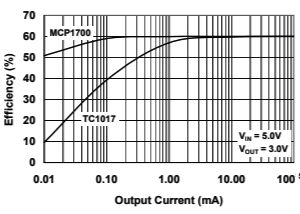
Cave Pearl data loggers divider6

Indicator LED

Since we removed the pin 13 LED from the pro-mini, we will now construct an external indicator. This is another place where soft silicone wires are preferred, but if you do not have them, peel away 20cm Red, Green, Blue and Black ribbon cable wires and solder them into place on a common cathode RGB LED, matching the wire colors to the correct pin. Then add stiff heat shrink around the connection points to protect the wire from flexing. Place the ends of the Red, Green and Blue wires into a 3-connector housing.  The R-G-B connector attaches to digital pins 4-5-6 on the Arduino.

Cut the black wire near its mid-point, and insert a 20K resistor to limit the current through the LED. I often replace the bottom half of the wire with a softer flexible length of wire with a MALE crimp connector at its end. The male ground pin connects to the ground pin beside the D2 connector.

LEDwires

The MAIN LOGGER PLATFORM is complete

Typical pro-mini loggers built with this design sleep at 0.25mA, before extra sensors are added. At that current draw, the logger should deliver at least eight months of operation on three brand new AA batteries with a 15min duty cycle; depending on sensor load.

Now you can run testing utilities to verify that everything is working. But before you jump into that it’s worth keeping in mind that the entire construction can easily be disassembled for debugging if you suspect a bad connection somewhere, and it is even possible to pop the modules off with a small screwdriver and replace them:

Test continuity on suspect wires with a DVM.  If you carefully lift the little tabs holding the crimps inside the black housings, individual wires can be extracted from the connectors and replaced.  If your crimps don’t feel like they are securely in place when they slide over the riser pins – then you should replace that connector.

SENSORS & HOUSING

platform partsYou can build a robust, inexpensive waterproof housing for your logger from a couple of 4″ plumbing end-caps. I use Loctite E30-CL to pot sensors on the exterior of the housing and you can see a complete walk through of the process in the  Sensors & Housing post from last year. Note that I did not use the 4-pin Deans connectors you see there on this newer build because they are fairly expensive, and a few people have been having a hard time getting their hands on them. If you shell out for crimping pliers, you can make as many custom connectors as you need for pennies each.  Dupont’s are not as robust, but I’ve had loggers running for years with them, so they are not a bad place to start. If the male pins don’t mate tightly, put a thin layer of solder on them to make them a bit thicker. Quality varies quite a bit, and Pololu sells good crimp pins.

TESTING THE LOGGER

1. Test the LED
Connect your indicator LED, to pins 4(R) – 5(B) – 6(G), and the ground line to one of your spare GND connections. Open Blink with the LED connected to the Arduino. Change the LED to Pin 4. Verify and upload. The red LED should start flashing. Repeat with pins 5 and 6 to test green & blue respectively. Note that with the common ground connection, you can not light up two colors of the LED at the same time.

Make polarized (non reversable) connectors by mixing Male & Female connectors

You can make non reversible sensor connectors by mixing male & female pins in the same housing. But never use male pins on wires that supply power to a sensor circuit, or the connector could short out if those pins come into contact with a conductive surface.
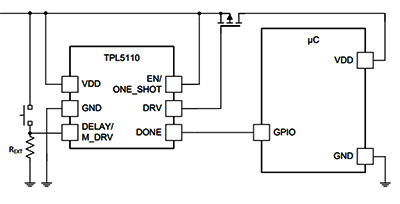
2. Test the I2C bus
Use an I2C scanner  to determine if your devices are responding on the I2C bus. With the scanner running, specify P to return to output only the addresses that have devices, and specify S to run a Single Scan. The 4k AT24C32 eeprom on the RTC board is at address 0x57 and the DS3231 will show up at address 0x68. The 32K eeprom should show up at 0x50 and other sensors will show up at different addresses. Note that the 4K AT24C32 is only rated for 100khz operation, but the DS3231 is rated for 400khz bus speeds.

3. Test the RTC
Use the settime & gettime scripts to set and check the time on the RTC. Generally, I set my windows computer to UTC before uploading setTime so that the logger is operating on UTC. This is not possible on a Macintosh, so you will have to check if London time is currently in sync with GMT/UTC, or find some other city that is. Alternatively you could avoid the problem by using the new serial setting script from Mr Alvin’s gitHub.

4. Test μSD Card communication
Insert the microSD in the adapter and test it with the CARDinfo utility at the Arduino  playground.  Remember to change the CSelect variable to 10 to get the CARDino to operate properly, as that is the pin we connected to the μSD card Cable Select line.

text

Loggers with the default pro-mini’s MIC5205 regulator usually delivers sleep current in the 0.21-0.26mA range depending on the SD card (Promini~0.07mA, SDcard: ~0.05-0.1mA, RTC~0.09mA) That should give you at least eight months of operation on 3xAA’s, and with minor modifications you can pull that down into the 0.15mA range to run almost two years.  (Or you could pass the one year mark by powering the logger with 4xAA cells in series. If you do this you will have to change the resistor ratio on the main battery voltage divider to keep it’s output below the 3.3v aref voltage on the analog input pins. For higher input voltages I  use a 3.3/10 Meg Ohm combination) Write the build date & your initial sleep current on the bottom of the logger platform – it’s a handy piece of diagnostic information to have later.

5. Test the EEprom(s)
A utility to test I2C eeproms was posted by bHogan at the Arduino playground forum, but that version is now quite old and does not compile in the current IDE without editing. I’ve posted an updated version on gitHub. Setting #define EEPROM_ADDR 0x57 will test the 4k eeprom on the RTC board, and if you install the extra 32k eeprom that shows up on the bus at 0x50. The serial window will return  A through T & 33 through 48 if the eeprom being tested is working OK.

6. Check Sleep Current
#include the LowPower.h library from RocketScream at the beginning of a blank sketch and the put the following line at the beginning of the main loop:


LowPower.powerDown(SLEEP_FOREVER, ADC_OFF, BOD_ON);

Then enable some internal pull-up resistors in to the setup section of your code:
(be sure to do this before you call sd.begin)

// Always pullup CS:
pinMode(chipSelect, OUTPUT); digitalWrite(chipSelect, HIGH); //pullup the CS pin to tell the SD card go to sleep
//and you may need to pullup MOSI/MISO lines:
//pinMode(MOSIpin, OUTPUT); digitalWrite(MOSIpin, HIGH); 
//pinMode(MISOpin, INPUT); digitalWrite(MISOpin, HIGH);   

Upload that sketch and your logger will be put to sleep as soon as the program runs.  Note: the CS line should have a pullup when using the standard SD libraries, and the MOSI/MISO lines may also need to be enabled to lower the sleep current with some SD cards. But SPI is a complex protocol, and you might have to turn off these pull-ups if you have other SPI sensors attached.

7. Build your datalogger code
A good place to start would be Tom Igoe’s analog pin reading example at Arduino.cc  ( be sure  const int chipSelect = 10; for the build described in this tutorial) and there is a nifty little function  for automatically creating log file names over on Adafruit’s site.  For something a little more advanced, I have prepared a basic data logger script that puts the data logger to sleep and wakes it up again based on timed alarms from the real time clock. These are all just starting points for you to add to as you learn more about programming an Arduino.

The first major thing to tackle to achieve a decent operating lifespan is buffering your sensor data to the 100 kHz 4k EEprom on the RTC board. Examples of the code I use for this eeprom buffering is embedded the I2C eeprom tester example I’ve placed on gitHub. You don’t want to wake up the card more than once per day, since that operation draws up to 100mA, for 200-400ms, which is more than any other run-time power use on the logger.  Older Sandisk cards (<1Gb) tend to have lower sleep currents around 70µA, but it’s not unusual to see newer large capacity cards drawing ~200µA or more during sleep.

You can extend that power saving strategy by adding a larger 32K AT24C256 EEprom to the logger platform. Because all I2C devices use the same bus wires, simply add the four EEprom connections to the bundles as you make them:

In addition to saving power by reducing the number of SD write events, the larger EEprom also extends the operating lifespan by allowing you to safely accelerate the I2C bus to 400khz, and this can reduce run-time duty cycle length significantly.   Because all I2C bus devices are connected in parallel, simply add the four EEprom jumpers to the appropriate wire bundles as you make them.  Alternatively, you could add a high resolution temperature sensor like the TMP102, or the MCP9808 to the logger in exactly the same way.

To fully optimize your code it is helpful monitor current during “logging events”, but this usually requires an oscilloscope.  In this post, I have outlined a method to use an UNO with the serial monitor built into the IDE to capture and display these brief events.

Addendum 2017-06-22

I wouldn’t bother for just one or two builds, but Dangerous prototypes just introduced a Dirty Cables service to order custom cables. Be interesting if I could build something like this logger interconnect wire with their tool. Might be a good way to throw a few kits up on Tindie…

Arduino Pro Mini Data Logger : Part 4 : Power Optimization (2015)

The first three tutorials in this series show how to build a promini based data logger that should sleep around 0.25mA, depending on the quiescent current of your sensors and your μSD card. That will usually get you to at least 6 months of operating life before a bank of three AA batteries in series falls below the 3.5v cutoff on your regulator, and most of our field units make to about 11 months on a good quality set of alkaline AA’s. With their flatter discharge curve, lithium AAs would probably have carried those logger past 12 months,  but if you really want the logger to pass one year of operation you need to do a few other things that might be a bit of a stretch for beginners.  So I am posting them here as “additional” things to tackle once you have built a few of the basic loggers and have them working Ok.  Use the cheap parts till you get the hang of soldering and working out how you want your cables & housing to go together physically.  I find that things usually go well the third time I make a new prototype.

A DIY data logger

Usually takes me about 20 minutes to assemble, or less with solderless headers. At any given time I probably have 6-8 of these breadboard loggers running on the bookshelf to test different hardware and code combinations. Be careful not to bump the SD card connections though, as its easy to kill the card with unexpected power interruptions.

Without question the most important thing you can do to extend the life of your data loggers is to build yourself a breadboard “testing platform”.  This lets you determine the sleep current for each component on it’s own, making it easy to spot fake SD cards, or bad sensor breakout boards. And even good SD cards wear out with time , or are  damaged by high temperatures. Checking that cards and boards go to into a low current modes properly (after the main mcu sleeps) is the best diagnostic I have found to determine if the components are Ok. Good SD cards sleep between 0.05-0.07 mA, and these tend to be older Sandisk 128mb cards. Typical cards pull between 0.07-0.09 mA while sleeping. Any more than than that and I simply do not use the card in my data loggers. The difference between a good sensor breakout board and a bad one can be even more extreme, and you should always look for breakout boards that have a native 3.3v input line to avoid regulator losses. I already mentioned pulling up three of the SPI lines, and the breadboard unit lets you easily test how other pin configurations affect the logger. Pin states are generally preserved during sleep, though any timer dependent functions (like PWM) will be shut down when the associated timer stops, unless you use ‘idle’ mode.  Always avoid floating I/O pins.

Retrofit an MCP1700 voltage regulator to an ebay clone

All you have to do to retrofit any 3.3v mini-style board with a more efficient MCP1700 is connect the external regulators output directly to the 3.3v pin, which is the main power rail behind the default voltage regulator. This by-passes the onboard Vreg the same way that your UART board does when you are tethered to USB. When I do this modification I completely remove the original regulator from the Arduino board so there is no leakage current slipping through it while the logger is sleeping.  Also be sure to move the high side of the resistor divider you have monitoring the battery voltage to the new regulators Vin line. Replacing the MIC5205 with a MCP170x will save you ~0.05 mA of sleep current, depending on your particular board. That doesn’t sound like much, but it all adds up over time, and you have 100 mA more current available to power your sensors.

When you test your components individually you notice that there can be significant differences from one pro-mini board to the next (especially with cheep eBay clones) and much of this comes down to the voltage regulator. Sparkfun Pro-mini’s use a Micrel  MIC5205 150mA LDO Regulator, and there are more efficient options out there. I have had success with boards that use MCP1700  & MCP1703 regulators (datasheet) like the Rocket Scream Mini Ultra or the Moteino. Each board has a unique pin-out, so you will have to figure out where to put the jumpers for each particular board.  You can also simply bypass the pro-mini’s on-board regulator and use an external voltage regulator (see the image posted at the bottom of that thread by fat16lib – don’t forget the 1 µF caps.  MCP1700s @ < $0.50 ea here ).

Sleeping your processor & components at every possible opportunity is vital. If there is a power wasting delay statement left in your code anywhere, there ought be a really good reason for it (like waiting for your ADC reading to stabilize, etc)

YL-90_AT24C32eeprom1

You can flick the SCL and SDA pullup off the board easily with the tip of a soldering iron.

The next life extending technique is to add a larger I2C eeprom so that you can buffer more data before you write to the SD card. The functions I use to do this buffering is included with the I2C eeprom tester example I posted to gitHub.   Eeprom power consumption limits to how far you can take this strategy, but switching from the 4K AT24C32 on that RTC breakout to a 32K AT24C256  provides a $1 way to extend your operating life by 5-10% depending on the amount of sensor data you are handling. The two eeproms are from the same Atmel family, and the wire.h I2C library limits you to 32 byte page writes, so all you have to do is change the bus address in your code and you are done! Same applies to the AT24C512 all the way up to the 2Mb AT24CM02 if you can find them. You can also lift & jumper the address pins (A0,A1) to enable up to four of these Atmel boards on the same bus. (and it would require some code tweaking, but you might also be able to swap some of the larger Microchip brand I2C eeproms into the cheap press fit DIP boards if you wanted bigger chips to play with. Or you could just roll your own breakout board  for a whopping 1024Kb with the 24LC1025 and the 24AA1025 ) The logical end game if you go down the eeprom road is to abandon simple ASCII and start working with struct’s in C.  Then you could store a years worth of data without any SD cards at all.

 .
Isopropyleeprom1. Remove the two pull-up resistors from the YL-90 breakout (if that’s the one you are using ) as the RTC board pull-ups are sufficient.  Straighten the riser pins and trim them to about 1/2 length.

2. Cut 2” lengths of Black, Red, Yellow, and White wire. Solder them to GND, VCC, SDA, and SCL respectively. Shrink wrap the solder joints.

3. Clean the board with alcohol and let it dry.  Apply conformal coating if desired and put a patch of double sided tape on the bottom.

jumpering the eeprom board

4. The next step is to adhere the eeprom to your logger platform via the tape, so that you can cut the jumpers to length. If you left some excess wire protruding from the board when you added the bus interconnect for the sensor cap, it’s pretty easy to patch the four eeprom wires right onto the cascade port.


Sleeping & buffering are the low-hanging fruit, and after that you get into trickier techniques to improve the power budget. For example that new eeprom also lets you push the bus speed above the 100kHz default if your other I2C devices can handle it. I am still testing prototypes at 400kHz, even though that violates the Tlow spec on 8mHz AVR processors, so I am cautious about recommending that to everyone until I see those units deliver a year of good data. But the results have been promising so far...

Cave Pearl data loggersAnother useful modification is powering the RTC from a digital pin. For some reason I have not been able to dig out of the data sheet, the DS3231 pulls almost 0.1 mA when it is powered by the Vcc pin. Fortunately, you can force the IC into a miserly 3μA timekeeping mode if you draw that Vcc pin down, and if the Battery-Backed Square-Wave Enable register bit is set the RTC will still generate alarms when running off of the backup battery. But the soldering for this is a bit tricky:

Cave Pearl data loggers1. After removing the power LED & charge circuit resistors from the RTC board, wedge a fine tweezer tip behind the power pin and apply an iron to the pad on the board. When the solder melts gently lever the pin away from the board.

2. Then tin the pin, and solder a jumper wire to the lifted power pin, being careful not to bridge any of the other connectors in the process. I usually secure the jumper wire to the board with a zip-tie so that no physical stress can be transferred to that tiny solder connection later.

Cave Pearl data loggersAt that point you can attach the jumper to a free digital pin on your Arduino, and use digital.write(pin#,HIGH/LOW) to power to the chip only when the logger is awake.  My pin-powered builds have eight months under their belt now, and by spring 2016 I will know if the CR2032’s can provide enough power to drive the RTC in timkeeping mode for a full year. (2016 note: they all made it!)  I am trying to track the coin cell status with another voltage divider on the breakout board, but since lithium cells keep their nominal voltage until they are completely dead unless you provide a load, that record might not give me any useful information. I will post updates on those experiments on my RTC page as they become available. (Note: Even with the default MIC5205 reg on the promini, pin-powering the RTC like this should get your logger down to ~0.17mA sleep current)

By testing components, changing regulators, buffering, and pin powering the RTC, I am now seeing power curves like this:

036_inCave_PR&RH_20150324-0806

This unit had a TMP102 temperature sensor,  an MS5803-02 pressure sensor, and an HTU21D RH sensor attached, and it still took four months to burn off the over-voltage on 3 AA Duracells. (with a 15 minute sample interval) The logger slept at 0.15 mA because all those sensors all have great low power sleep states.

Though I have reached my original one-year goal, I still keep an eye out for other ways to save power. Several people have explored using a MOSFET to de-power the SD cards but according to the fellow who actually wrote the SdFat library, there are some issues wrt multiple re-starts of the SD library . He also warns that you have to close all files and allow at least one second for the SD card to power down before pulling the plug, just in case you accidentally trigger some internal housekeeping event with the file close command.  The folks over at OSBSS claim they can switch the low side without problems and Nick Gammon seems to be having success with his THL logger switching the high side, though those two examples leave me wondering which way to go.  Some set all the SPI lines HIGH & INPUT before powering down to prevent parasitic leakage after the cut, though the guys at Solarduino imply only the slave select line is vulnerable to the problem, and suggest that line won’t leak if you switch the low side (?)

Another potential factor is low 3.3v I’m using to control the FET, discussed here at  CMicrotek’s Low-power Design Blog:

“When using a P-channel FET to drive a load, a GPIO may not drive the gate high enough to completely turn off the FET so you may be leaking power through the FET. This can often go un-noticed since the amount of power is too low to activate the load. A P-channel FET of similar rated voltage and current as an N-channel FET will typically have 50-100% higher Rds(on) than the N-channel FET. With Rds(on) specs on modern FETs in the double-digit milliohm range even doubling the Rds(on) produces a fairly low value. However, that is simply wasted power that can easily be eliminated if low-side switching is an option for your application.”

Reading that makes me lean towards low side switching; though the 2n7000s in my parts bin probably can’t be fully turned on with only 3.3v on the base?  (Note:  there are beefier N-channels out there  that will work with a 3.3v system if you are also de-powering high current sensors)  Luke_I has proposed using SPI.end() to kill all SPI communications once all files are synced and closed but most people simply set the SPI control register SPCR=0;   When you restore power  after low side switching you have to reset SCLocK(D13), MOSI(D11) & CS back to OUTPUT (MISO stays at input) and set the SCLock line LOW to disable that pullup.  Then you reinitialize the SDcard with sd.begin(chipSelect, SPI_FULL_SPEED);  and reopen your files.   Several sources have suggested that only SdFat allows this re-initialization , while SD.h does not.  

One possibly important thing to note is that the sandisk datasheets states (pg 11) 

“Power must be applied to the VDD pin before any I/O pin is set to logic HIGH. In
other words, CMD, CLK, and DAT0-3 must be at zero (0) volts when power is
applied to the VDD pin. “ 

But perhaps this only applies when accessing the cards in their native SDIO mode? But this does make me wonder if you are supposed to turn on the mcu’s internal SPI peripheral before, or after you restore power to the SD card (?)  I think that datasheet suggest you should be doing it after, but they are switching the high side in that example case.

You can extend that strategy and cut power to the entire logger. As I mentioned in the RTC post, the most elegant way to do this would be using the RTC alarm (outputs low) to control a P-channel Mosfet on the high side of the main battery supply.  When the INT/SQW alarm goes low, this turns the mosfet on and powers everything including the main mcu board which would then goes to work taking samples and storing data. Unfortunately some of my builds use interrupts from both the RTC and the sensors, and there is a good chance that with these frequent startup initializations the resulting delays could miss the phenomenon I was actually trying to capture; like tipping bucket or wind sensor reed switches.

Addendum 2016-02-06

Just thought I would post another shot of a retrofit with an MCP1700 voltage regulator:

Cave Pearl data loggers

Note: I used a 6 volt input MCP1700 here, but the MCP1703-3302E/TO accepts up to 16v

…with the addition of a 2 x 4.7 M‎Ω  voltage divider to put 1/2 of the RAW input voltage on A0. Note that the onboard vreg has been removed (normally you would see it just under the cap in front: you can see some of the empty pads still there) and the two led limit resistors have also been pulled. Other than the mcu there is not much left but the crystal & some caps, and I now think of the board itself as simply a convenient breakout for the 328p. This retrofit with an MCP1700 looses the shutdown enable functionality of the default MIC5205 (marked KBxx or LBxx), and the noise suppression features, but I am hoping the caps are enough to deal with that.  The 1700’s are more efficient at low power than the 5205’s which limp along at about 20% efficiency below at 0.1mA, and loggers typically spend 99.9% of their time sleeping.  The XC6203E332PR is another low-ish standby power option if you need output currents in the 400mA range.

On more recent builds I have started moving the voltage regulator & battery divider from the Arduino board to the battery connectors. Note the ceramic 105's on the MCP1700 as per the proper spec.

On late 2016 builds I started moving the  replacement voltage regulator & battery divider away from the Arduino to the battery connector. Given that this is now separated from the caps on the main board, I’m using ceramic 105’s on the MCP1700 as per the spec. Three wires run from this deadbug back to the pro-mini: 3.3v, GND, and 1/2 battery voltage from that 2x10M divider, which gets read on an analog pin.

Keep track of the capacitors if you change the voltage regulator, as the ones on the outgoing side are still connected after you remove the original reg. Sparkfun promini’s have a pair of black 10µF C106 smd caps on either side of the MIC5205 (& an extra 0.1uF on the output side). Several of the clones I checked match that layout, but others had a pair of 0range & brown tantalum 475C SMD capacitors (4.7µF). The MCP1700’s call for a fairly small 1µF on either side. Since my loggers are powered by a relatively large battery with little chance of brown out and no input noise, I have not been too worried about adding a big cap on the input side (often people add up to 100uF..?). I could probably get by with the output side caps already on the Arduino board, but I have been adding the ceramic 104’s (0.1µF) anyway, as I’ve seen a few forum posts suggesting that you get better noise suppression by using multiple capacitor chemistry-types with different ESR on outputs. And I am still careful to add 0.1µF ceramic bypass capacitor from +V to GND on every sensor IC.

If you combine a pin powered RTC, with the MCP1700 retrofit, and you have a good SD card, it’s not unusual to see the  logger platform sleeping below 0.1 mA, even for units built with cheap eBay clones. The pro-mini style board is only responsible for about a third  of that after the retrofit.

Addendum 2016-04-21

It would be a good idea to re-read Nick Gammons post on Power saving techniques for microprocessors, as much of what I’ve done to optimize these loggers is covered in more detail there.  For folks who want to take it farther, there’s good background info on low power design in Granssle’s article: Issues in Using Ultra-Low Power MCUs. And Hackaday’s post on TI processors shows how far the art in low power operation goes. 

Addendum 2016-06-04

Kevin Darrah has been posting some brilliant you-tube tutorials on lowering the power consumption of an Arduino. This includes a kill power circuit, which has been on my to-do list for quite some time now. Definitely worth a look. The rub of course is that you then have power-up latencies for everything.  That’s probably around 75-100 milliseconds for a typical Arduino, SD card initialization would probably be about the same (ie about 5 milliamp seconds) and a couple of sensor inits could easily double or triple that total.  So you could burn up to 25 milliamp seconds for the restart. Even with a sleeping SD card drawing power, a logger built with the optimizations discussed here usually sleeps at 0.14 mA or less. So a regular startup is probably equivalent to ~3 minutes of sleep time, and it would take several more minutes of sleep time power to match a really bad 1 second startup if you had some pokey sensors. So it all depends on how much time you need to get everything operational.  As best I can tell, I am still getting operating life that compares well to some of the power down approaches people are using.

Addendum 2016-10-17

Another tip for saving power is to always use high output LEDs, and to use the green as a status indicator color whenever possible. Why? If you look at the typical rating for a high output RGB you see Luminosity numbers like: 800R, 4000G & 900B mcd.  That means that you can use a limit resistor that’s three times larger on the green channel for about the same light output. I often get away with 30K on the ground line, and an extra 20-30K on the green line of a common cathode LED, and I’m still able to see the indicators with pulses in the 10-15 ms range.  With that much limiting resistance, the LEDs don’t impact the power budget at all. LEDs tend to stay lit for a relatively long time after they are turned off so switching the LED on/off with a 50/50 duty cycle at a rate faster than 1Khz will cut the power by half with an imperceptible reduction in brightness. While I would never leave an led on all the time for a datalogger application, if your application needs a power on indicator, consider a slow flash of the LED (for ½ second every 3 seconds)  instead of having it on constantly.

Addendum 2016-10-28

With my hardware reaching reasonable sleep currents, I guess its finally time for me to look at reducing the run time power use by turning off unnecessary peripherals with the power reduction register.  Heliosoph posted tests results from his capacitor powered project, with a reminder about grounding unused pins.  There are some 3.3v numbers over at avrProgrammers and Nick Gammon weighs in with some sage advice on his forum. Each peripheral doesn’t use much on it’s own, but together they total up to ~1mA that is just being wasted.  Here’s a few of the things I’m currently experimenting with:

  1. Disable the digital input buffers you aren’t using with DIDR0
  2. Never leave floating pins – always use a pullup or pulldown resistor.
  3. Disable unused module clocks using the PRR register
  4. Especially the ADC with ADCSRA &= ~_BV(ADEN);
  5. Shut off the analog comparator: ACSR |=_BV(ACD);

Here’s how those look in code:

#include <avr/power.h>
//defines for DIDR0 setting
#ifndef cbi
#define cbi(sfr, bit) (_SFR_BYTE(sfr) &= ~_BV(bit))
#endif
#ifndef sbi
#define sbi(sfr, bit) (_SFR_BYTE(sfr) |= _BV(bit))
#endif
// create variables to restore the SPI & ADC register values after shutdown
byte keep_ADCSRA;
byte keep_SPCR;
// then be sure to store the default register values during setup:
keep_ADCSRA = ADCSRA;   keep_SPCR=SPCR; 

//  1) where the ADC pins are being used, disable the digital input buffers 
//  from http://www.instructables.com/id/Girino-Fast-Arduino-Oscilloscope/step10/Setting-up-the-ADC/
sbi(DIDR0,ADC0D);  
sbi(DIDR0,ADC1D);  
sbi(DIDR0,ADC2D);  
//sbi(DIDR0,ADC3D);  //A3 not used as analog in
//sbi(DIDR0,ADC4D);  //A4= I2C data
//sbi(DIDR0,ADC5D);  //A5= I2C scl
//not needed for A6&A7 because they have no digital capability
//2) set unused analog pins to digital input & pullup to prevent floating
pinMode(A3, INPUT); digitalWrite(A3, HIGH);
//3) And pull up any unused digital pins:
pinMode(pin#, INPUT_PULLUP);

// Disable internal peripherals that you are not using:
// Note to self: Don’t mess with timer 0!
 power_timer1_disable();              // (0.12mA) controls PWM 9 & 10 , Servo library
 power_timer2_disable();             // (0.12mA) controls PWM 3 & 11
  power_adc_disable();                  // disable the clock to the ADC module 
  ADCSRA = 0;                                 // disable ADC by setting ADCSRA reg. to 0  (0.23mA)
  ACSR = B10000000;                  // disable comparator by setting ACD bit7 of ACSR reg. to one.
  power_spi_disable();                   // disable the clock to the SPI module
  SPCR = 0;                                        //disable SPI by setting SPCR register to 0 (0.15mA)
   #ifndef ECHO_TO_SERIAL
   power_usart0_disable();   //(0.08mA) but only if your are not sending any output to the serial monitor!
  #endif
// power_twi_disable();    // (0.18mA) I don’t usually turn off I2C because I use the bus frequently

// Shutting down ADC & SPI requires you to wake them up again if you need them:
// Before any SD card data saving:
power_spi_enable(); SPCR=keep_SPCR;  delay(1);
// Before ADC reading:
power_adc_enable(); ADCSRA = keep_ADCSRA;  // & throw away the first reading or two…

Still to explore:   Lower the CPU clock & then using a lower voltage power source.

Slowing down the processor doesn’t help much if you are trying to minimize processor up time,  but if you get into a situation where you are forced to keep the Arduino awake,  you could try to reduce the power consumption by slowing the main system clock.  I’m not brave enough yet to make new board definitionsmess with the CLKPR system prescaler, since I have so many sensor communication events.  Delay and millis I can deal with, but Timer0 PWM, ADC and probably a few other things have to be set in conjunction with CLKPR to keep them running at the right speed.  Slower clocks let you reduce the whole system voltage, but I still need to 3.3v because of the sensors & SD card.   Fuse setting still seems like the dark arts to me, and I’m not sure shutting down the BOD is a great idea for data loggers…

Addendum 2016-12-05

After you apply the optimizations described above the sleeping µSD card becomes the biggest power drain left in the system.  So I should probably add a reminder here that there is a huge difference between SD cards that sleep well, and those that don’t.  Sandisk cards smaller than 1Gb tend to have lower idling/sleeping current modes ~70µA, but it’s not unusual to see new large capacity cards drawing  200µA(I’ve seen spec sheets floating around the web for special  TwinMOS mircoSD cards, listing incredibly low sleep & write currents, but I have never managed to find any for sale.)   Cards between 64-256mb usually give me the lowest sleep currents, but because those older cards have to be purchased from eBay, there is also a significant difference in their speed when I test them with H2testw, with some being slower than 2.0MBytes/s, and others saving at 5MBytes/s or better. I presume that is because used cards get slower due to the onboard wear leveling circuitry working to avoid the accumulated bad spots, and the SD latency spec is worse than all of those, allowing a card to take as long as 250ms per write event. The default SD library in Arduino usually writes data at about 4500-5000 bytes per second, and even if SdFat performs significantly better even the slowest SD cards are much faster than the Arduino.  And my gut feeling is that the relatively slow I2C bus coms to the EEprom I’m currently using are sand-bagging the system so much that whole question of SD speed is moot until I start using SPI EEproms, or faster Fram

The point is, always try several different cards with your logger, so you can reject ones that do not sleep well.  With a good card you can get an optimized build below 0.1 mA between readings, but a bad sleeper will easily bump the logger back up into the 0.2 mA range, cutting your operating life in half.  It’s also worth remembering that there is a world of difference between how often you see problems with consumer grade vs industrial grade SD cards.

With regards to runtime current:  always format SD cards using SD Formatter, as OS level formatting utilities may adversely affect performance with the SdFat library. According to William Greiman (author of the SdFat library) “Performance of microSD cards is not easy to predict on Arduino.  Arduino uses SPI to access the cards and the SD library has a single 512 byte cache. Modern SD cards are designed to be used on the high speed 4-bit SDIO bus with very large (16 KB or larger) multi-block writes and reads so they must emulate the single block access that Arduino libraries use.  This can mean much internal data movement, erasing of flash, and rewriting of data.”  Once again, older, smaller SDcards suffer less from this problem than larger size cards, and it’s probably a good idea to try to match your data saves to that 512 byte block size.

Addendum 2017-01-20

One extension of getting your loggers down to a low sleeping current is that it becomes possible to power your data logger with solar cells, especially with 500F super caps  available for $3 each on eBay (& capacitor balancing boards at $1.50). A commonly seen conversion is 1Farad = 0.277mAh /V, so you can think of that 500F cap roughly equivalent to a 138mAh battery – somewhat similar to the capacity of a CR2032 coin cell.  Ignoring the pulse discharges for sampling, I’m seeing sleep currents in the 0.1-0.2mA range, implying more than a week of operation with that kind of power.   David Pilling has done some interesting experiments using cheap garden solar cells with super caps.   So has Nick Gammon, and the guys over at Solarduino.net and heliosoph.mit. 

The real question is how to get the logger to recover gracefully from a brown-out event if the sun goes away for an extended period of time, and then comes back and is able to charge the caps up again…

Addendum 2017-05-21

Well, I finally took the plunge and started cutting power to the SD cards: Switching off SD cards for Low Power Data Logging.   I left that step for last because as I was being cautious about anything that might put my precious data at risk, but so far (and I am still testing the heck out of it) is seems to be working well.

Addendum 2017-12-22:

It can take a reasonable amount of soldering & code Kung-fu to implement the power optimization methods described above, and if you haven’t quite reached that level the Adafruit TPL5110 Low Power Timer provides a alternative approach to power management for only $5.  Cfastie has been putting this board through it’s paces over at PublicLab.org.

Arduino Pro Mini Data Logger : Part 3: Sensors & Housing (2015)

Build Instructions – Part 3:  Sensors & Housing

Note: This is the third tutorial in a series providing detailed build instructions for a DIY data logger based on a Pro Mini style Arduino board.  Part 1 of this series covered preparation of the 3 core components for assembly, and Part 2 described connection of those components into a functioning logger. If you are landing on this page for the first time, it might be a good idea to start at the beginning of the series.

Status indicator: common cathode RGB LED

1. Test the common cathode LED with a 3v CR2032 coin cell battery by connecting the GND (usually the longest wire) to the negative side of the battery and each other wire to the positive side of the cell in turn. Note which lead is for red, green, and blue.  Usually the red lead is the one closest to the FLAT side of the led, and the ground pin is the longest lead but there is variation between manufacturers, etc.

LED12. Trim and add a 30 K ohm limit resistor to the GND line. On some RGB LEDs, green is 2-3 times brighter than the other colors, so you can add a second 20-30K ohm resistor to the Green LED line if you power budget is tight, although this will make the green indicator hard to see in full sunlight.


LED23. Cut 4” lengths of Red, Green, Blue, and Black wire. Solder them to the respective LED connections and use shrink wrap to protect the joins. Carefully bend the leads to a 90 degree angle to facilitate mounting in the housing cap later.


LED34. Trim the LED wires to the same length, then strip, twist and tin the ends.  The LED wires will be connected to the male side of a black WSD1241 Micro 4B plug connector, maintaining the same R, G, B, & GND pattern used on the corresponding logger side connector.  Make sure that the other side of the connector is attached while you are soldering so that the plastic doesn’t melt out of shape.


LED complete

You can connect and test your completed LED with your logger platform running the Blink sketch, by replacing the default pin number 13 in the code with 4, 5 & 6 respectively.


I2C Sensor Breakout Boards

Many sensors are available on I2C breakout boards. This guide shows pictures of several including an Adafruit MCP9808 temperature sensor and a MS5803-05 pressure sensor, but the four standard bus connections (VCC, GND, SCL & SDA) would be the same for any I2C sensor and they all get connected in parallel. The DS3231 RTC breakout board in this build puts 4.7k pull-ups on the SCL & SDA lines that we tap at the cascade port. So if you are using multiple sensors you may need to remove the pull-up resistors from some of your sensor boards because those resistors also end up in parallel, and this can place too much pull on those bus lines for the sensors to overcome. If you are only adding one sensor to your logger,  you can usually get away without bothering to remove them.

jumperedI2Cboards1. Cut 3-4” lengths of Red, Black, Yellow, and White wires. Strip, twist and solder those wires to red=VCC, black=GND, yellow=SCL, and white=SDA holes respectively. I find that this is much easier to do with the board in a rubber footed panavise, and the wires supported by ‘helping hands’. Where space is limited, I sometimes mark the wires with a sharpie so I can keep track of which leads go to which sensor from the underside of the pvc cap.

2. Trim and clean the soldered side of the board with isopropyl alcohol to remove flux residue. Trim the free ends of the wires to the same length, and strip & tin the ends. We will be adding a 4 pin deans connector later, but for now leave the ends of you sensor wires free. The sensors will be tested once the wires are inserted through the housing cap, and after the sensors pass the testing stage the connector will be attached to the leads


Mounting sensors on the housing

This part of the build should be done in a well ventilated area (ie: outside or in fume hood if you have one) as pvc solvent fumes are toxic. Make sure your sensor boards have been completely cleaned of any flux residue with q-tips and 90% isopropyl alcohol before potting them!

SensorCap11. Once lead wires are attached to your sensors, select 1cm tall pvc rings of sufficient diameter (1” dia. & 2x ¾” dia. shown here) to contain your sensors and arrange them on top of a 4” PVC drain cap. Often it is handy to leave room for and extra sensor well, as you may decide to add another sensor to the cap later.


2. Roughen the surface of the cap and the inside of the PVC rings with sandpaper to provide some tooth for the epoxy that will be used to pot the sensors later.  Sand the lower edges of the pvc rings so that they  are level and form a tight fit with the top surface of the 4” end cap.

Solvent13. Clean both surfaces, and give the two surfaces that will be brought together a light coating with clear pvc primer, then put a thin bead of pvc cement on the lower surface of the pvc ring and bring it into contact with the previously primed area on the large end cap. It is important that you use ‘just enough” of the primer and pvc cement to bond the rings. If you apply more than a thin bead, the solvent will fail to bond.

Cave Pearl data loggersVery quickly after applying the pvc solvent cement to the ring, put it into place on the surface of the end-cap. You will need to apply firm pressure to each ring with your fingers for about 2-4 minutes until the ring is bonded to the cap surface. PVC cement usually cures to reasonable strength in about 30 minutes, but I like to leave my solvent welds to set over night because residual PVC solvent can interfere with the curing of the potting epoxy and/or turn it an ugly yellow color.

Cave Pearl data loggers4. Once all of your sensor well rings are in place you will need to drill holes for the wires to pass through the cap for the indicator LED and sensor wires.  A 7/32” bit produces a hole slightly larger than a typical LED, allowing you to insert the led from the inside of the housing.

This size hole is also a reasonable size to accommodate the wires from you sensor breakout boards.


LeadWires1PVC is generally a very easy material to drill, but beware that the cap can be wrenched out of your hand violently if the bit bites into the cap the wrong way. Also be sure to wear eye protection whenever you operate a mechanized shop tool. Drill bits often break while you are using them, and then the little bits of metal go flying in all directions. If you have never operated a drill press before, seek guidance from someone with experience.

I2C test leads5. With the LED leads inserted through the cap, neatly strip, twist & solder together the four corresponding I2C bus wires at their ends. To these exposed wires attach the ends of an alligator lead adapter cable (photo below) that has your standard I2C bus connector on one end. It’s a good idea to make some of these cables for all of the connector styles you are using on your project so you can connect raw sensor wires to your logger platforms for testing.

testing16. With the logger connected to your computer via a USB-UART adapter, run a generic I2C bus scanning utility like the excellent multi-speed scanner by Rob Tillaart to see if the devices are reporting an address on the bus. Then run test utilities appropriate to your individual sensor to confirm that your sensor boards are operating normally and delivering data.  The software you use will depend on which sensors you are testing. Libraries are often provided by better sensor vendors like Adafruit & Sparkfun, and the Arduino.cc forums are a good place to look for useful test utilities that others have shared.

It is essential that testing be done at this stage BEFORE you permanently pot the sensors into place with epoxy!

testing27. Once the sensors are confirmed working, you can solder them more permanently to the male side of your connectors. I usually use the red Deans Micro-plug connectors for the I2C bus lines from the cascade port on the RTC so that I don’t mix them up with the black connectors I use on the LED lines. Be sure to follow the same connection pattern that you used previously. I like the Deans because they are keyed:  I always put the GND and Vcc lines in the same position with these connectors, so that even if I make an error when connecting the sensor cap – no part ever gets exposed to a polarity reversal.

putty compressed8. The next step is to mount the sensors more permanently on the sensor cap. I do this by potting the sensor breakout board into place with Loctite E-30CL epoxy. (which remains liquid for at least 2 hours) so we first need to seal the wire pass-through holes in the housing.

Cut and knead a pea-sized bead of plumbers epoxy putty until it is well mixed (it will become slightly warm to the touch at that point) and wrap it around the wires underneath each sensor board so that it completely surrounds the wires. Then press the board and the putty wrapped wires into the hole in the housing until it forms a complete seal.  It is important that the sensor breakout board be relatively level, parallel to the top surface of the pvc end cap, so that the epoxy that will be applied later does not accidentally cover the parts of the sensor that need to be exposed to the air. The putty usually takes about 5 minutes to set.  Repeat this procedure for your other sensor boards and let your top surface putty harden (~15min) before proceeding to put putty in the inside of the housings.

LEDputty9. Cut and knead another larger bead of putting and wrap it around the indicator LED as shown. Before the putty hardens press the led through the appropriate hole from the inside of the housing so that the putty forms a complete seal against the roof of the housing. Smooth the putty until the LED wires are pressed closely up against the roof of the housing and let it set (5min).

Cave Pearl data loggers10. Cut and knead more beads of putty and press these up against the other sensor wires passing through the housing. The goal is to have the wires laid out flat and smooth, rather than emerging perpendicular to the top of the sensor cap where they would interfere with the logger platform.

Let the plumbers putty cure for 15 minutes before proceeding. It’s worth noting that it is possible to remove this stuff later on if you have a sensor failure, but the results are usually a bit ugly.

Cave Pearl data loggers11. At this point you have the LED and sensors mounted to the top of the top of the cap, but they need to be potted to become moisture resistant. With an applicator gun and mixer nozzles that allow flow control down to the single drop level, fill the PVC sensor well rings from the bottom with epoxy until the circuitry of the breakout board is covered. I usually use Hysol E-30CL but any epoxy or urethane with very low moisture permeability should work. I even have loggers sealed with JB weld, that survived six month exposures to salt water, but a clear compound lets you inspect the units better as they age.  Let any potting compound completely cure before exposing your loggers to the environment. I usually wait a week or more (while running power consumption tests) before deploying a new unit.

RH sensorMany sensors such as temperature, magnetometers, and MEMs accelerometers can be completely encased in the potting epoxy and function well. However some sensors, such as those for PRESSURE and RELATIVE HUMIDITY require that certain surfaces remain exposed to the air for them to function properly.

RH with dust capYou must be careful not to spill any epoxy onto those sensor areas or they will be ruined!  Fill the sensor wells with epoxy VERY slowly from the bottom and stop when the epoxy just covers the top edge of the sensor breakout board. Sometimes it is helpful to use a thin wire to paint the epoxy over the soldered breakout board traces while avoiding the sensor itself. The image above is from a HTU21 RH sensor and gives some impression of how tricky this can be to do well.  That sensor is approximately 3 mm per side. If any epoxy had entered the small exposed hole at the center of the chip the RH sensor would have been destroyed. (yes, I have lost a few…) Some sensors also require a covering cap, and it is generally easier to use plumbers putty to affix these protective fabric caps into place after the epoxy has cured, rather than trying to do sub-millimeter adjustments with liquid epoxy.

MasonsSensorPottingThe indicator LED is easier to deal with as it is already sealed inside a clear plastic housing, so it only needs enough epoxy to seal the housing pass through. For sensors on cables, I usually fill the wells to the very top to provide some protection against flexing. You may need to clamp those wires in place so they remain at 90 degrees to the housing while the epoxy cures.  In the first hour or so after pouring the epoxy it’s a good idea to check it periodically and break any large bubbles that rise to the surface with a pin. Slower epoxies often let most of the bubbles escape on their own.

Slower curing epoxies are generally more moisture resistant, but they can take up to 24 hours to harden.  It is worth noting that some epoxies contract while hardening, and I have noticed that this sometimes produces a permanent offset in my pressure sensors.

platform parts12. After the epoxy has cured, you complete the logger assembly with a Fernco PQC-104 4″ Qwik Cap rubber boot which will hold the logger platform in place inside the PVC drain cap.


This unit detects drips down to 12cm drip fall

The round bottom of this housing is pretty stable when resting on a flat surface, but you can mount the logger more securely by threading a few zip-tie loops around the metal pipe clamp before you tighten it to seal the housing.  Then you can use those loops as tie down points. A 10 gram silica gel desiccant pack tucks nicely under the knockout platform. Get the ones with indicator beads so you know when they have expired.


Post assembly testing:

1. Test the LED
Open Blink again with the LED connected to the Arduino (Remember to set board and com port). Change the LED to Pin 4. Verify and upload. The red led should start flashing.
Repeat with pins 5 and 6 to test green and blue respectively.

2. Test the I2C bus
I usually use Rob Tillaart’s multi-speed scanner to determine if the devices are responding on the I2C bus:  https://github.com/RobTillaart/Arduino/tree/master/sketches/MultiSpeedI2CScanner
With the scanner running, specify P to return to output only the addresses that have devices, and specify S to run a Single Scan. The RTC breakout board has an AT24C32 eeprom at address 57 and the DS3231 RTC will show up at address 68. Your other devices should report other bus addresses as per their data sheets.

Note:  the AT24C32 is only rated for 100khz operation, but the DS3231 is rated for faster bus speeds up to 400khz. Also note that the I2c address of the DS3231 can be changed by joining solder pads on the breakout board if you have an address conflict with your sensor.

3. Test the DS3231 RTC
I use the library from https://github.com/MrAlvin/RTClib because it allows me to use sub minute alarms during debugging, but there are many good DS3231 libraries out there to use. The setTime & getTime code examples that came with older versions of MrAlvins lib provide a good way to test your RTC functionality.

  • Open & upload setTime File/Examples/RTClib/settime (from the link provided above) to set the RTC to your computers current time. Generally I set my computer to UTC before uploading this program so that the logger runs on UTC. The arduino restarts every time the serial window is opened so do not launch the serial monitor when settime is running or you will create a delay offset in your clock time.
  • Open & upload getTime File/Examples/RTClib/gettime  (from the link provided above) to check that the RTC has been set. Expect about a 10-15 second offset between your computers time and that read back from the RTC, as a result of the time needed between compiling the code and executing it on the Arduino.

Note: After the time is set you can try to make a sketch that reads the temperature register from the DS3231 with the example provided by Coding Badly at: http://forum.arduino.cc/index.php?topic=22301.0   While the resolution of the DS3231 is a modest ±0.25C, I have been quite impressed with its overall accuracy when compared to other much more capable temperature sensors.

4. Test μSD card communication
Insert a microSD card into the carrier and test it with the CARDinfo utility at: https://www.arduino.cc/en/Tutorial/CardInfo  You will need to change the CSelect variable to pin 10, and I usually have to add #include SPI.h to get CARDinfo to compile properly. After uploading the sketch to the Arduino, information about card size, files, etc. are reported to the serial monitor reported if the card is connected.

Note: While CARDinfo is a very useful testing utility, it depends on the SD.h library that I almost never use any more. I much prefer Greiman’s SdFat.lib for loggers that are deployed as it uses less memory.

5. Test the Eeprom on the RTC breakout board
There is a utility to test AT style I2C eeproms posted by bHogan at http://forum.arduino.cc/index.php/topic,18501.0.html  Set the EEPROM address to 57 and the serial window will return written A through T and 33 through 48 if the eeprom is working.

Note: Because of latency delays, wear leveling, and other factors the SD card often uses a significant amount of the power budget for a data logger. Buffering your data to the eeprom is a good approach to improving your operating lifespan.  If you use page-writes, rather than saving data to individual locations in the eeprom you can store 28 characters of data with the same time delay as saving a single byte (a page is actually 32 bytes, but some gets used in coms overhead & for carriage return characters, etc.). So I think about that 4K eeprom in terms of “pages”, where my first 16 characters of the first page is always the time stamp: “YYYY/MM/DD,00:00”. That means if your actual sensor data only needs 10 characters of space you could store a reading in one “page” of the eeprom which would let you store 128 readings/pages in the 4K eeprom on the RTC board before you had to flush the data out to the SD card. If you have a fairly typical 15 min sample cycle (96 readings per day) you would be “waking up” the SD card less than once per day to write data, as opposed to 96 times per day. This kind of 100 to 1 reduction in SD card write events results in a substantial improvement in the performance of your data logger. I2C eeprom write cycles use about 3mA for 5-6 ms,  and this often keeps your arduino processor awake an drawing power as well (usually @ 4-5 mA). My tests to date with much larger 32K eeproms buffering five days worth of data have only lead to a 10-15% overall improvement in the power budget when compared to one day buffering.  So you do eventually reach a point of diminishing returns with the eeprom buffering strategy, but definitely take advantage of the eeprom on that RTC board if you can.

6. Test your other sensors
This will depend on which sensors you are using, and which libraries you have to work with.

Testing sleep current

7. The final and perhaps most important test is to check how much current the logger draws while it is in sleep mode. The LowPower.lib from Rocketscream is a good way to do put your Arduino into deep sleep modes. If you want to see that library in action, I posted a bare bones logger script for the UNO based logger tutorial on the project’s Github which will run fine on this build, and that is the most minimal example you are likely to find of logger that sleeps, wakes on alarm, takes a reading, and then goes back to sleep.  A typical logger built with Pro Mini form factor boards will draw between 0.20 to 0.25 mA depending on the attached sensors and how much sleep current your SD card draws.

A logger that sleeps just below a quarter of a milliamp usually runs for about eight months on a set of 3x AA batteries before falling below the 3.4v minimum for the voltage regulator.  If your sleep current is higher than that you should look at whether you have a bad SD card, or if you have a sensor breakout board has a voltage regulator wasting large amounts of power. Since you already have the pro-mini style board delivering regulated 3.3v, try to buy sensors that accept 3.3v directly on their pins so that you don’t waste power with other support circuitry.  Also try buy sensors that can be put into low current sleep modes easily. The really good sensor IC’s sleep automatically if there is no I2C bus traffic so you don’t even have to do anything for them. If you are using analog sensors, try to de-power any voltage dividers during sleep with a transistor or a logic level mosfet.

Also keep in mind that each AA cell in bank of three series cells can only go down to 1.15v before you reach the 3.4v minimum input for your regulator. If you look at alkaline battery discharge curves that implies that you are only going to have access to about 75% of the battery capacity. With 2000 mAh being fairly typical for a AA, that means you should conservatively estimate that your power supply will only deliver about 2000*.75= 1500 mAh. I usually get more than that from fresh batteries, and lithiums give you a slight boost because of their flatter discharge curves, but they also tank very quickly at the end of their lifespan, so be sure you check them before doing any SD writing.  If the power fails in the middle of a data writing event – you loose all the data on the card. 

Bumping these loggers up to 4x AA batteries in series should get you past a year even if your logger is on the high side at 0.25mA sleep current.

8. Program and run your logger

If you have made it through all the tests, then the next step is to run your logger with a basic bare-bones script and then when you are ready, you can dig into the other more complicated code builds from the project.  I’m not going to hold everyone’s hand through all that, however I will add that the content of these tutorial pages by Nick Gammon were immensely useful when I was starting out, and I still refer to them frequently:

    1. http://gammon.com.au/interrupts –  on AVR microcontroller interrupts
    2. http://www.gammon.com.au/forum/?id=11504 – on AVR timers and counters
    3. http://www.gammon.com.au/forum/?id=11497 – on Power saving techniques

Once you have digested that information, a good learning exercise would be to start with the bare bones script, and see if you could copy & paste only the parts that you need for your sensor out of the more complicated code examples. Keep doing that, one piece at a time, and eventually you will understand the entire thing. And there are plenty of other great datalogger examples out there if you Google around and many of them were created by people who actually know what they are doing, most especially the moderators at the Arduino.cc forums

With all that in mind, Part 4 of this series covers techniques for optimizing power consumption, but there is some more complicated coding, and trickier soldering, so its probably a good idea to build a couple of the basic loggers and get them running properly, before trying all the things in the final tutorial.

Arduino Pro Mini Data Logger : Part 2 : Logger Platform Assembly (2015)

Build Instructions Part 2:  Connecting core components on a logger platform

Note: In Part 1 of this assembly guide we covered the preparation of the three main components being assembled here. If you have not seen that page yet you should probably start there.

Batteries11. On a 4” PVC knockout cap, arrange your battery holders as close to the edge as possible to maximize room for other parts, without letting them hang off the edge. Mount them in place with double sided tape.


2. Join the black and red wires so that the three AA batteries are connected in series. Fold the solder join and the remaining red wire into the gap between the battery holders. Mark and drill 1/8” pair of holes to tied down the wires from the battery pack. Secure the wires to the cap with a zip tie through the holes.
Batteries2       Batteries3

standoffs13. Place the RTC alongside the batteries with one corner near, BUT NOT EXTENDING OVER the edge of the cap. Mark two places for the M2 nylon standoffs and drill 2mm holes through the knockout cap. Thread the standoffs through the holes and attach them to the platform with a plastic nut on the underside of the cap.


standoffs2

4. Place the RTC board on the standoffs and fasten it into place with the battery side down. Then carefully drill two 1/8” or larger holes near the cascade port of the RTC board and fasten the I2C bus connector cable to the platform. Leave some play in the wires to that they are not under tension when the zip tie is tightened

5. With the RTC mounted on the nylon risers, add a thin layer of solder to each of the connector pins on the end of the RTC board.

platform16. The next step is to use  double sided tape to adhere both the Arduino, and the SD card adapter to the platform. The SD card must not hang off the end of the platform (so it’s a good idea to do this step with the card inside the holder to see the spacing) and the Arduino must not extend off of the platform. Do not push directly on the metal part of the SD card holder or you could damage it.
platform2

7. Once the components are in place it is time to start soldering the SPI bus wires to the bent riser pins on the Arduino.  The trick is to hold the wire in place with tweezers, and trim each wire to length while still leaving a bit of play in the wires. Don’t cut them too short or you will not be able to solder the ends in place on the Arduino.

platform3With the colors we used on the SD card adapter earlier:

  • Grey wire is the spi CSelect line connect this to pin D10
  • Green wire is the spi MOSI line connect this to pin D11
  • Orange is the spi MISO line connect this to pin D12
  • White wire is the spi SCLock line connect this to pin D13

If you used different colors on the SD adapter board you will have to figure out which of your colors correspond to each SPI line and connect accordingly. (check the wiring diagram)  These can be left without heat shrink as they are tucked under other wires when the platform is completed, so an accidental touchdown is unlikely. Clean the joins with a Q-tip after soldering if there is a great deal of flux residue.

Cave Pearl data loggers8. Now pinch one of the GND wires from the Arduino and the ground wire from SD Card adapter together and hold them in place over the ground line for the RTC breakout. Cut them both to length, strip the ends and twist & solder both of the two ground wires together.


CutPowerlines29. Do the same with the red VCC wires so that the 3.3v regulated power line from the Arduino joins the VCC line and the power wire from the SD card adapter.

Using a pair of pliers to hold the wires in place so you don’t burn your fingers, solder the combined VCC and GND wires to the matching connector pins on the RTC


RTC connections10. Now bring the (white) A4 wire from the Arduino to the pin SDA pin on the RTC board. Trim this wire to length, strip, twist and tin the end of the wire. Then solder this wire to the SDA pin.
Repeat this process for the (yellow) SCL wire from A5, and connect the (blue) interrupt pin 2 wire to the RTC pin labeled SQW.


securedWires11. After drilling a couple of holes in the platform, secure the three Red Green and Blue wires from pins 4, 5, & 6 together with the second black ground line from the Arduino. Also secure the battery power leads from side of the Arduino board with drilled holes and cable ties.


LED connector12. Trim the LED wires to the same length. Strip and Tin the ends, then solder those the ends to the female side of a black WSD1241 Micro 4B plug in the order R,G,B-GND (with ground on the dimpled side of the connector).

As with the I2C connector pre load the pins on the connector with solder & thread the heat shrink over the wires first. Be sure you are using the female connectors on the Arduino side of these interconnects because they are the ones delivering power.

Trimpower313. The final step on the main platform is adding connectors to the battery holders and the Arduino input leads. Start by trimming the battery leads to a position about ½ way across the battery holders. These wires are can be fairly thin so reinforce their insulation with a few layers of heat shrink before trying to solder them to the pre-tinned battery connector posts. Before soldering these beefy connectors make sure the male side has been inserted so that the nylon does not soften and let the metal contacts inside shift around when you are applying heat. They really get hot during this process!

PWRcon1

14. Trimpower4Now measure the wires from the Arduino against the connector that is already in place on the battery holder side.  Use the same procedure of reinforcing the wires with 1/16” poly shrink wrap before connecting to the main power tabs and adding a final layer of 1/8” 3:1 heat shrink tubing over the connections.  The Arduino should be on the male side of the main power connector.

Test battery holderBefore trying to run your data logger from that battery module, it’s a good idea to test the battery holder connections with some AA batteries. If your 3x AA battery module is above the promini voltage regulator 3.5v minimum, you can connect the logger to see if it is still running the blink sketch. (provided you did not remove the p13 led)

At this stage the main logging platform is ready although the RTC clock has not been set yet.

Note: In Part 1 of this assembly guide we covered the preparation of the three main components that were used here. This post covered connecting the core components of the main logger platform, and in Part 3 we will cover mounting sensors onto the housing assembly to finish the data logger build. Part 4 covers techniques for optimizing your loggers power consumption, but some of them are more advanced so its probably a good idea to build a couple of the basic three component loggers before tackling everything there.